When something looks wrong in inventory or on an order, the first question is usually the same:
How did we get here?
A quantity changed. A SKU no longer matches a listing. An order moved to picked. A marketplace push did not happen when expected.
The useful record is not just what the system says now. It is what changed, who or what changed it, and what happened around it.
That is what Ordovee’s inventory audit trail is built to preserve.
”You shipped 1. I ordered 2.”
A customer emails the shop after opening their package.
They ordered two parts and say only one arrived.
The shipment left days ago. You cannot go back and watch the picker work again, so now you have to reconstruct what happened.
Who picked the order?
What quantity did they confirm?
What inventory movement was recorded?
What did the bin hold afterward?
Did the marketplace and automation steps complete normally?
No single one of those records proves what physically went into the box.
Together, they give you a much clearer picture of what was recorded, where the evidence agrees, and what needs to be checked next.
That reconstruction is the job of the audit trail.
Three records answer three different questions
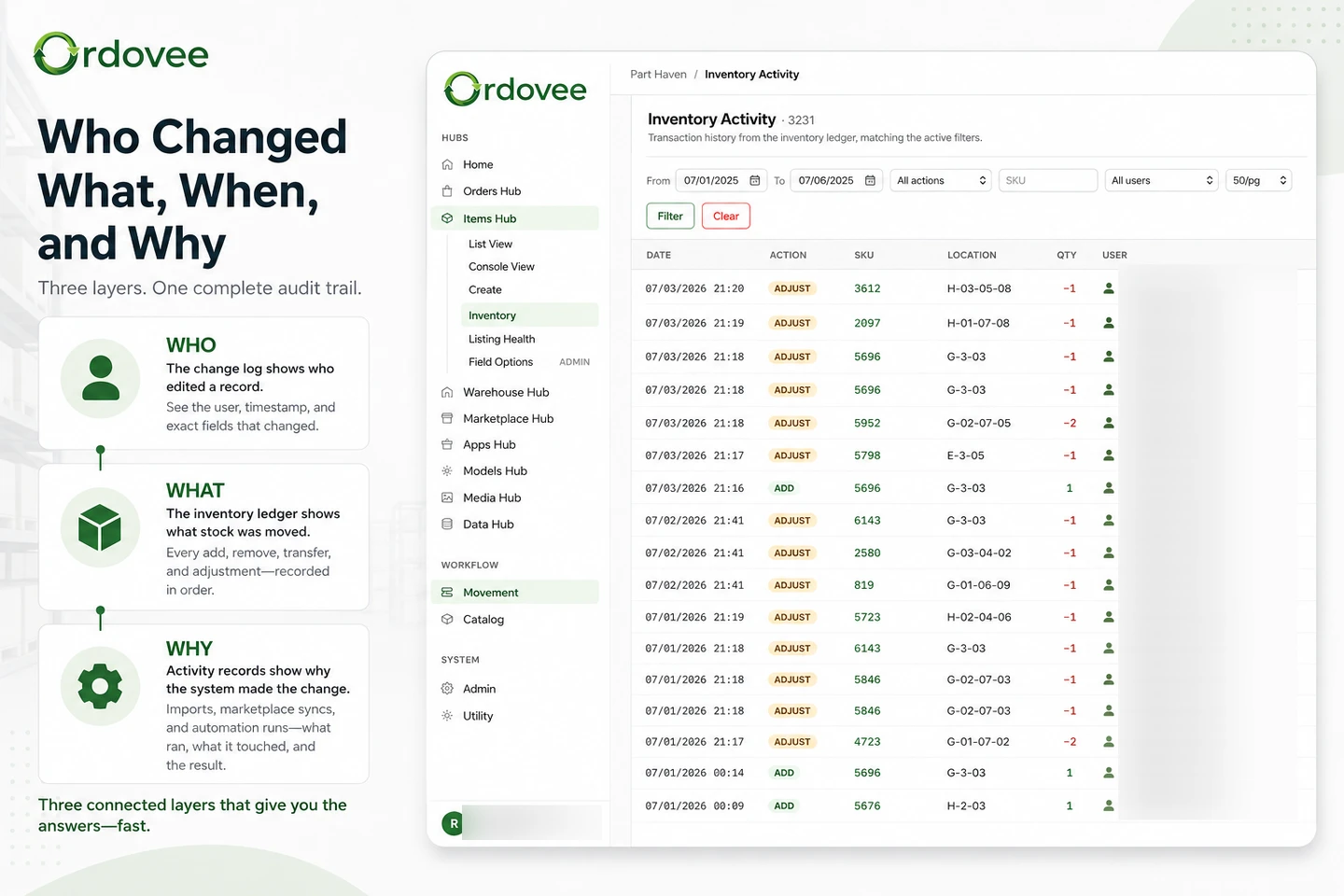
Ordovee keeps three kinds of history that work together.
The change log answers:
Who changed this record?
That could be an item, location, order, setting, or other editable record.
The inventory ledger answers:
What happened to this stock?
Every add, remove, transfer, and adjustment is recorded as an inventory movement.
Activity records answer:
What did the system do?
Imports, marketplace syncs, quantity pushes, and other automated runs leave their own operating history.
These records are separate because they answer different questions, but they are connected around the same work. An inventory movement tied to an order can lead you back to that order’s history; a change that came in through an import or an automated run carries that source with it. You do not have to investigate three unrelated logs and manually piece them together.
You usually do not need all three.
The value is knowing where to look when something does not make sense.
The change log — what was edited?
Suppose an eBay listing no longer matches the SKU in Ordovee.
Looking at the item today only tells you what the SKU is now.
The change log tells you that it changed from:
BRK-4891-A
to:
BRK-4891-B
It also records who made the change and when it happened.
That distinction matters.
Without the change history, all you know is that two systems disagree.
With the history, you can see whether somebody edited the SKU yesterday, whether other fields changed at the same time, and when the mismatch began.
The same idea applies throughout the system: item details, location codes, order statuses, user roles, company settings, marketplace connections, and other editable records.
This is also where you investigate configuration drift — the small edits that quietly break something downstream. A SKU edit that breaks a marketplace match. A location code change that sends pickers to the wrong place. A role change that gave someone access they should not have had.
The current record tells you what it is.
The change log tells you how it became that way.
The inventory ledger — what happened to the stock?
Editing a record and moving inventory are different things.
Inventory gets its own history.
Every ADD, REMOVE, TRANSFER, and ADJUST is recorded as a separate movement with its quantity, location, time, and attribution.
That is what lets you answer questions such as:
When did B-04 go from eight units to five?
Was the stock picked for an order, moved somewhere else, or adjusted after a count?
Who performed the movement?
The ledger is the system of record for inventory quantity, so those movements are not just notes beside the count. They are the history that produced the count.
The mechanics are covered in detail in How ledger-based inventory works in Ordovee.
For the audit trail, the important part is simpler: when quantity changes, there is a record explaining the movement instead of only a new number.
Activity records — what did the system do?
Some important actions are not a person editing a field or moving stock.
They are jobs the system performs.
An eBay quantity push runs.
A Shopify sync checks orders.
A CSV import processes hundreds of rows.
Those actions create activity records showing when the work ran, what it processed, and whether it completed successfully.
That gives you somewhere to start when the problem is not:
Who changed this?
but:
Did the system actually run?
If inventory should have pushed to a marketplace and did not, look at the activity record.
If an import processed 847 rows and flagged 12, the activity record tells you that.
If a sync appears stalled, this is where you check whether it started, finished, failed, or still had work remaining.
When everything is working normally, you may never look at these records.
They matter when something feels off.
Was it a person, an import, or automation?
The audit trail also records the source of a change.
That lets you distinguish between:
- a person editing something directly;
- a bulk import;
- a marketplace sync;
- an automated system run.
The source tells you how the change entered the system; the attribution tells you who or what was responsible for it.
That sounds like a small detail until several different paths can touch the same record.
A SKU changed.
Was it Patrick editing the item?
Was it part of yesterday’s CSV import?
Did it come through another system process?
The source tells you which path produced the change, while the rest of the record tells you when it happened and who or what was involved.
That narrows the investigation quickly.
Walking the customer dispute backward
Now return to the customer who says they received one part instead of two.
Open the order and walk backward.
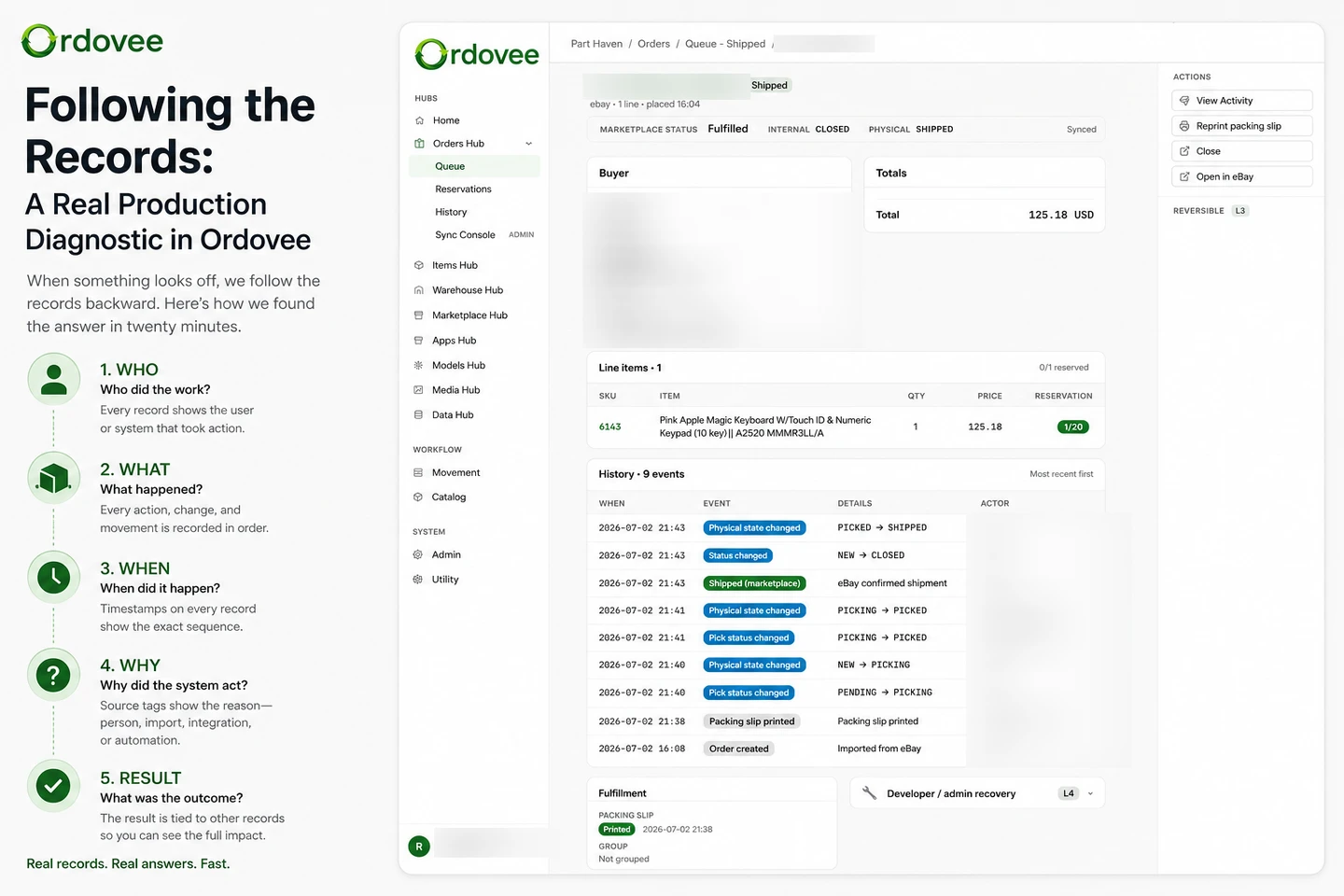
The order history shows when the order was created, when it moved through allocation and picking, and who handled those steps.
The inventory ledger shows the quantity removed from inventory for that order, from which location, and who recorded the movement.
The activity history shows whether the related marketplace work completed afterward.
Then check the physical inventory.
Suppose the records show that two units were picked from B-04, and the physical count in B-04 also matches the quantity the ledger expects after removing two.
The system record and the current shelf count agree.
That does not let the software prove what was inside a sealed box after it left your building.
It does tell you that the recorded pick was two and that the remaining inventory does not immediately contradict that record.
Now suppose the bin contains one more unit than the ledger expects.
That changes the investigation.
The system says two were removed, but the physical stock suggests only one may have left the bin.
Now you know what to examine next.
That is what a useful audit trail does. It does not invent certainty where there is none.
It preserves enough evidence to narrow the question.
When the count is wrong
The same process works without a customer dispute.
A cycle count says B-07 is three units short.
Start with the ledger.
What adds, removes, transfers, and adjustments happened since the last known-good count?
Then look at the related records.
Did someone rename the location?
Did the SKU change?
Was there an import during the same period?
Did an automated process complete normally?
The goal is not to search every record in the system.
It is to follow the evidence outward from the thing that looks wrong.
That turns:
“Inventory is off by three.”
into something much more useful:
“The recorded movements explain everything through Wednesday. The discrepancy appears after Thursday’s picks.”
Now you have somewhere to look.
Where this helps day to day
Major disputes are not the only reason to keep this history.
Most of the value comes from smaller questions.
A location keeps coming up wrong. The ledger shows what stock moved through it, while the change log shows whether the location itself was edited.
A new employee processed yesterday’s returns. You can review the inventory additions attributed to that work and spot-check the process while it is still fresh.
A marketplace quantity looks stale. The activity record tells you whether the expected push ran and what happened when it did.
A SKU suddenly stopped matching a listing. The change log shows whether the SKU was edited, when it changed, and where to start tracing the mismatch.
In each case, the useful part is the same:
The history already exists before you know you are going to need it.
The point of an audit trail
Most operations do not need someone staring at an audit screen all day.
The system should record the work quietly while people receive parts, move inventory, pick orders, make corrections, and let automation handle repetitive jobs.
The audit trail matters later.
Something looks wrong.
Someone asks what happened.
You need to distinguish between what a person changed, what physically moved in inventory, and what the system did automatically.
Ordovee keeps those records separately because they answer different questions, but connects them around the same operation.
The result is not just a record of what things look like now.
It is a way to walk backward and understand how they got there.
See it in the wider workflow
The inventory side of this history is covered in How ledger-based inventory works in Ordovee.
To see how orders, reservations, picking, inventory movements, and shipping connect around a single order, read From order to shipment — the order lifecycle.
Want to see how the same history would look with your own SKUs, locations, and marketplace channels? Walk through ODV with us.
→ See the whole system end to end: Product overview
See Ordovee in your operation.
See how it works with your own inventory and workflow — no slides, no canned demo.