“I picked all those orders — why aren’t they showing?”
We use Ordovee to run Part Haven, our own parts shop. We started building Ordovee because what we had wasn’t cutting it, and we still use it every day — same workflows, same handhelds, same desktop screens as the shops we sell to. When something goes sideways, we feel it first.
Earlier this year, our picker came off the warehouse floor with a question that every shop owner has heard some version of: she’d been scanning orders through the handheld, but the desktop fulfillment screen still showed them as Ready to Pick. Were they picked or weren’t they?
The old way to answer that — before any real system — is a shrug and a lot of poking around. We pulled it up from the records, and most of the time went to conversation with the picker. The records did the heavy lifting.
Step 1: Pull up the picker’s session
Ordovee records every pick session as its own row — who started it, when, what state it’s in, how many orders are inside it, how many of those have been confirmed picked.
We found the session immediately, but the first surprise was its age. It had not been created that day. It had been sitting empty for three days, and when the picker opened Ordovee, the handheld resumed her into that existing session. Thirteen orders had been added to it. Eleven were complete. Two were not.
That was the first useful clue, and it was not the one we expected to find.
Step 2: Walk through the orders inside the session
We traced the orders through the records behind the session. Eleven had completed reservation and pick activity; two did not. The same two were for the keyboard SKU. From there we could follow the confirmed picks into the inventory ledger and compare that with each order’s fulfillment state.
The two with no pick activity were both for the same item — a specific keyboard SKU. That matched what the picker remembered: those were the two she had set aside to come back to later.
So far, every record matched what the picker remembered. The data was telling us the truth.
Step 3: Confirm the picks that did happen actually landed
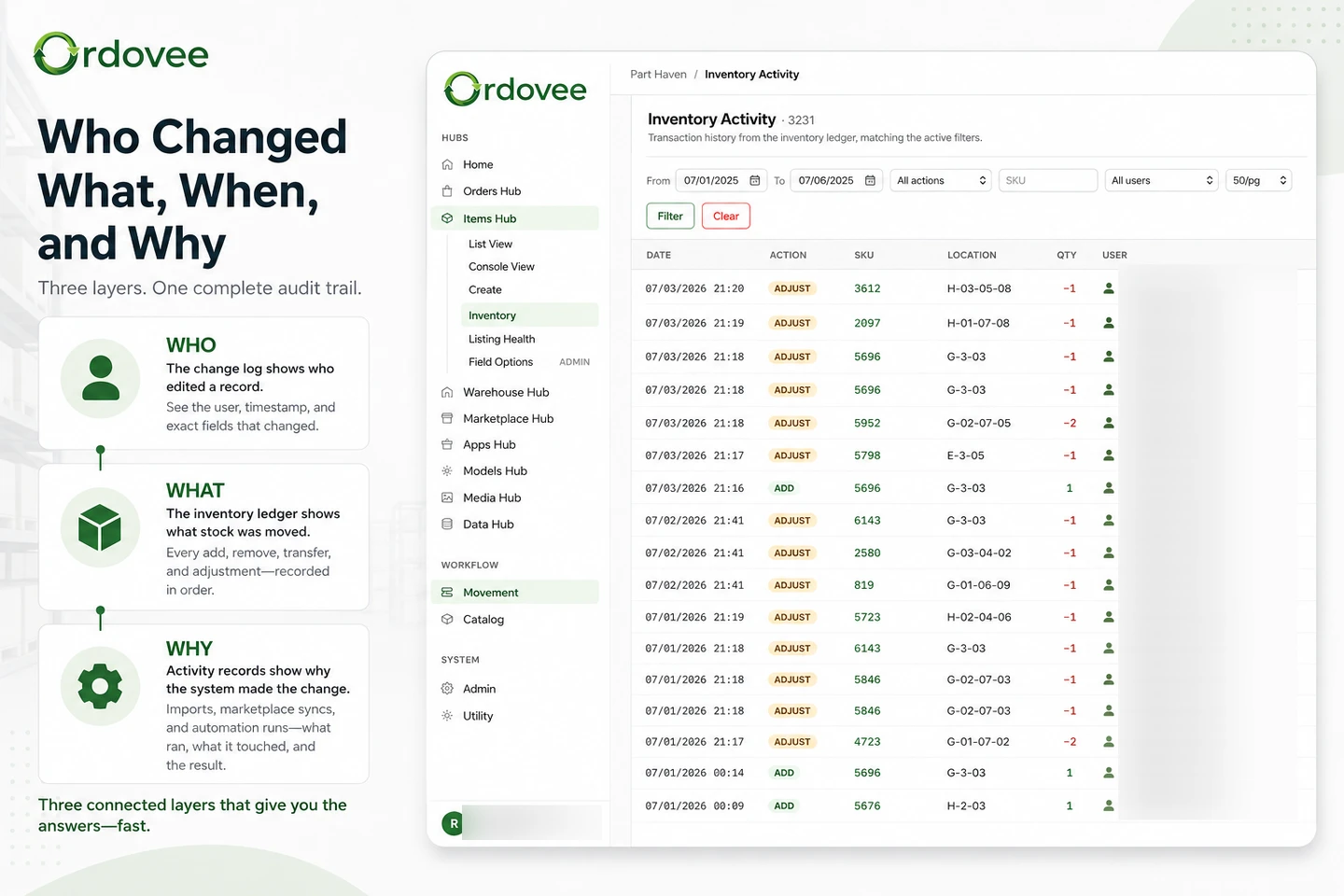
For the eleven orders that had been picked, the inventory ledger showed each pick as its own line — location, quantity, timestamp, and the picker’s attribution on the movement. The on-hand counts had dropped accordingly. The marketplace quantity push had already run with the updated numbers.
This is the part that matters. It meant nothing was lost. The picks had landed. The records were honest. No customer was going to be told a part was in stock when it wasn’t, and our on-hand counts weren’t being thrown off.
Want to see how Ordovee records each pick as it is confirmed? → Walk through scanner-first picking
Step 4: The diagnosis
The inventory side had done exactly what it was supposed to do. The order-state side had not caught up. Each confirmed pick had reduced inventory and fulfilled its reservation. But at the time, Ordovee promoted orders to Picked when the whole session closed, not when each individual order finished. Because two keyboard orders were still open, the session stayed open — and the eleven completed orders stayed in the desktop’s Ready state.
The picker had set the keyboards aside to come back to later. Perfectly reasonable thing to do in a real shop — parts move, shelves get restocked, you finish what you can and circle back. The records reflected exactly that: eleven picks done and recorded, two deferred.
That’s the gap. The records were honest about what had happened. The desktop was reading them at the wrong granularity — a whole session at a time, when the picker works an order at a time.
Step 5: The fix
From the records alone — no guesswork, no “let me ask the picker again tomorrow,” no chasing people over chat — we knew:
- Exactly which orders had been picked — the eleven with completed reservation activity and matching ledger movements
- Exactly which two were blocked (the keyboards, no pick activity, picker confirmed why)
- Exactly why those eleven weren’t visible yet (session still open, waiting on the other two)
- Exactly what to change so the same thing can’t get hidden the same way again
We changed both sides of it. A completed order now moves to Picked as soon as that order is finished, even if other orders remain open in the same session. And an old session no longer silently pulls a picker back in without telling them how old it is.
The bigger point isn’t the fix — it’s that the diagnosis was fast because the relevant state changes and inventory movements had already been recorded with timestamps, attribution, and provenance. There was nothing to reconstruct from memory.
What a real audit trail gives you
Ordovee doesn’t rely on one giant log for this. Different records answer different questions.
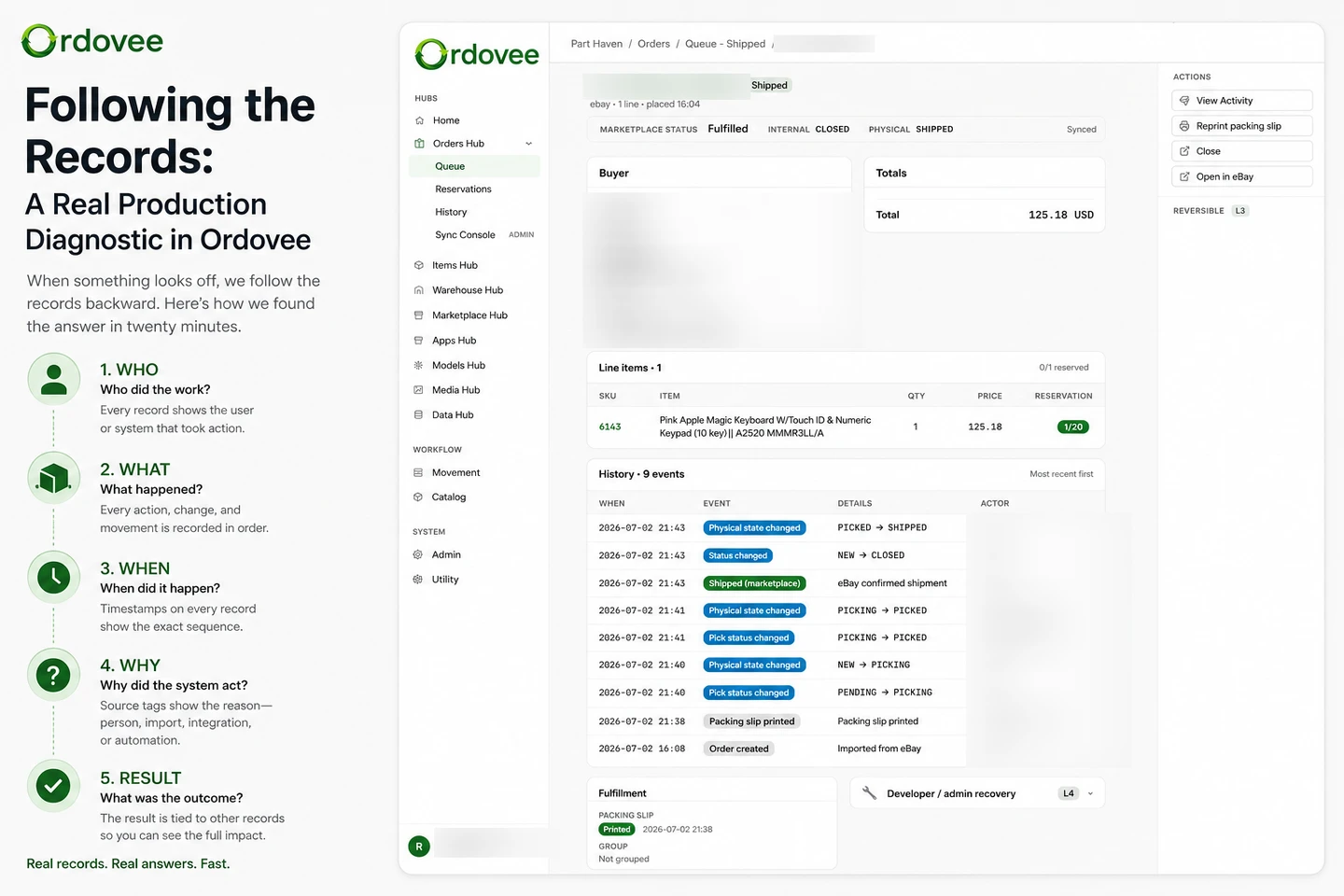
The order history tells you how the order changed state. Reservation events tell you what happened to the stock committed to that order. The inventory ledger tells you whether stock physically left inventory. Audit records carry who initiated a change and the path that made it.
Put those together and you can follow an operational problem backward without asking one table to pretend it knows everything.
Those last two are worth keeping apart. When a person initiated the change, the actor fields tell you who; the source tag tells you the path the change arrived on — a screen, an import, a marketplace sync, an automated job. For automated changes, that source tag is the provenance. One answers who when there is a person to identify; the other answers how it got here.
That’s the difference between an audit trail that’s a footnote and an audit trail you can actually diagnose with. Ordovee writes these records as your team works, not as an afterthought. When something feels off, you open the records and walk backwards until reality and the records stop matching. That’s where the truth lives.
Most days you never look. The week you need to look, the records are already there.
What you get
If you’re running on spreadsheets right now, you know this kind of problem from the other side: something is off, nobody remembers, you cross-reference dashboards and message threads, and the answer arrives a day late and a part short. With Ordovee’s records the same question is answered by reading them back.
We aren’t telling you this story because Ordovee is perfect — we’re telling you because we use it every day in a real shop, and when our own picker hit a real edge case, the records caught it. That’s the bar.
→ See how the records fit together: Who Changed What, When, and Why → Want to walk a real diagnostic with your own inventory? Trace a Change in Ordovee | See the Full Feature Set
See Ordovee in your operation.
See how it works with your own inventory and workflow — no slides, no canned demo.