You already have your part data somewhere. It might be in a spreadsheet, an export from an older system, or a file one person on your team has been guarding for years. The problem is not getting that file into new software. The problem is trusting that one bad column, one broken SKU, or one duplicate row will not make a mess of your catalog.
Ordovee handles CSV import in two steps: Preview first, import second. You see exactly what the file will create, update, restore, skip, or archive before anything changes.
Start with the right file
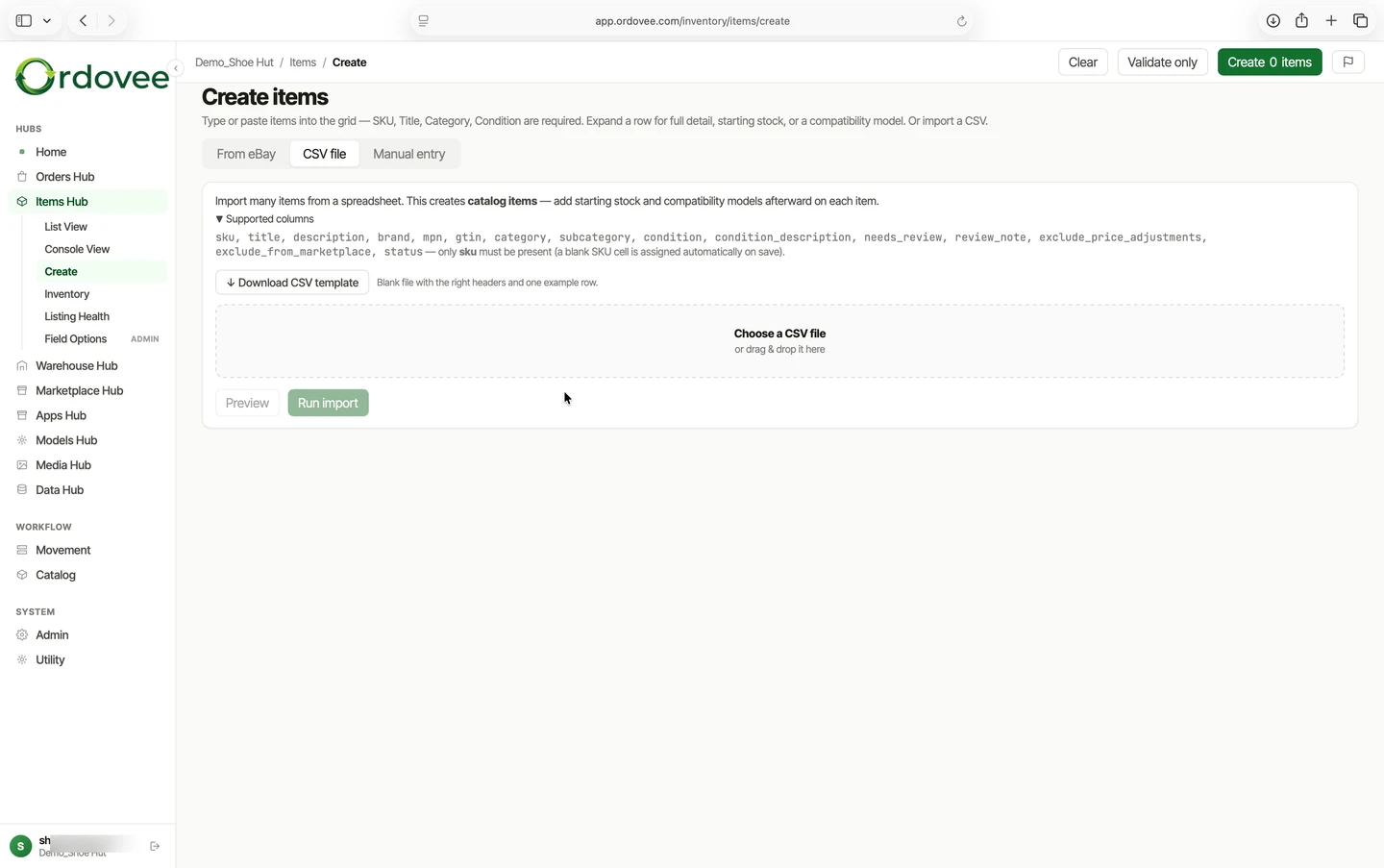
Ordovee imports UTF-8 CSV files. If your source is Excel, Google Sheets, or another spreadsheet, export or save it as CSV first.
On the import page, Ordovee gives you a downloadable items template. That template includes the fields most shops actually need:
skutitledescriptionbrandmpngtincategorysubcategoryconditioncondition_descriptionneeds_reviewreview_noteexclude_price_adjustmentsexclude_from_marketplacestatus
The only hard rule is that the sku column must exist in the file. The cells in that column can be blank if you want Ordovee to generate codes for you, but the column itself has to be there so Ordovee knows how to interpret the sheet.
This step is for item records in your catalog. It is not the inventory-count step. Ordovee separates those on purpose, so you can clean up your items first and load quantities afterward.
Preview before you import
Once the file is uploaded, click Preview. Preview is not just a summary: Ordovee shows every row in an editable grid before anything is written. Fix a bad value, leave a row out, or replace an auto-assigned SKU, then Re-check the file. Run Import stays locked until the included rows are ready.
Beside the grid, the counts say what the run will do:
- To create
- To update
- To restore and To archive, when the file calls for them
- Unchanged
- Invalid
- Auto-SKUs
That matters because you are not guessing. If the file says it will create 240 items, update 18, and archive 0, you know what you are approving. If the numbers look wrong, you stop there and fix the file.
Ordovee keeps Run Import disabled while any included row still has a blocking error. You can correct the row and Re-check it, or leave that row out of the import.
See this in action -> Import your first file on the product overview ->
What does Ordovee catch before anything changes?
The review step is where most of the risk goes away. Ordovee checks the file before it touches your data.
- Missing required structure: If the file does not include the
skuheader, Ordovee stops the import. - Bad status values: The
statuscolumn must beactive,archived, or blank. - Bad true/false fields: Review flags and marketplace exclusion fields are validated before import.
- Duplicate SKUs inside the same file: by default, Ordovee keeps the first included row and marks later duplicates to be skipped. You can untick or correct rows and Re-check before running the import.
- Possible leading-zero damage: If a numeric SKU in the CSV may have lost zeros in Excel, Ordovee warns you before you create a mismatch.
- Duplicate MPN safeguard: If a new row would create an item whose MPN already belongs to another active item, Ordovee skips that row and lists it as a warning.
- Files that are too large: an item import is limited to 10,000 rows per run. If the file is larger, Ordovee blocks the import rather than loading only part of it. Split the file and run it in batches.
If the file has a long list of problems, Ordovee shows the first batch in the screen and lets you export the full issues list as a CSV. That gives you something clean to hand back to whoever owns the source spreadsheet.
Blank SKUs are allowed
Some shops already have a clean SKU system. Some do not. Ordovee supports both.
If the sku column is present but some cells are blank, Ordovee can generate new codes during import — six-digit numbers starting at 100001. That means missing SKUs do not have to block the whole project.
During Preview, Ordovee shows a temporary AUTO-001 style placeholder so you can see which rows need generated SKUs. The real six-digit SKU is not allocated until you run the import. You can also replace the placeholder with your own SKU before you Re-check.
If you already have a naming system your team knows, keep it. If you do not, let Ordovee generate the missing codes and then build consistency from there. If you need help deciding which route makes sense, start with a SKU format your team can follow.
Imports add and update — they do not remove the rest of your catalog
The normal CSV import only acts on the rows you include. New SKUs can be created, existing SKUs updated, archived items restored, and an item can be archived when its row explicitly says status=archived. Items that are not in the CSV are left alone.
That makes a category export, a cleanup batch, or a partial migration safe to run without treating the file as a complete copy of your catalog.
What a good first import looks like
The best first import is not your entire business in one shot. It is a clean, controlled batch.
- Export the spreadsheet you trust most.
- Keep the columns you actually need and line them up with Ordovee’s template.
- Leave blank SKU cells blank if you want Ordovee to generate them.
- Preview the file and review the counts.
- Review the warnings and fix any blocking errors before you run the import.
- Import a manageable batch first, then expand once the workflow feels right.
That is the same thinking behind Warehouse Organization, One Shelf at a Time. You do not need a perfect warehouse or a perfect spreadsheet to start. You need one clean batch that proves the process.
After the import
Once your item records are in Ordovee, the next step is loading inventory into locations and connecting the rest of your workflow. Your imported items become the base for labels, picking, order matching, and marketplace sync. With your item records and opening inventory in place, you can connect the marketplace listings that already use those SKUs and let Ordovee keep their quantities aligned — Setting Up eBay and Shopify Sync in Ordovee picks up right where this import leaves off.
If you are moving off spreadsheets, that first clean import is the moment the operation starts to feel real. Your data is in one place. Your team is looking at the same records. The cleanup work starts paying you back.
If you want to see what that would look like with your actual file, we can walk through it with you and show exactly how Ordovee would handle the creates, updates, warnings, and next steps.
-> If your SKUs still need cleanup first: SKU strategy -> If you want a gradual rollout instead of an all-at-once project: Warehouse Organization, One Shelf at a Time -> See how the full inventory system fits together: Product Overview -> Want help importing your first file? Let’s talk
See Ordovee in your operation.
See how it works with your own inventory and workflow — no slides, no canned demo.