You set up your Zebra scanner, tested it in the notes app, and every barcode typed in perfectly. Then you opened the web app you actually work in, scanned the same label, and the result came out short a character or two — or landed scrambled. The scanner is fine. The barcode is fine. What tripped is a timing quirk between a fast scanner and a browser.
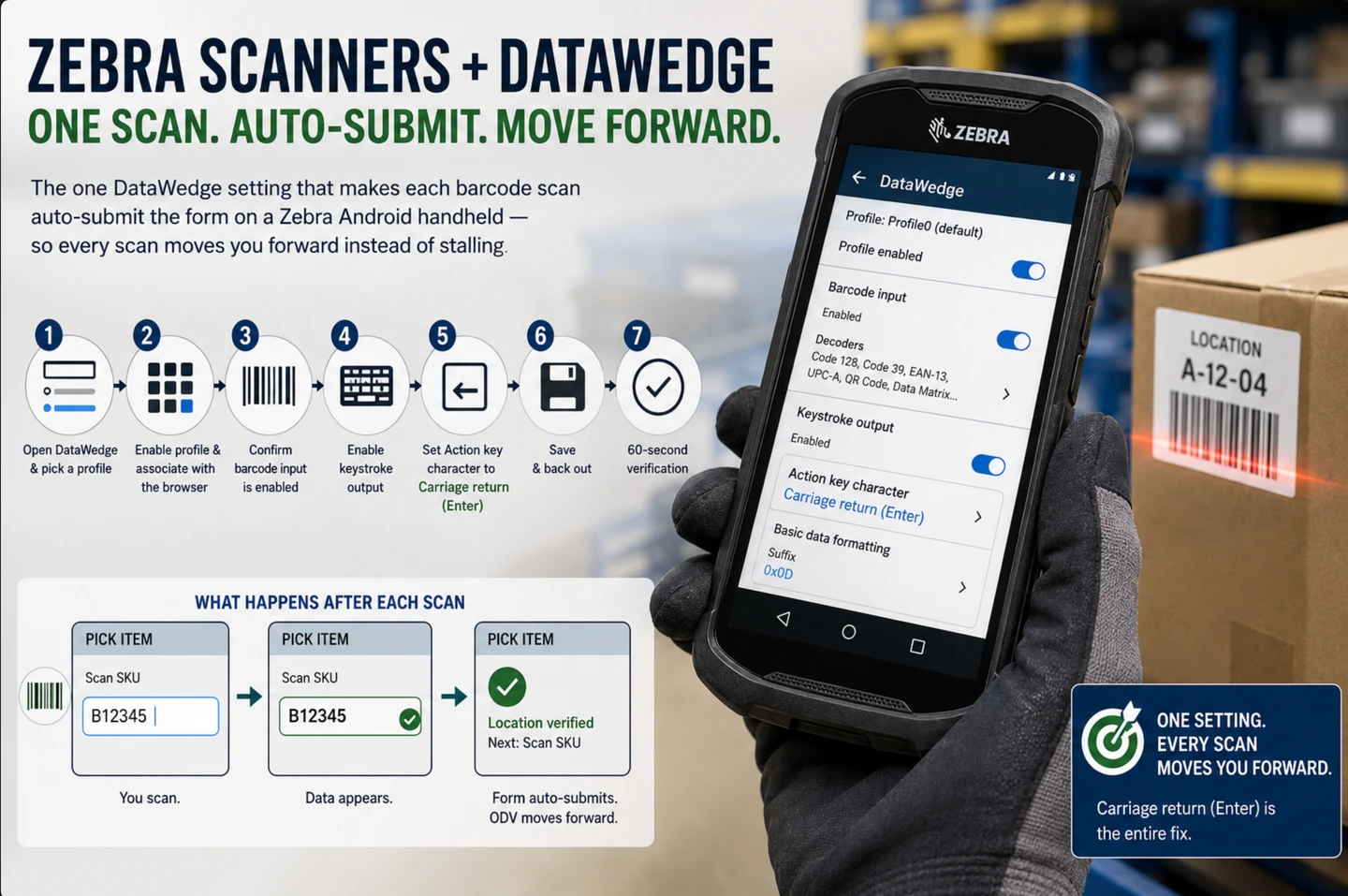
Ordovee is Structured Disassembly Management that runs entirely in a browser, so this is a scan problem worth fixing once and forgetting. Two DataWedge settings address it, plus a few supporting choices that keep ODV scanning fast on a shared handheld. This walkthrough covers all of them. It assumes you already have the core Enter-key setup in place — the DataWedge setting that sends an Enter after each scan, so a barcode submits the field instead of sitting in it — if you don’t, read Setting Up Zebra Scanners with DataWedge for Ordovee first, because this guide builds directly on it.
Why scans misbehave in a browser but work in a text box
When the same barcode scans correctly into a simple text app but loses or reorders characters in a browser, the problem can be the way DataWedge is delivering those characters rather than the barcode itself. Browser fields respond to keyboard events differently from a simple native text field, and fast scan output can expose timing and ordering problems.
DataWedge gives you two controls that matter here: Send Characters as Events changes how printable characters are delivered, and Key event delay gives those events more room when ordering is still unreliable.
The result looks random. A twelve-character SKU comes in as ten. A location code reads clean five times, then drops a digit on the sixth. Because it is intermittent, it is easy to blame the label or the scanner. It is usually neither. Zebra documents this symptom for scanning into a web app running in Chrome, and the next two sections are the settings it points at.
First: turn on Send Characters as Events
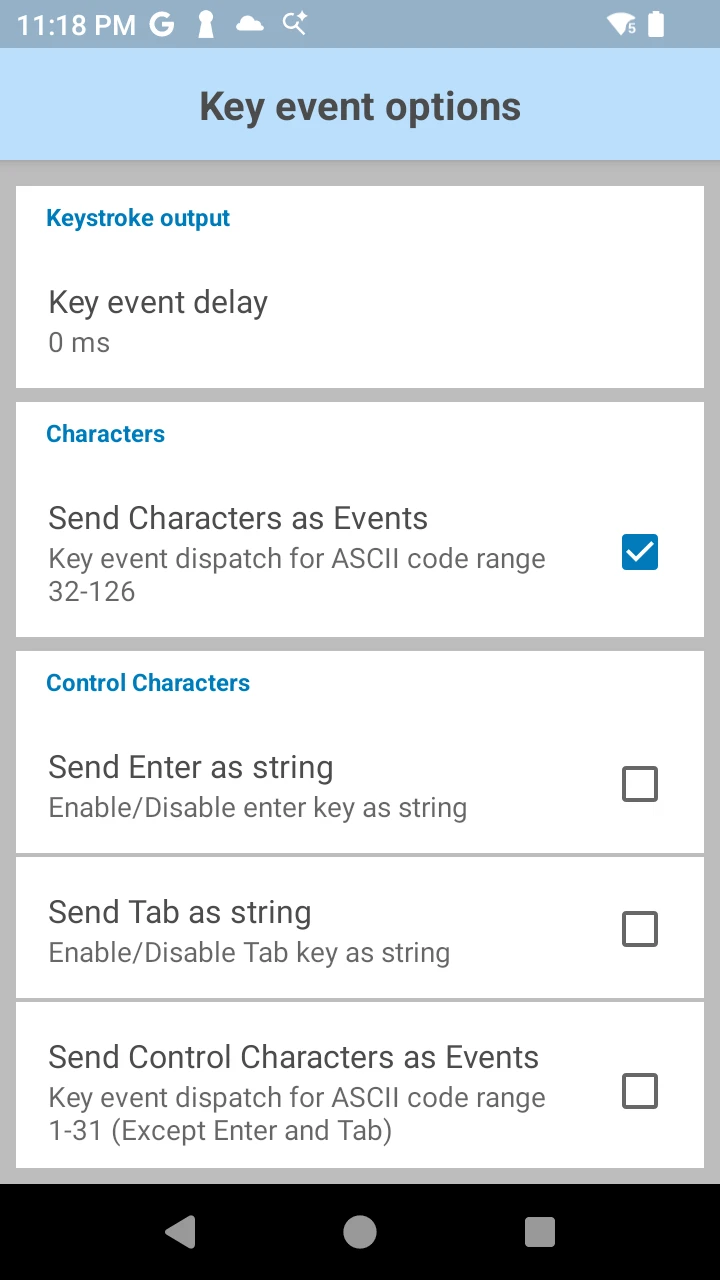
Open the browser’s DataWedge profile, go to Keystroke output → Key event options, and enable Send Characters as Events. Zebra documents it as sending ASCII codes 32 to 126 as key events — printable barcode characters arrive as events a browser handles consistently, rather than as injected text.
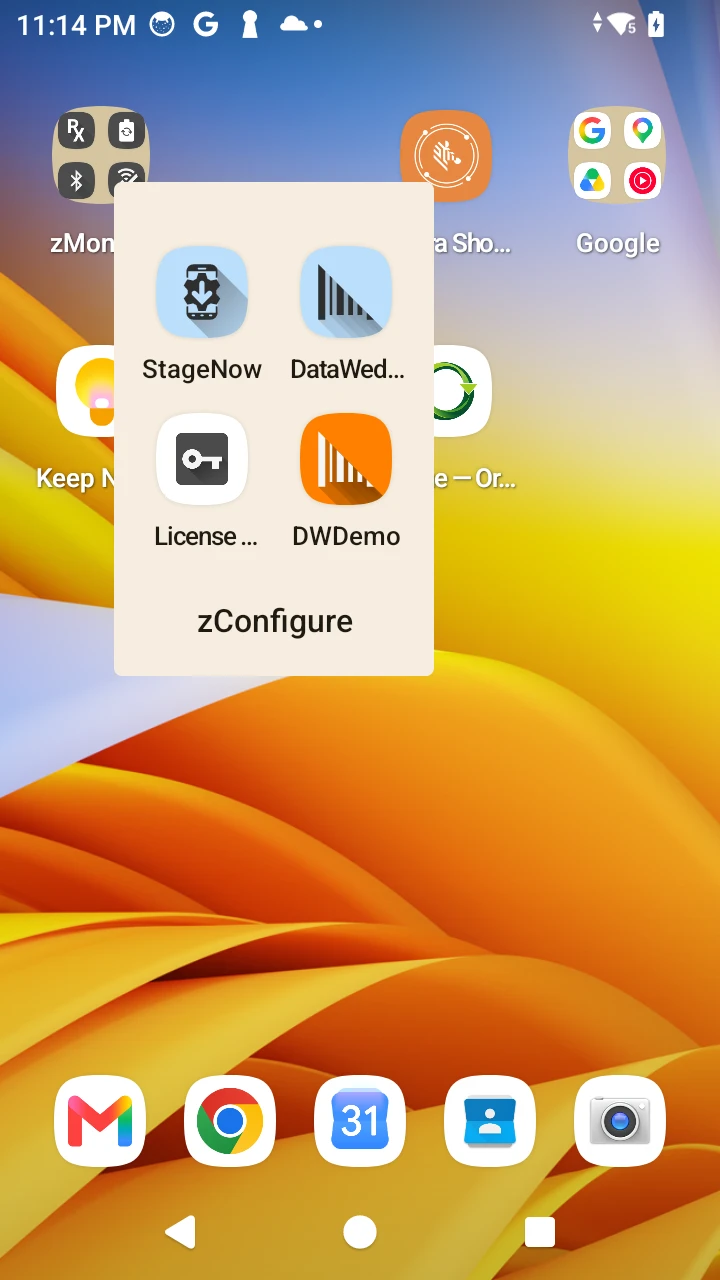
Here is the path step by step on the handheld:
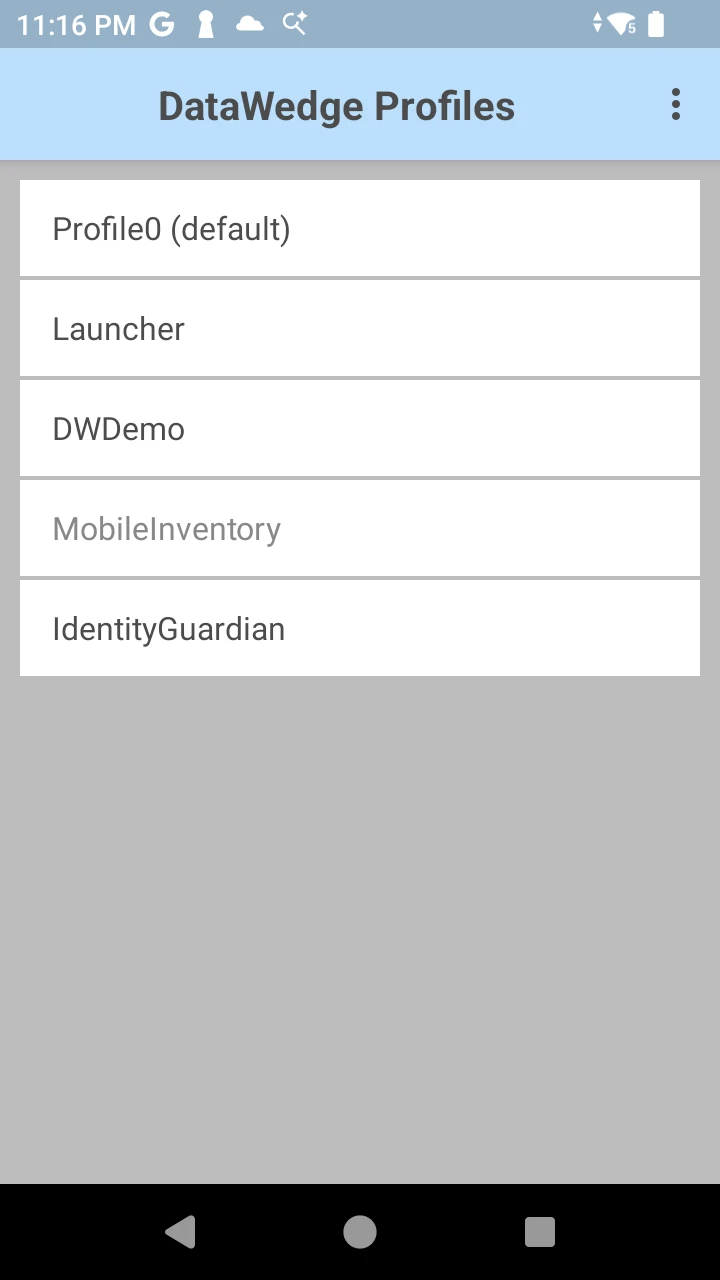
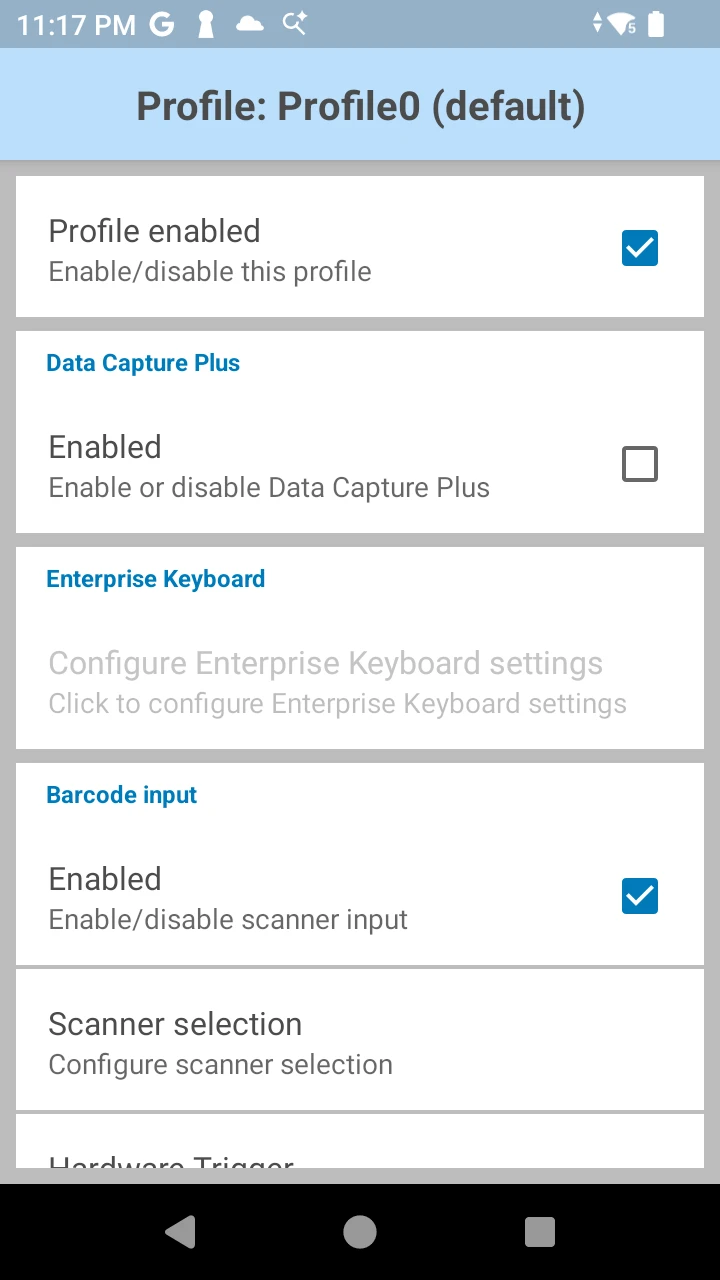
- Open DataWedge and tap the profile you use for the browser (the same one from the core setup guide).
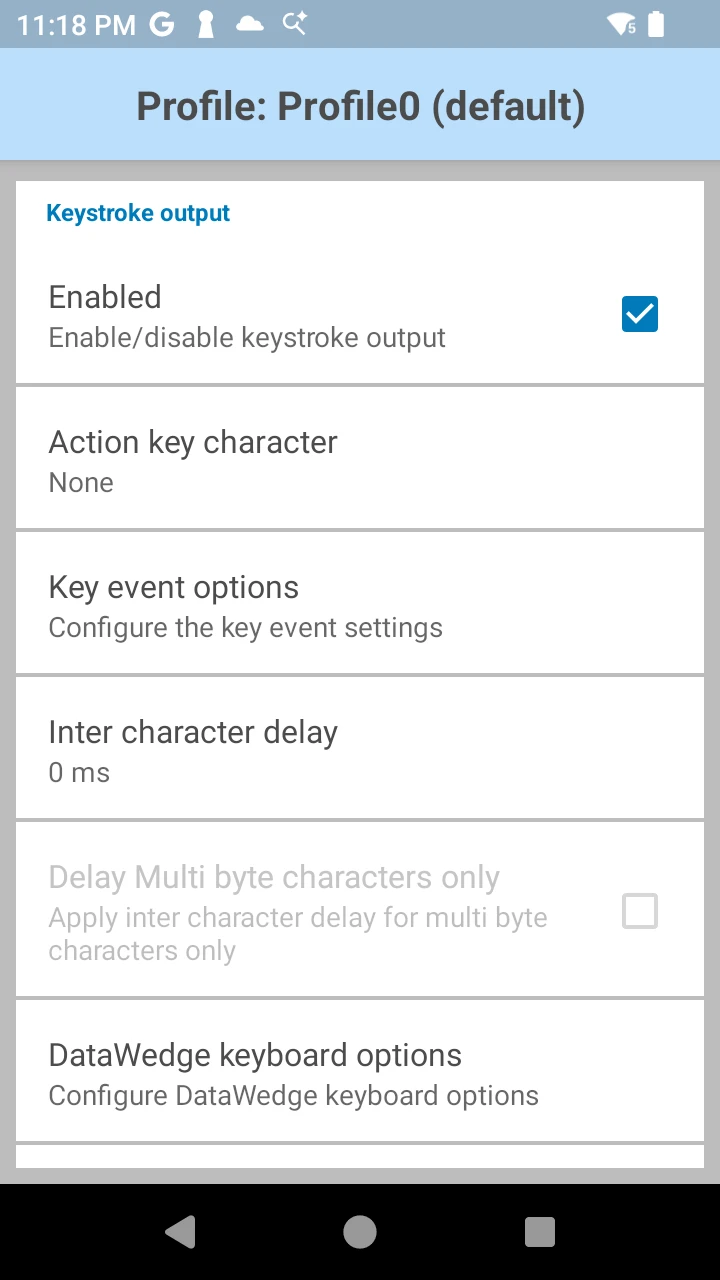
- Scroll to Keystroke output and make sure it is enabled.
- Tap into Key event options.
- Turn Send Characters as Events on.
That changes how the characters are delivered. Instead of injecting them as raw keystrokes, DataWedge sends each printable character as a discrete key event, which is the delivery a browser field handles predictably.
Test again with a long SKU or location code before moving on.
Back out of the screen when you’re done. DataWedge saves the profile as you exit — there’s no separate save button.
If characters still drop or arrive out of order: add a Key Event Delay
Key events are delivered asynchronously, so on some devices and browsers they can still arrive out of order. Zebra provides a second control for exactly that case.
In the same Key event options screen, set Key event delay to 50 ms as a starting point. Scan a long SKU label into an ODV scan field several times. If the full code lands every pull, try lowering the delay and test again — the goal is the lowest delay that stays reliable on that handheld and that browser.
If scans were already clean after the first setting, leave the delay alone. It is there for the case where they are not.
Associate the profile with your actual browser
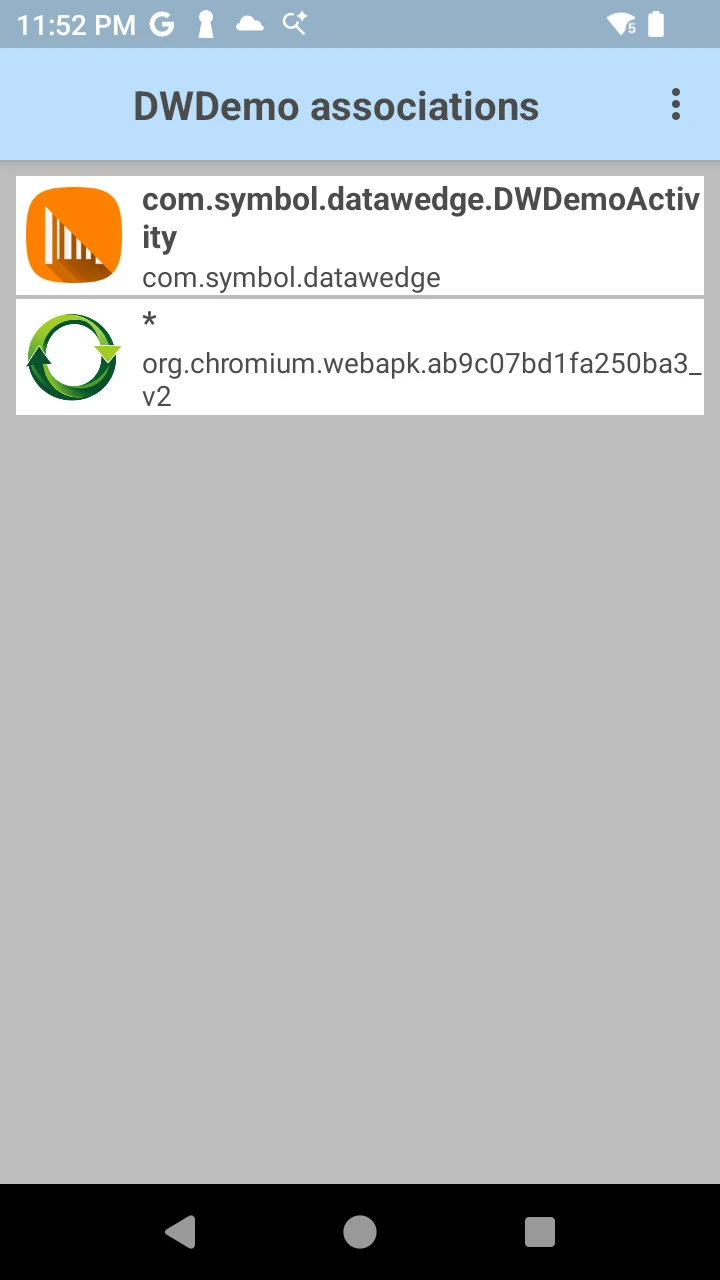
A DataWedge profile only takes effect when it’s tied to the app in the foreground. For a browser, add the browser’s package name under Associated apps and leave the activity as *.
If you’re editing Profile0 (default) you can skip app association — it applies to foreground apps that do not already have another DataWedge profile.
If you created a dedicated Ordovee profile, open Associated apps, tap +, select the browser you actually use from the installed-app list, then select * for all of that browser’s activities. The asterisk means “any screen inside that app,” so the profile stays active on every ODV page — the picking screen, location lookup, Add Inventory, and the other Ordovee pages running in that browser — without you listing each one. If scans behave in the notes app but do nothing in the browser, a missing association is almost always why.
Keep only the decoders you use
Under Barcode input, Decoders, turn off the symbologies you never scan. Fewer active decoders means the scanner locks onto your labels faster and misreads less.
By default Zebra enables a long list of barcode types. Every one the scanner has to consider adds a moment of work and one more chance to misread a scuffed label as the wrong format. Ordovee’s generated SKU, location, tote and packing-slip labels all use QR codes, so that is the one you certainly need.
Leave on:
- QR Code — Ordovee-generated labels.
- Code 128, Code 39, UPC, Data Matrix — only if labels you actually scan use them.
Turn the rest off. You’ll get a faster, more confident lock on the labels you actually scan all day, with fewer misreads to chase down. If a label suddenly won’t read after this, you likely switched off the one decoder it needed — walk back into Decoders and turn that symbology back on.
Keystroke or intent output — which for a web app?
Use Keystroke output. Ordovee’s handheld scan fields receive barcode data as keyboard input and use Enter as the end-of-scan signal, so typed characters are exactly what they are built to read.
DataWedge Intent output is a different integration path, for Android applications or wrappers specifically written to receive DataWedge intents. Ordovee’s browser workflow does not use that path, so there is no reason to enable Intent output for this setup.
Keep Keystroke output on and leave Intent output off.
Per-app profiles for a shared handheld
If one handheld runs Ordovee plus other apps, build a profile per app. DataWedge routes each profile to the app it’s associated with, so ODV scanning behaves one way and everything else behaves however it needs to.
This is worth doing when a device isn’t dedicated to picking. If the handheld also runs apps that need different scanner behavior, give the browser its own profile — Send Characters as Events on, only your decoders enabled, Keystroke output, associated with the browser. Leave Profile0 (default) as the fallback for apps that do not have a dedicated profile. When the browser is in front DataWedge applies the ODV profile; an app with its own profile uses that one, and anything unassociated falls back to Profile0.
The steps are the same ones you just walked — you’re simply keeping the browser tuning on its own profile instead of changing the device-wide default.
With the browser profile associated, the decoders you need enabled, and Keystroke output tuned for reliable event delivery, DataWedge can make scanner-first browser workflows fast and dependable. Test several long scans on the actual handheld and browser you use before considering the profile finished. The payoff shows up on the warehouse floor, where a clean scan is the difference between a pick that verifies itself and one that stalls.
→ See the picking flow this scanning powers: Scanner-first picking on the warehouse floor → Missing the core one-scan setup? Set up the Enter-key fix in DataWedge → How the scanner and the software fit together: The hardware-software handshake → See how ODV handles the whole part lifecycle: Product overview → Still fighting a scan that won’t cooperate? Let’s sort it out
See Ordovee in your operation.
The fastest way to know if Ordovee fits your shop is to see the workflow with your own data — no slides, no scripted demo.