What hardware do you need to run Ordovee?
Ordovee is a web application. If you have a browser and an internet connection, you can run it. There’s no software to install, no desktop client to maintain, and no proprietary hardware lock-in.
That said, a parts operation moves faster with the right tools. Here’s what Ordovee is designed to work with — and what we recommend.
Which barcode scanner should you buy?
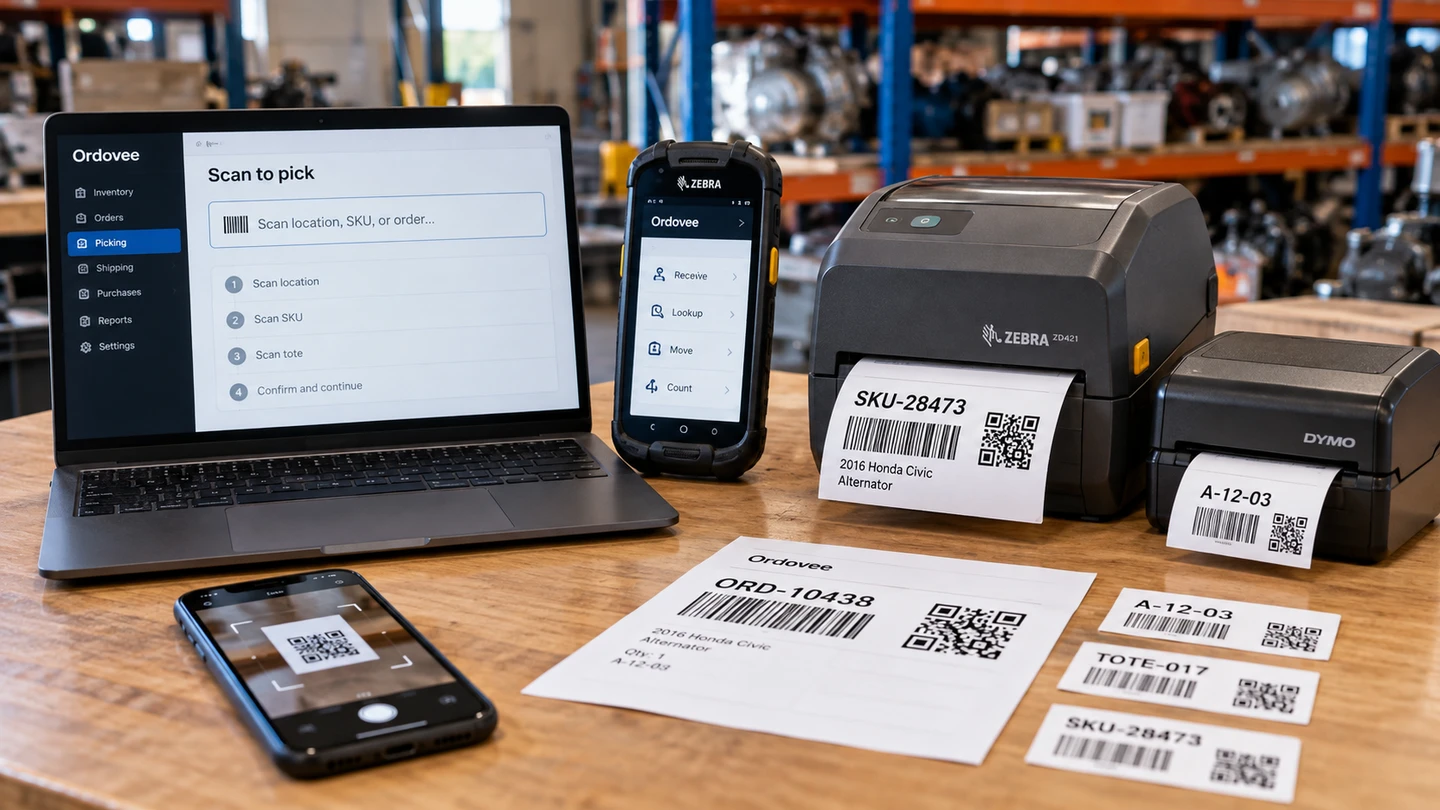
Ordovee’s warehouse interface is built scanner-first: every picking session, inventory lookup, and tote assignment can be driven entirely by scanning — no typing required. If you want to see that flow end to end, the scanner-first picking guide walks a pick from location to confirmation.
Rugged warehouse scanners (recommended)
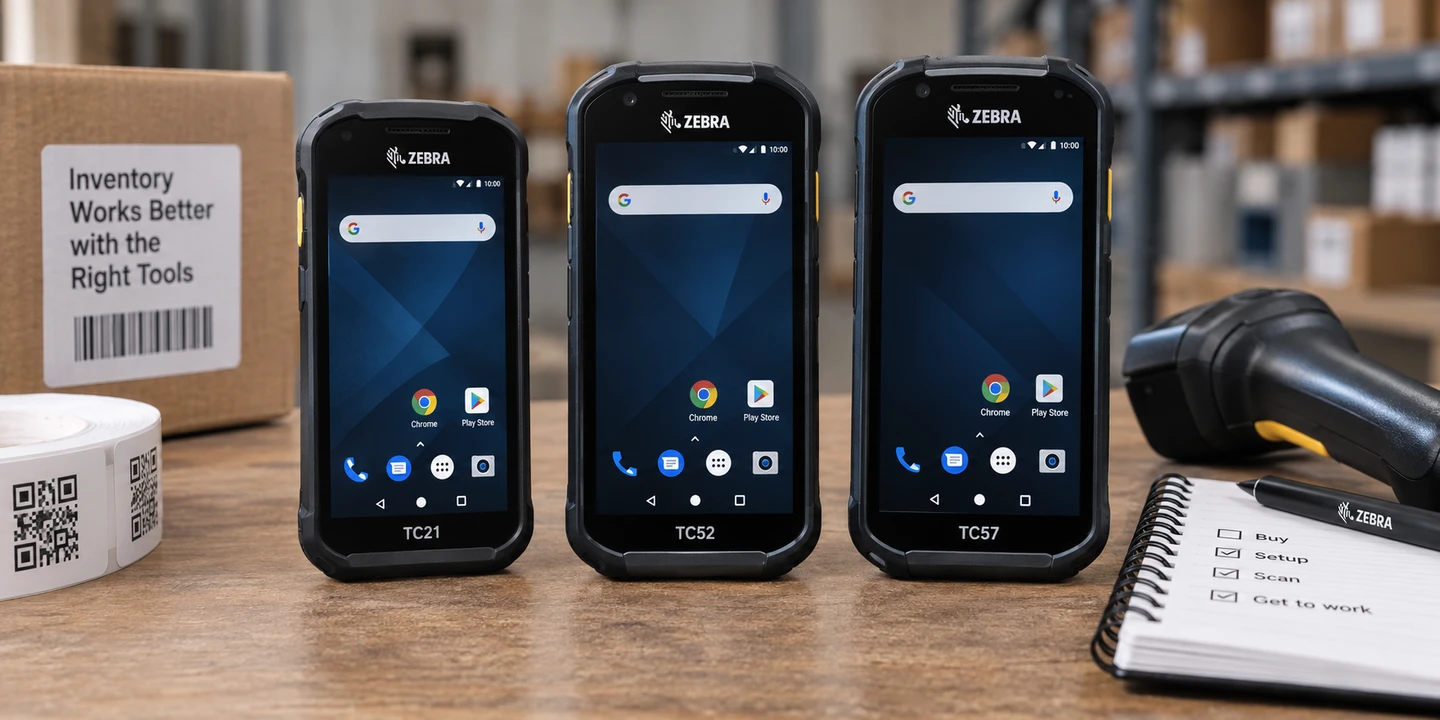
If your crew picks all day, a rugged handheld built for the warehouse earns its keep. For dedicated scan work, we recommend Zebra’s rugged Android handhelds — buying a used Zebra handheld walks through which model and what to check.
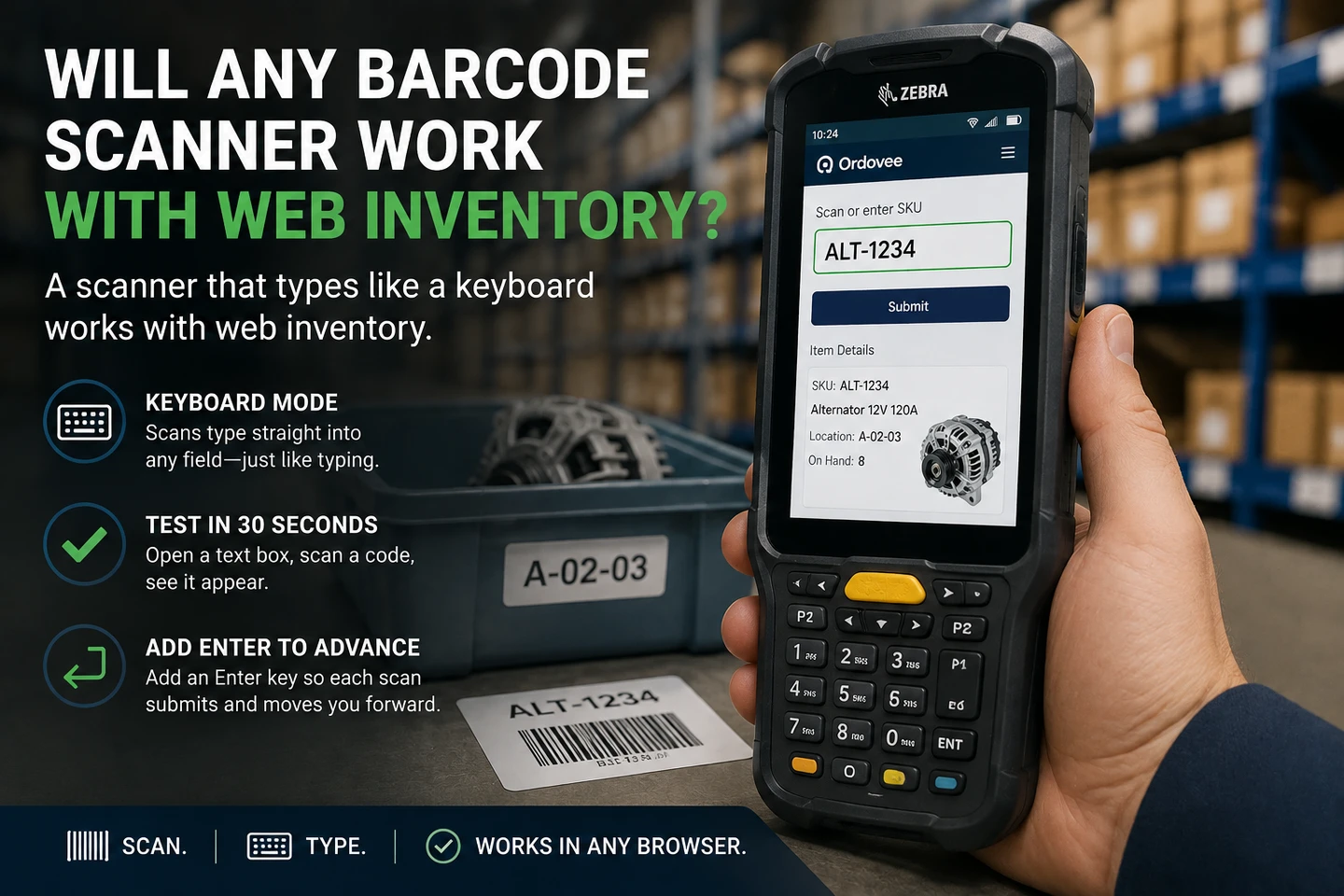
On supported Zebra handhelds, Ordovee uses its scanner-first handheld layout: large controls, scanner-focused inputs, and minimal touchscreen work. The integrated scanner does not need to be paired as a separate accessory. Zebra devices do need a one-time DataWedge configuration so each scan is delivered to the browser and submits correctly.
The scanner behaves like a very fast keyboard, so the code lands in the screen when the picker pulls the trigger. That is keyboard-wedge mode, and it is why almost any keyboard-wedge scanner can work with web inventory. Ordovee does not require its own scanner driver or plugin, and you do not have to match a particular scanner brand. The Zebra DataWedge setup guide walks through that one-time configuration, and DataWedge in the browser covers the one setting that trips up fast scans in a web app.
The phone in your pocket
No dedicated scanner yet? A phone works. On an iPhone, Ordovee opens the camera-first phone workflow automatically — tap scan, point the camera at the QR code, and it reads it. Android phones can use the same camera-scanning interface; if an Android device opens in handheld mode instead, switch it to Phone mode once and Ordovee remembers that choice. If your team already carries phones, they can start scanning today, and you can add rugged handhelds later when the volume justifies it.
At the desk
No scanner at all is fine too. Ordovee runs in a supported desktop or laptop browser, where you type SKUs and location codes by hand. You won’t move as fast as a picker with a scanner, but nothing is locked behind hardware you don’t own.
What label printer works with Ordovee?
Ordovee generates labels as standard PDF files — no ZPL, ESC/POS, or other vendor print language to worry about. A thermal label printer is what most operations settle on.
What comes out of the printer
For everyday warehouse use, the common setup is 2×1 labels for SKUs, locations, carts, and totes, and 4×6 packing slips. Ordovee also supports larger label presets when you need them. Every label carries the code plus a QR square a scanner can read back, and packing slips include a QR code that identifies the order and is used when building a scanner-first pick session. Every one of them is a plain PDF, so there’s no special label format to set up.
Which printer to buy
Ordovee does not require a particular printer language or brand. If your computer can reliably print a PDF to the printer at the label size you need, Ordovee can use it. Zebra, Dymo, Brother, and ROLLO all show up on parts-shop benches — buy the one that fits your budget.
A convenient two-printer setup is the 4×6 thermal printer you already use for carrier shipping labels turning out packing slips at the packing station, with a smaller 2×1 printer at the desk for part, location, and tote labels. A regular office printer works in a pinch — you’ll just go through more ink and cut the labels apart by hand.
Want to see the label format before you buy? Print a sample from the free barcode label generator — no signup.
Batch printing
Labeling 200 locations? Ordovee builds a single multi-page PDF — up to 500 labels at once. Print the batch, peel, and stick. No clicking print for every label.
Cameras and photos
A clear photo is often what sells a part, so Ordovee gives every item room for up to 24 of them — the same limit eBay allows. You can pull them in from an existing eBay listing, drag them off your desktop, or shoot them on an Android phone.
For Ordovee photo uploads, use Chrome. The current upload path converts images to WebP in the browser, and Safari does not support the WebP canvas output that path requires. So photo loading is not an iPhone workflow today; use Chrome on a computer or supported Android device instead. Photos are stored securely, and Ordovee makes the right-sized version for wherever a picture needs to appear, so nobody on your team ever thinks about resizing.
Browsers
Ordovee is a web app, so the browser is all you need to run it. It’s developed and tested primarily in Chrome and Safari, and the core workflows run in both. Image upload is the exception — that path does its WebP processing in the browser, so use Chrome for it. Mobile use is supported on iOS and Android; as described above, some Android devices may need Phone mode selected once.
For the quick compatibility reference — exactly what we test and guarantee — see the hardware compatibility page.
What you don’t need
Ordovee is deliberately vendor-neutral, which keeps the shopping list short — all of this you can simply skip:
- No desktop software to install — everything runs in the browser.
- No Ordovee scanner app to install — Zebra handhelds use their built-in DataWedge keyboard-wedge output, while phones use browser camera scanning.
- No Ordovee print server — Ordovee generates PDFs and your device’s normal print system sends them to the printer.
- No server room — Ordovee is hosted, so there is no application server for your shop to maintain.
- No IT department — if you can open a web browser, you can run Ordovee.
What a real setup looks like
You don’t have to buy everything at once. Ordovee scales with the operation, and the hardware scales with it.
A single-station shop can start with a phone, a laptop, and one thermal printer. The phone handles scanning, the 4×6 thermal printer turns out packing slips, and the laptop covers photos and the admin work — orders, listings, reporting. If that printer accepts both 2×1 and 4×6 stock, swap rolls as needed; otherwise add the smaller label printer when the extra convenience is worth it.
A mid-size shop usually puts a rugged handheld in each picker’s hand so the floor keeps moving, adds a 4×6 printer at every packing station, and keeps a small 2×1 printer running for part, location, and tote labels. Desktops up front handle order management and reporting.
A large operation looks the same, just multiplied: a handheld for every picker, several packing stations each with their own printer, label printers stationed around the warehouse, and dedicated workstations for admin, orders, and reporting. Multiple pickers can run separate picking sessions at the same time. If a device drops out mid-run, that picker can resume the session rather than starting the order over, and the other pickers’ sessions remain separate.
Getting started
Already have hardware? Ordovee works with it. Starting from scratch? A phone, a laptop, and one PDF-capable printer are enough to get started, and you can add dedicated scanners and label printers when the volume asks for them.
Once the gear is sorted, the next thing worth reading is how the floor actually runs: scanner-first picking walks a pick from location to confirmation, and ledger-based inventory explains how inventory movements are recorded in the ledger and how those records produce the quantities you see today.
→ Questions about your own gear? Get in touch → See everything the platform does: Product Overview
See Ordovee in your operation.
See how it works with your own inventory and workflow — no slides, no canned demo.