You just listed a batch of new parts on eBay and you want them in your inventory software right now — not on the next scheduled sync. Maybe you relisted items that had ended, or you changed SKUs and need the new ones reflected immediately. Either way, you want to keep working.
The Import New Listings button in Ordovee is built for exactly this moment. Ordovee already discovers new listings on its own schedule, so most days you’ll never need this button. It’s there for the days when the schedule isn’t fast enough for what you need to do next.
This walkthrough explains how to sync new eBay listings to Ordovee on demand, where the button lives, what runs behind the scenes, and the safeguards that keep your eBay API usage healthy.
How Ordovee keeps your eBay listings in sync
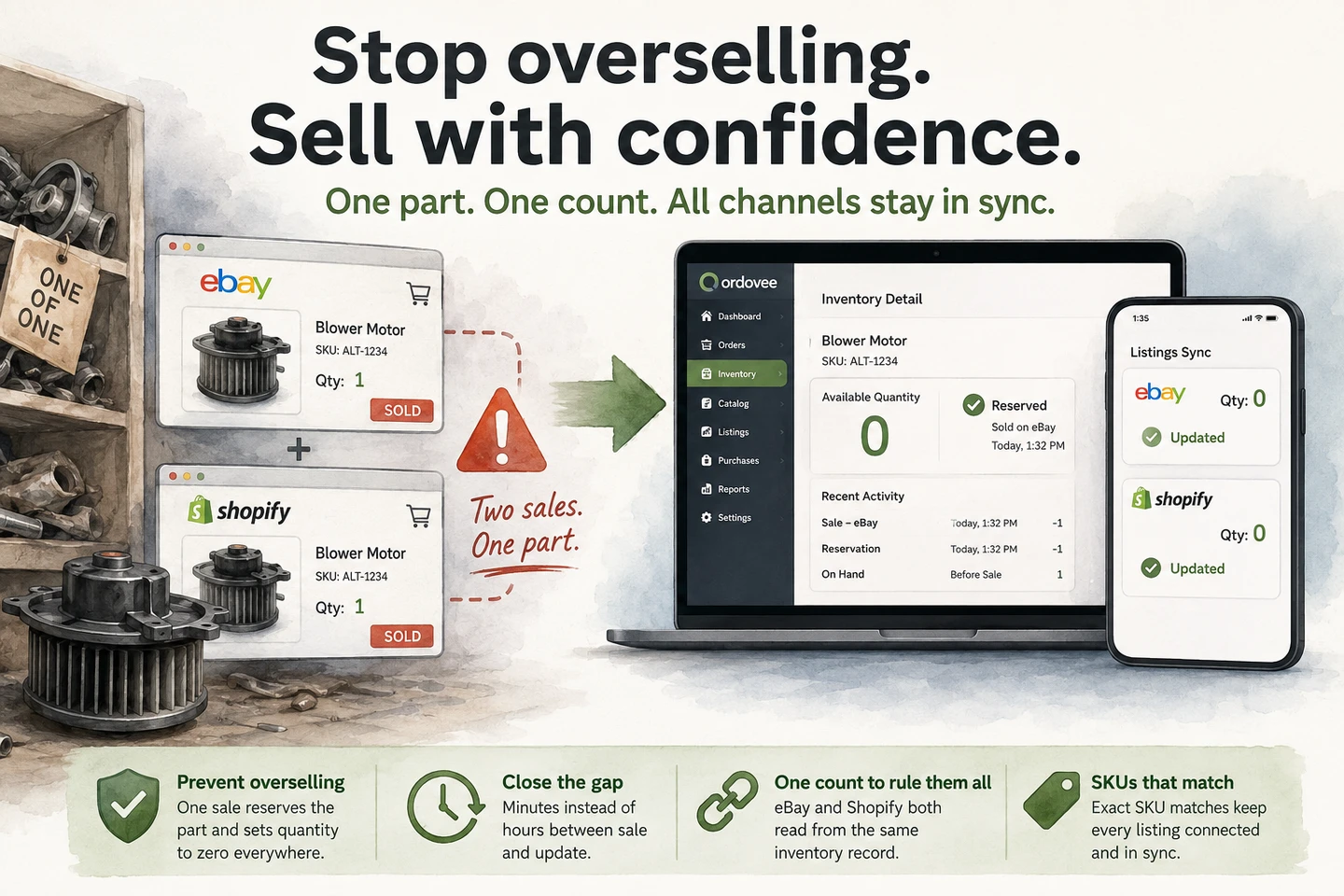
Ordovee keeps a mirror of your eBay listings — a read-only copy of what’s currently on eBay. This mirror is how Ordovee knows which SKUs are live, what quantities eBay shows, and which listings receive quantity updates.
The automation engine manages this mirror for you. It runs on a regular schedule, pulling in new listings, updating existing ones, and marking ended ones as inactive. Day-to-day changes — quantities adjusting after a sale, prices updating, listings ending — all flow through automatically.
New listings you create on eBay are no different. Ordovee discovers them on the next scheduled full sync and pulls in all their details — SKU, price, quantity, category, everything. Nothing on your end is required for this to happen.
The catch is timing. If you just created five new listings and you want to push quantities to them right now, you don’t want to wait for the next automation cycle. That’s when the Import button earns its keep.
When to use the Import New Listings button
The button is there for moments when you know the schedule isn’t fast enough for what you need to do next:
- You just created new listings on eBay and want to push quantities immediately. The automation will discover them on its own, but if you need to work with them now — match SKUs, push inventory — the Import button pulls them in so you can keep going.
- You relisted items that had ended and need them active in Ordovee right away. Ordovee will pick up the relisted items on schedule, but importing lets you get ahead of it.
- You changed SKUs on existing listings and don’t want to wait for the update. Ordovee tracks changes automatically through its delta sync, but importing pulls the latest state on demand. (For a deeper look at how SKUs are normalized and matched between eBay and your Ordovee catalog, see SKU Strategy in Ordovee.)
In all three cases, the automation would handle it eventually. The Import button puts you in control of the timing.
Where to find the Import button in Ordovee
The Import New Listings button appears in three places:
-
Marketplace Hub — The hub page at the top level of the marketplace section. A dedicated “Import New Listings” card lets you select a connection and import. This is the quickest path if you’re already on the hub.
-
eBay Dashboard — The provider-specific dashboard under the eBay section. The “Import New Listings” button in the Sync Actions panel does the same thing.
-
Connection Detail — The detail page for a specific eBay connection. The “Import New Listings” button runs a complete import for that connection.
All three buttons do the same thing: trigger a full listing pull from eBay for the selected connection. They all go through the same automation engine, so they share the same activity records, the same safeguards, and the same cooldown.
Want to see how Ordovee mirrors your listings end-to-end? Walk through it on the product overview →
What happens when you sync
When you click the button, here’s what runs behind the scenes:
- Ordovee requests your active listings from eBay. Results come back in pages — Ordovee walks through every page until each active listing has been received, including full details like SKU, price, quantity, and category.
- Each listing is compared to the existing mirror. New listings get added with all their details. Existing listings get updated if anything changed (quantity, price, title, status). Listings that no longer appear are marked accordingly.
- The results are recorded in your activity ledger. You can see exactly how many listings were imported, how many were new, and how many were updated.
- The cooldown starts. Thirty minutes from the successful completion.
How long the import takes depends on how many listings you have. During the import, the button is locked to prevent duplicate runs — you’ll see a message if you try to click it while an import is already in progress.
The 30-minute cooldown, explained
Each successful import starts a 30-minute cooldown timer for that connection. During the cooldown, the button is disabled and shows the remaining time.
This exists for a practical reason. Every import is a series of API calls to eBay, and eBay limits how many calls your account can make per day. A single import typically uses dozens of calls depending on how many listings you have. Without a cooldown, it would be easy to burn through your daily API budget by clicking the button repeatedly — especially if an import seems slow and you try again before the first one finishes.
What the cooldown does not block:
- Automatic scheduled syncs still run on their normal schedule. The cooldown only applies to the manual import button.
- The inventory push workflow still triggers listing syncs as part of its pipeline. Those syncs bypass the cooldown because they’re part of a coordinated workflow, not ad-hoc button presses.
- Other connections are unaffected. Each connection has its own cooldown timer. Importing from your first eBay account doesn’t block importing from your second one.
If you see the button disabled with time remaining, that’s normal. Your previous import completed successfully and the listings are already up to date.
What about Shopify?
Ordovee’s Shopify connection can also sync products on demand, but its workflow differs from eBay’s. Shopify may use webhooks for some changes, while this guide focuses on refreshing eBay listings on demand.
When you don’t need to sync manually
For day-to-day operations, you’ll rarely use this button. The automation engine handles most things on its own:
- After a sale on eBay. Orders sync separately from listings. Your eBay orders flow into Ordovee through the orders sync on its own schedule.
- After pushing quantities from Ordovee to eBay. The push updates eBay directly — Ordovee already knows what it sent. An import isn’t needed to confirm the new quantities.
- When quantities or prices change on existing listings. The automation tracks these changes on schedule. No button press needed.
- When you’re not in a hurry. The scheduled full sync discovers new listings automatically. If you don’t need to work with them in the next few minutes, the system handles it.
The button is a convenience for the moments when timing matters — when you’ve just created listings on eBay and want to start working with them in Ordovee right away. Everything else happens automatically.
Frequently asked questions
How often does eBay sync in Ordovee? The automation engine runs scheduled full syncs and lightweight delta syncs throughout the day — eBay is pull-based, so changes land on the scheduled cycle; Shopify adds a push path for new and updated orders. New eBay listings get discovered on the next full sync without any action on your part; the Import New Listings button exists for the times you don’t want to wait.
Why isn’t my eBay quantity updating after a sale? A listings refresh updates what Ordovee sees on eBay. It does not by itself guarantee that an item’s available quantity changes. Quantity updates depend on the listing being matched correctly — a listing whose SKU matches no Ordovee item never receives quantity pushes, and Ordovee surfaces those listings for review — your inventory and reservation rules, and whether auto-push is enabled for that connection. Auto-push is not turned on merely because listings are being synced. Once it is, quantity pushes ride the automation engine’s schedule, so a change reaches eBay within the cycle, not the same second.
Does the import button cost extra eBay API calls? The button uses the same eBay API budget your automatic syncs use. A single import typically consumes dozens of calls depending on how many active listings you have. The 30-minute cooldown is designed to protect your daily API limit from accidental over-use.
Will the import overwrite my Ordovee item data? The import updates the listing mirror (what eBay shows), not your internal item records. Your SKUs, bin locations, and internal item details stay exactly as you set them. The mirror reflects eBay; your inventory record reflects your shop.
What if an import fails halfway through? Ordovee records the run in your activity ledger with the outcome. If the run failed, the cooldown does not start — nothing holds back a retry. The mirror is updated incrementally, so any listings that were successfully pulled before the failure are saved; the next run picks up where the failure happened.
Can I import listings from more than one eBay account at once? Yes. Each eBay connection has its own cooldown timer and its own listing mirror. Importing from one account never blocks the other. If you run multiple seller accounts, each one operates independently.
Why is the import button disabled even though I just made changes on eBay? The cooldown started when your last successful import finished. The remaining time displays on the button. Your previous import already pulled in the latest listings, so the data Ordovee has is current as of that timestamp — you don’t need another import unless something changed on eBay after that point.
Next steps
If you’re new to connecting your marketplace accounts, start with the setup walkthrough: How Ordovee keeps eBay and Shopify inventory in sync. It covers the full connection process from start to finish.
→ See how Ordovee mirrors your listings: Product Overview → Have a question about your eBay sync setup? Connect your eBay account
See Ordovee in your operation.
See how it works with your own inventory and workflow — no slides, no canned demo.