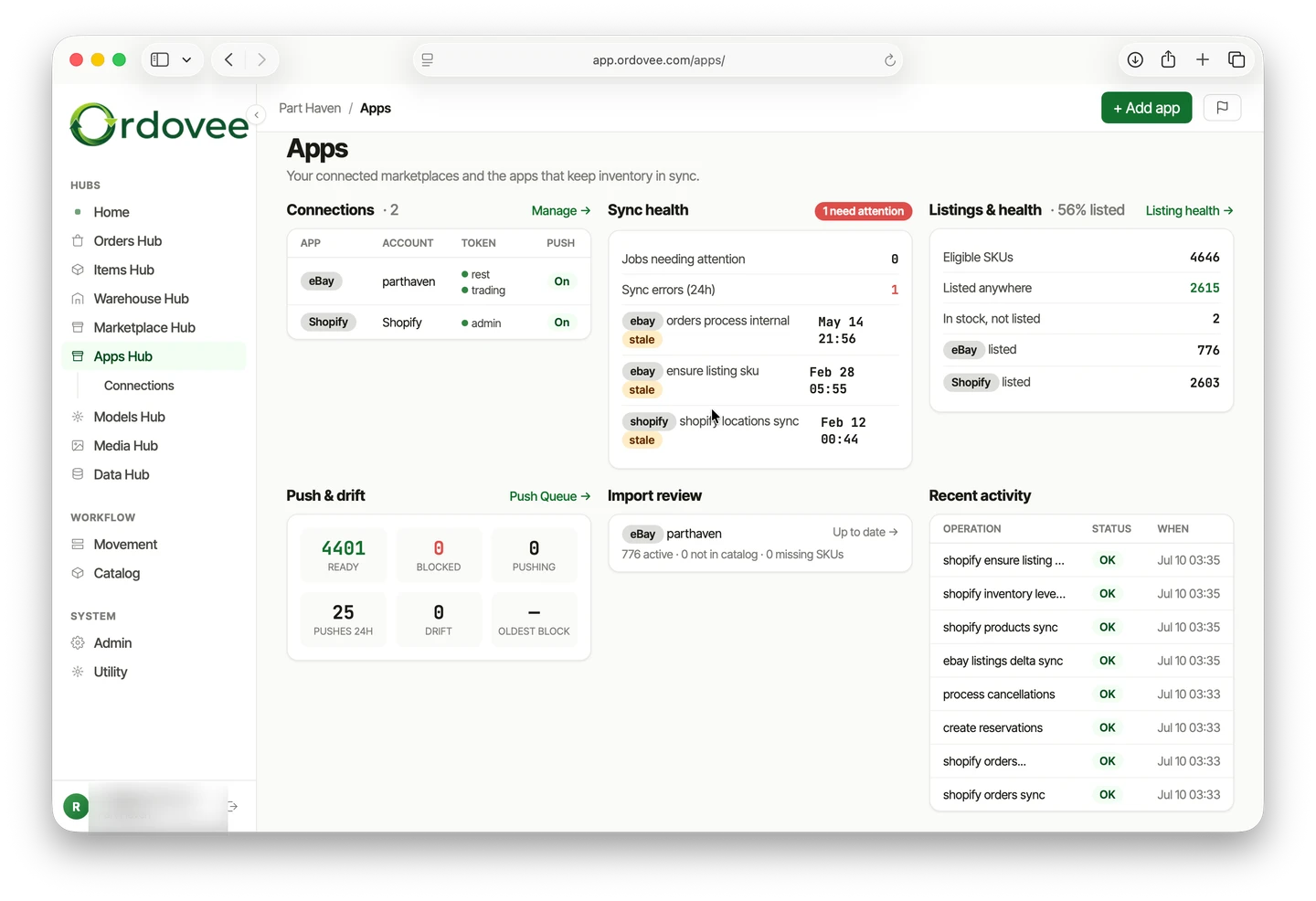
Connect your Shopify store to Ordovee so orders come in automatically and inventory quantities can push back out — without changing your live Shopify inventory until you are ready.
Shopify handles inventory by location, so there is one decision you do not have on every marketplace: which Shopify location should Ordovee manage?
Once that is set, the rest of the connection is straightforward.
New to the bigger picture? Start with how Ordovee keeps eBay and Shopify inventory in sync for what syncs, what stays in Shopify, and how listings connect to your inventory.
Otherwise, let’s connect.
Before you start
You need three things:
- access to the Shopify store you want to connect;
- the store’s
your-store.myshopify.comdomain; - an idea of which Shopify location represents the inventory Ordovee will manage.
Your Shopify product SKUs should also match the SKUs you use in Ordovee. You can fix unmatched records before anything starts pushing quantities.
Connecting your Shopify store
Step 1: add your store
From the Shopify connection area in Ordovee, choose Add Connection and enter your Shopify store domain:
your-store.myshopify.com
Ordovee creates the connection record for that store.
Step 2: authorize Ordovee in Shopify
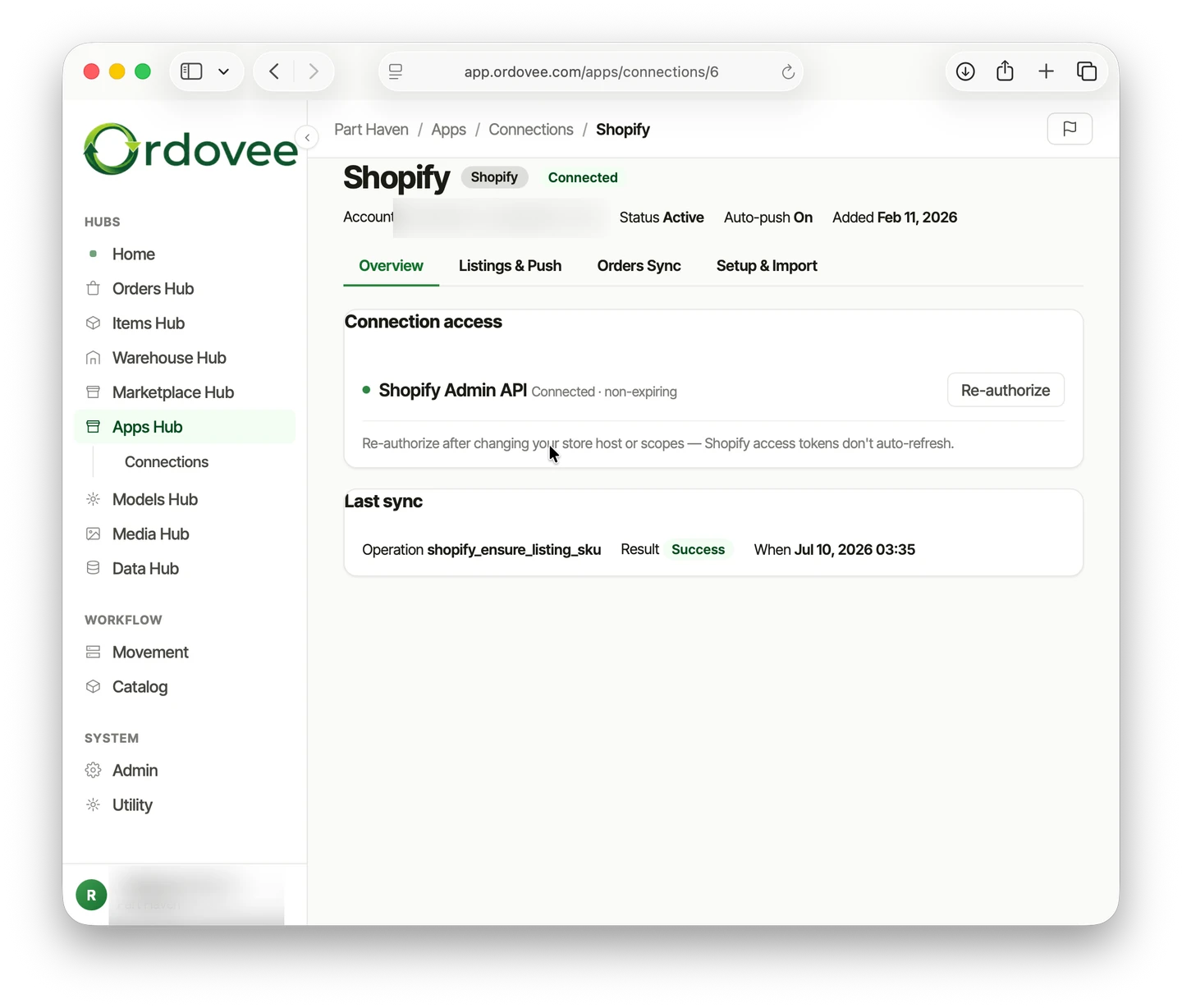
Choose Connect to Shopify.
You will be sent to Shopify to approve the connection. The authorization gives Ordovee the access it needs to read products, inventory, orders, and locations and to update inventory quantities.
Once approved, Shopify sends you back to Ordovee automatically.
There are no API keys or access tokens for you to copy and paste.
Step 3: sync your Shopify locations
Before Ordovee can work with Shopify inventory, it needs to know which locations exist in the store.
Run Sync Locations.
Ordovee reads the warehouse and fulfillment locations configured in Shopify and makes them available for the next step.
Step 4: choose the location Ordovee should manage
Select the Shopify location that corresponds to the inventory Ordovee will control.
For many operations, that is the main warehouse where the parts physically sit.
This choice matters because Shopify inventory exists at specific locations. When Ordovee later pushes a quantity change, this is the Shopify location it updates.
If you have several Shopify locations, do not just choose the first one. Pick the location that actually represents the stock being managed in Ordovee.
Step 5: sync your products
Run Products Sync.
Ordovee pulls your Shopify catalog into its marketplace mirror at the variant level, including the information it needs to identify and match what you sell.
That includes details such as:
- product and variant identity;
- SKU;
- barcode;
- status;
- other product information used by the connection.
This does not turn your Shopify catalog into a second Ordovee catalog. It gives Ordovee a current view of what exists in Shopify so those variants can be connected to your internal inventory.
Step 6: sync Shopify inventory levels
Now sync the inventory levels for the Shopify location you selected.
This gives Ordovee a view of the quantities Shopify currently reports at that location.
That matters during initial setup because you can compare the Shopify side with the inventory Ordovee is going to manage before anything starts pushing back out.
Reading Shopify inventory is not the same thing as making Shopify authoritative. Once Ordovee is live, its inventory record is the system of record and Shopify receives quantities from it.
Step 7: review SKU matches
Before Shopify products can drive Ordovee inventory, the variants need to be connected to the correct Ordovee SKUs.
Review any products that do not match cleanly and fix the missing or incorrect SKU relationships before continuing.
Ordovee uses those SKU relationships to know which Shopify variant belongs to which internal item. If a match is missing, the variant stays out of quantity pushes rather than being guessed into place.
Step 8: create any Ordovee items you do not already have
If Shopify is where your existing catalog lives today, Ordovee can use the synced product data to create the corresponding internal items.
Preview the items first, then create the ones that are missing.
Existing Ordovee items are left alone. This step is about building the internal catalog records Ordovee needs to manage the inventory behind those Shopify products.
Step 9: establish your opening inventory
Once the items exist, use the Shopify inventory levels you synced earlier to establish the starting quantities in Ordovee.
This is the handoff point from “what Shopify currently says” to Ordovee’s own inventory record.
Treat this as an opening count, not a recurring sync direction. Once Ordovee is live, inventory movements happen in Ordovee and quantities push outward to Shopify.
Review the preview carefully before committing the opening inventory.
Step 10: sync your recent orders
Run Orders Sync to bring in recent Shopify orders and connect them to Ordovee’s order workflow.
The initial run is the catch-up: it gives Ordovee the recent order history it needs instead of beginning with only the next order placed after setup.
After the connection is established, new and updated Shopify orders can arrive automatically rather than waiting for someone to press a sync button.
Those orders move into the same internal order system used for allocation, picking, packing, and fulfillment.
Step 11: review the connection before anything pushes
At this point Ordovee can see the store, locations, products, inventory levels, and orders.
But a new connection does not start changing Shopify quantities automatically.
That is deliberate.
Before enabling quantity pushes, check:
- Push location — is Ordovee targeting the correct Shopify location?
- SKU matches — do the Shopify variants match the correct Ordovee items?
- Opening inventory — were the starting Shopify quantities reviewed and established correctly in Ordovee, and do they match what is actually on the shelf?
- Unmatched products — are there any Shopify variants Ordovee cannot safely connect to an item?
This is the point to fix those things.
Step 12: turn on auto-push
When the inventory and matches look right, enable Auto-push.
From then on, inventory changes in Ordovee can flow back to Shopify at the selected location.
Receive stock, pick an order, or make a count adjustment, and Ordovee recalculates what is available for sale. Shopify receives the updated quantity on the next push.
The important boundary is simple:
Connecting lets Ordovee read Shopify.
Auto-push is what lets Ordovee start writing inventory quantities back.
How Shopify SKUs match to Ordovee
Ordovee connects Shopify variants to your internal items by SKU.
Shopify already stores the SKU on each variant, so Ordovee reads it during product sync.
Matches are deliberate, not guessed.
Ordovee normalizes the comparison by trimming surrounding spaces and comparing the SKU consistently. If the Shopify SKU does not match an item in Ordovee, that variant is not given an inventory quantity from some similar-looking item.
It stays unmatched and is surfaced for attention.
That is much safer than guessing.
A title might change. Two products might have nearly identical descriptions. The SKU is the identifier that ties the Shopify variant to the inventory record Ordovee is actually managing.
What happens after setup
Once the connection is live, Shopify becomes part of the normal Ordovee workflow instead of a second inventory system you have to maintain manually.
Orders come in
New Shopify orders arrive in Ordovee and enter the same order workflow as your other connected channels.
From there they can be reserved, picked, packed, and shipped.
→ Follow an order from arrival to shipment
Inventory changes go back out
With auto-push enabled, inventory changes in Ordovee are reflected back to Shopify at the location you selected.
The update is not a person opening Shopify and typing a new number after every sale.
It comes from the same inventory record that receives stock, handles picks, records adjustments, and supplies your other connected channels.
The connection stays inspectable
The Shopify connection keeps its own sync and activity history so you can see what ran and where to start if something does not look right.
If Shopify and Ordovee ever disagree, the marketplace number does not silently become your warehouse count.
Ordovee remains the operational system of record.
Running Shopify and eBay together
If you also sell on eBay, nothing changes about the underlying inventory.
Both storefronts connect to the same Ordovee inventory.
A Shopify order claims inventory from that record.
An eBay order claims inventory from that record.
A quantity change in the warehouse changes what is available to both.
The marketplaces do not need to agree with each other directly because Ordovee sits underneath them as the shared inventory record.
→ See how eBay and Shopify sync against one inventory
Next steps
Your Shopify connection is ready when the store is authorized, the correct location is selected, products and inventory levels have been read, SKUs are matched, starting inventory is right, and auto-push is turned on.
From there, the connection should become something you mostly stop thinking about.
→ See what happens when an order arrives: The order lifecycle → See the inventory record behind every quantity push: How ledger-based inventory works → See the whole system end to end: Product overview → Need help getting the connection right before going live? Talk to us
See Ordovee in your operation.
The fastest way to know if Ordovee fits your shop is to see the workflow with your own data — no slides, no scripted demo.