The used Zebra market is flooded with retired enterprise handhelds, refurbished units, and reseller listings that can be hard to compare. Here’s what we’ve learned about choosing the right handheld for inventory work, what to check before you buy, and the account lock that can turn a good purchase into a problem.
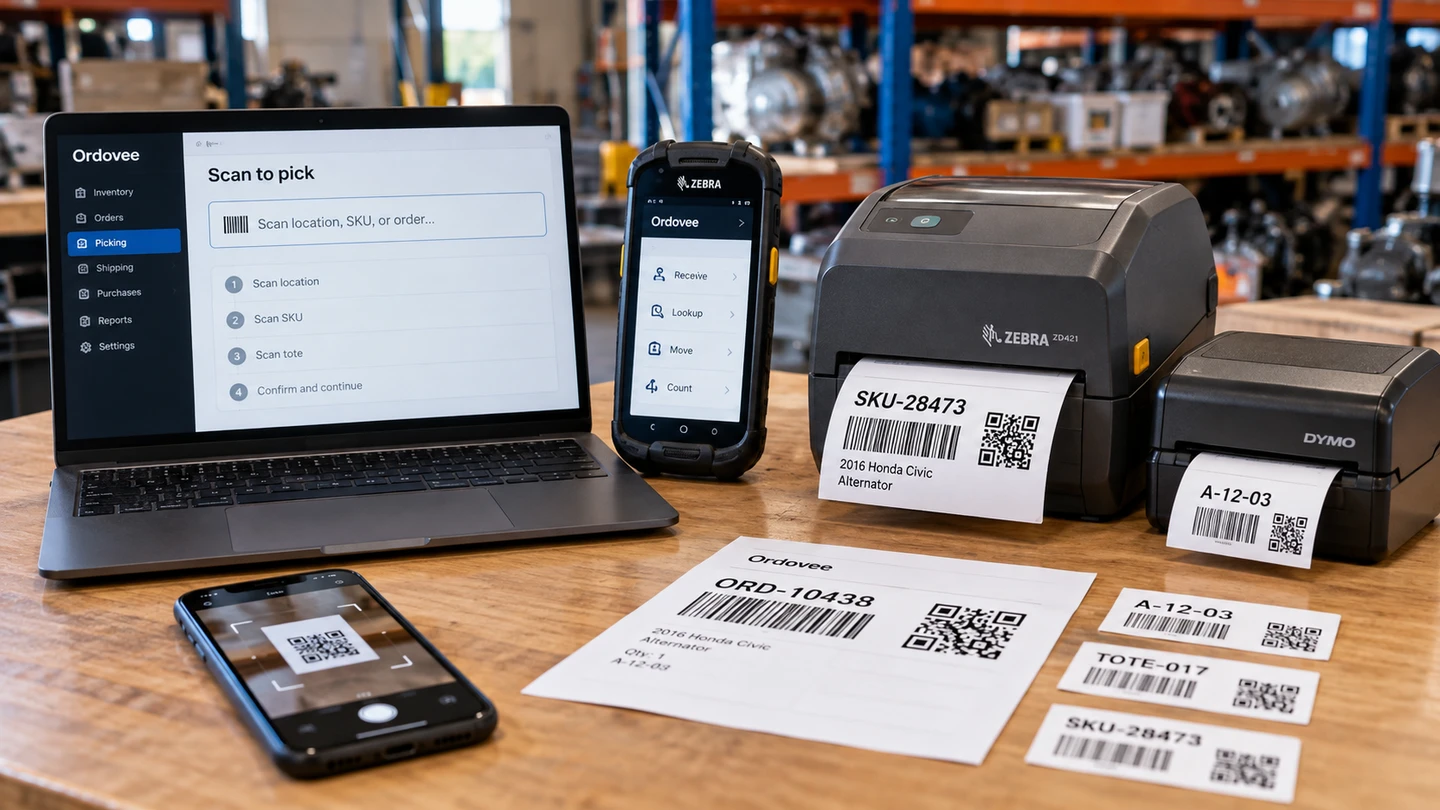
We built Ordovee, our Structured Disassembly Management platform, to run on exactly this kind of hardware — a secondhand Zebra, a browser, and nothing to install. Whether you’re parting out a car, a computer, an HVAC unit, or a tractor, the work is the same: scan a label, confirm a part, move on. Here’s how to buy the scanner that does it without getting burned.
Why buy a used Zebra at all?
Because enterprise handhelds get retired in huge batches long before they wear out. A scanner that cost well over a thousand dollars new turns up secondhand for a fraction of that, and it was built to outlast the job.
Big operations cycle their scanner fleets on a schedule — a lease ends, IT does a refresh — not because the units failed. So thousands of perfectly good Zebra handhelds hit the secondhand market every year, sealed against dust, drop-rated onto concrete, and barely broken in. That flood is what keeps the prices down.
Ordovee standardizes on Zebra for the same reason: the retired units are everywhere and they’re inexpensive. Honeywell handhelds work too if you come across a good one — ODV isn’t locked to a single brand. But for most operations shopping the handheld market, a Zebra is the easiest scanner to find, price-check, and replace.
TC21 vs TC52 vs TC57 — which used Zebra should you buy?
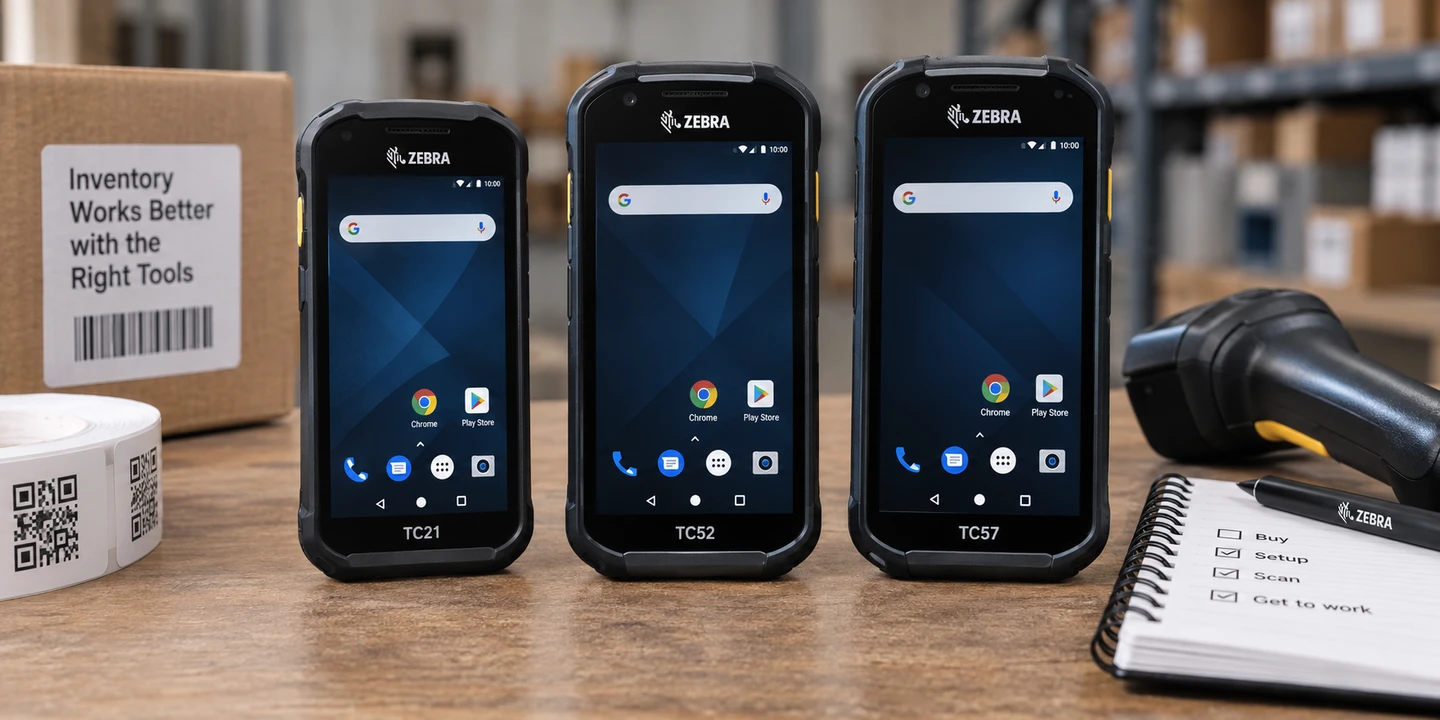
For an operation scanning QR codes and barcodes throughout the day, the TC52 family is our sweet spot. These devices were built around dedicated 1D/2D imagers and are a good fit for repetitive inventory work. A TC21 can be a good option for lighter use, while the TC57 versions add cellular capability.
One thing that makes the secondhand market confusing is that the model names span several generations. A TC52 is not the same hardware as a TC52x or TC52ax, even though reseller listings sometimes group them together.
Here’s the practical version:
| Model | Scan hardware | Best for | Watch for |
|---|---|---|---|
| TC21 | Camera-only, SE4100, or SE4710 depending on configuration | Light indoor scanning through scan-intensive use, depending on configuration | ”TC21” alone does not tell you which scanner is installed |
| TC52 / TC57 | SE4710 dedicated 1D/2D imager | Frequent warehouse and inventory scanning | Check Android version and overall device condition |
| TC52x / TC57x | SE4720 dedicated 1D/2D imager | Same kind of scan-intensive work on the newer TC5X generation | Don’t reject an SE4720 listing because you were expecting SE4710 |
| TC52ax | SE4720 or optional SE55 advanced-range imager | Frequent scanning; SE55 is useful when longer scan range matters | Know which scanner configuration you are actually buying |
The biggest configuration trap is the TC21. Zebra sold versions that use the rear camera for occasional barcode capture, versions with the SE4100 for light-to-moderate scanning, and versions with the SE4710 for scan-intensive work.
That difference matters if you scan hundreds of labels instead of a handful.
For occasional scanning at a desk or counter, a camera-equipped TC21 may be enough. For repetitive receiving, stocking, picking, counting, and inventory movement, we prefer a dedicated imager.
For most inventory operations looking at this generation of used hardware, we would start with the TC52 family rather than chasing one specific scan-engine number.
What should you check before you buy?
Seven things matter more than the cosmetic grade printed in the listing: Android version, Google services, battery condition, touchscreen condition, scan hardware, previous enterprise management, and the return window.
Android version
Check this before anything else.
As of this article’s publication in September 2026, Android 10 is the oldest Android version supported by the current release of Chrome. Ordovee has been tested on Android 10, so that is our minimum when evaluating a used handheld.
Older Zebra hardware may still be running Android 8 or Android 9. An older version of Chrome may still open on those devices, but it cannot update to the current release.
For a device you are buying now, we would not start there.
Ask the seller what Android version is installed, or ask for a photo of Settings → About phone → Android version. Look for Android 10 or newer.
Google services
For the simplest ODV setup, we recommend a normal Google Mobile Services (GMS) configuration with Chrome and the Google Play Store available.
Enterprise Zebra hardware can also exist without GMS or can have Google services restricted by a previous organization. In Zebra’s GMS Restricted mode, applications including Chrome and Google Play can be disabled.
That matters because our normal setup assumes you can run and update Chrome.
If a used handheld arrives without Chrome or the Play Store, don’t assume that is something you should fix yourself. Ask the seller why. If the device is still carrying the previous organization’s restrictions or management configuration, have the seller clear it or return the device.
Battery condition
Used batteries are consumables. A good handheld with a tired battery can still be a good purchase — just plan for the possibility of replacing it.
Zebra’s battery-management tools can report battery health and wear on supported devices. If the seller can show you that information, great. If not, test the unit as soon as it arrives and make sure the battery behaves normally under actual use.
Don’t reject a good scanner over an old battery. Just don’t assume the battery has the same life left in it as the rest of the device.
Screen condition
These are touchscreen devices, so the screen is not just a display — it is one of the primary controls you will use throughout the day.
Case wear usually doesn’t matter. Cracks, dead pixels, touch problems, dead areas of the touchscreen, or deep screen damage do.
A scratched housing or worn corner may have no effect on how the device performs. A touchscreen that misses taps, registers touches in the wrong place, or has an unresponsive section will become frustrating immediately, especially when you are moving between scans and on-screen confirmations.
When the device arrives, test the entire touchscreen rather than just confirming that it lights up.
Scan hardware
Make sure you know whether the device actually has a dedicated imager.
Simply asking the seller to scan a QR code is not enough on a TC21 because the camera-only model can scan QR codes too.
If the seller is comfortable opening DataWedge, have them check Barcode input → Scanner selection. A device with an internal scan module will offer a 2D imager; a camera-only configuration will rely on the internal camera.
For a TC21, the exact Zebra part number is also useful because the scanner configuration varies by SKU.
Once you know the device has the hardware you want, make sure the scanner fires, aims, and reads a real code. Test the physical scan buttons too.
Cosmetic grade
Grade A, B, and C usually describe appearance, not a universal technical standard. Every reseller defines those letters differently.
Read the seller’s definition instead of buying the letter.
For an inventory handheld, we would usually take a cosmetically worn device with a responsive touchscreen, dedicated imager, usable battery, current-enough Android version, and solid return policy over a cleaner-looking unit with unknown internals.
Return window
This may be the most important line in the entire listing.
A real return window gives you time to boot the device, connect it to Wi-Fi, check the Android version, test Chrome and Google Play, exercise the entire touchscreen and scanner, check the battery, and make sure the device does not belong to somebody else’s management system.
There are several things about used enterprise hardware that listing photos simply cannot prove.
Two locks to watch for: FRP and enterprise enrollment
A used Android handheld can still be tied to its previous owner in more than one way.
Factory Reset Protection
Factory Reset Protection, usually shortened to FRP, is Android’s protection against someone taking a device, resetting it, and setting it up as their own.
If FRP is triggered, setup may ask for credentials associated with a Google account that was previously used on the device. Without the appropriate credentials, you may not be able to complete setup.
But on former enterprise hardware, FRP is not the only thing to check.
Zero-touch and previous enterprise management
Android zero-touch enrollment allows a company to register a device for automatic enterprise management. When a registered device connects during initial setup, it can automatically enroll itself back into that organization.
A factory reset does not remove the device from zero-touch enrollment. The organization that owns the enrollment has to deregister it.
That means a handheld can appear perfectly clean while offline and then begin installing company applications, policies, or management software as soon as it reaches the internet.
Before you buy, ask the seller:
Has the device been factory reset and taken through setup with Wi-Fi connected, without asking for a previous Google account and without automatically enrolling into or installing management software from another company?
The with Wi-Fi connected part matters.
When the handheld arrives, do the same test yourself while you are still inside the return window.
If it asks for an account you do not recognize, displays that it belongs to another organization, automatically installs company management software, or resets itself into an enterprise configuration after reaching the internet, stop there.
That is the seller’s problem to resolve, not a configuration project for you.
You bought one — how do you set it up?
Once the handheld has passed those checks — Android 10 or newer, normal browser access, no previous-account lock, and no unwanted enterprise enrollment — setup is straightforward.
1. Start with a properly Factory Reset device
For a secondhand Zebra changing owners, you want a Factory Reset, not merely an Enterprise Reset.
On Zebra hardware, an Enterprise Reset intentionally preserves the /enterprise partition. That partition can contain persistent applications and configuration files used to return the handheld to an organization’s defined setup.
In other words, an Enterprise Reset can erase the user’s day-to-day data while preserving exactly the enterprise configuration you are trying to get rid of.
A Factory Reset removes that persistent enterprise partition as well.
If a seller tells you the device received only an Enterprise Reset, ask them to properly Factory Reset and test it before shipment.
Even a Factory Reset does not remove Android zero-touch registration, which is why the connected setup test above is still necessary.
2. Connect to Wi-Fi and complete setup
Connect the device to the network and finish Android setup.
This is not just configuration — it is part of your acceptance test. Connecting to the internet gives Android a chance to check for zero-touch enrollment or other cloud-based management.
Do this before investing time in your own setup.
3. Confirm Android, GMS, and Chrome
Verify that the actual device is running Android 10 or newer.
For our normal ODV setup, confirm that Chrome and Google Play are available and that Chrome can update normally.
If a device advertised as ready for normal use arrives with those services missing, restricted, or controlled by another organization, resolve that with the seller before moving on.
4. Configure DataWedge
This is the Zebra-specific step that makes the handheld feel like warehouse hardware instead of an Android phone with a scanner attached.
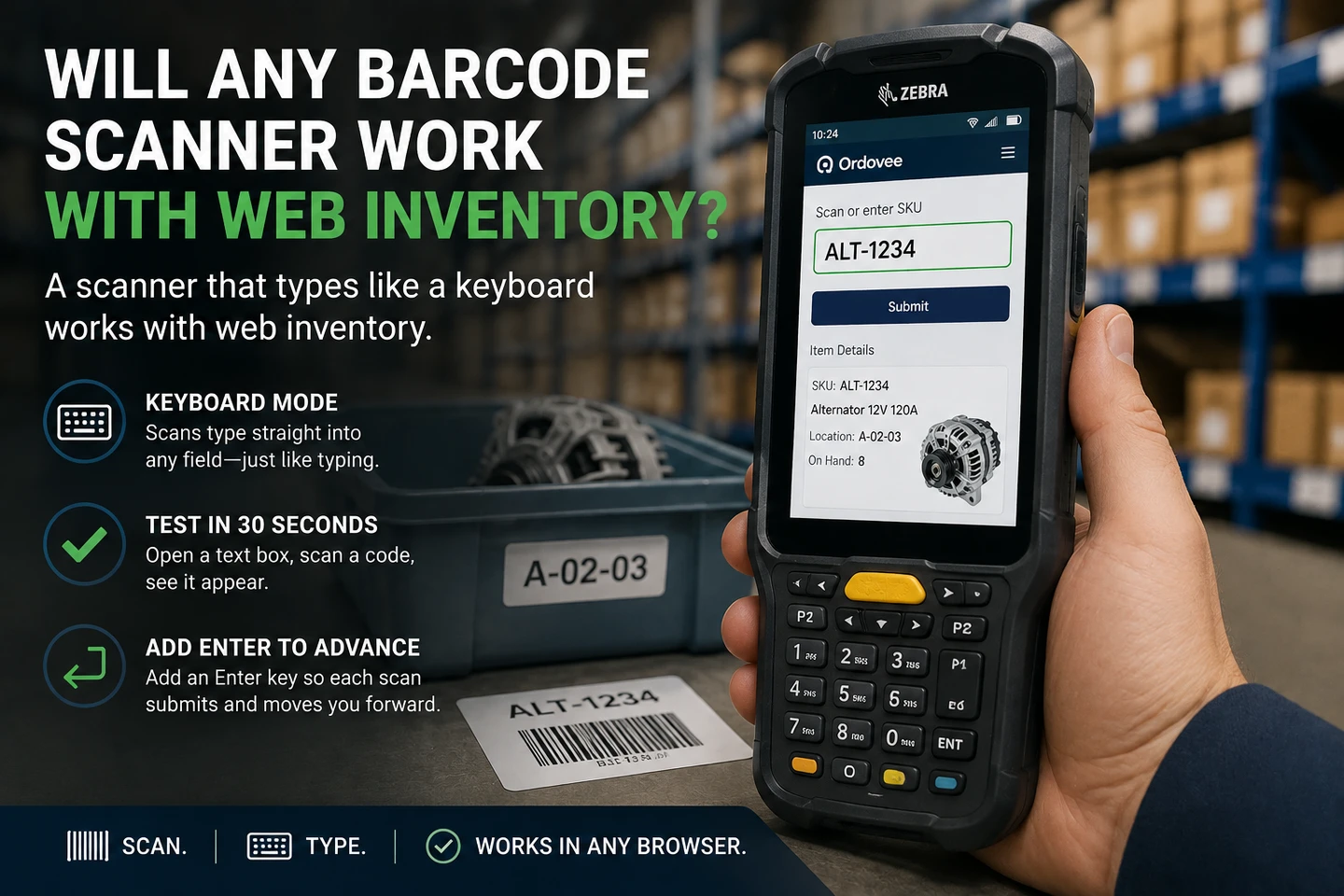
Zebra’s DataWedge software can send scanned barcode data into the browser as keystrokes. For ODV, configure it to append the Enter action (carriage return) after the scanned value so each scan can submit and move the workflow forward instead of leaving you tapping the touchscreen after every trigger pull.
The Zebra DataWedge setup guide walks through the exact settings, and DataWedge in the browser covers the one setting that trips up fast scans in a web app.
5. Sign in and scan
Open ODV in Chrome, sign in, and test a real label.
That’s it.
From there, scanner-first picking is what the hardware unlocks: scan the item, scan the location, confirm the movement, and keep going without stopping to type identifiers manually.
Where should you buy a used Zebra?
Three common routes, each with trade-offs — none is the single right answer for every shop.
- Amazon Renewed. Devices come inspected and graded with a standard return window, which lowers the risk of a bad unit. You tend to pay more for that peace of mind.
- eBay. The widest selection and often the best prices, but quality swings hard by seller. Read the return terms, and both lock questions — FRP and zero-touch enrollment — apply double here. Buy from a seller with a real return policy.
- Refurbisher specialists. Shops that deal only in enterprise handhelds often bundle a warranty and a fresh battery, which takes two of the checks off your list. Expect to pay a premium for it.
Whichever route you take, the return window is your safety net. A slightly higher price with 30 days to test beats a rock-bottom “as-is” listing you can’t send back.
A secondhand Zebra is only a bargain if it powers on clean and reads every label you throw at it. Buy from a seller who takes returns, confirm it boots clean with Wi-Fi connected — no previous Google account, no enterprise enrollment — and check the Android version and battery before the return clock starts. Get those right and you’ll have a scanner that cost a fraction of new and lasts years on the warehouse floor.
Once it’s in your hand, Ordovee is already waiting in the browser — nothing to install, no fleet software to license. Every QR label ODV prints for a part you pull off a teardown is one trigger pull away from confirmed.
→ Not sure a used handheld fits your operation? Ask us about your gear → See what ODV does the moment a scanner signs in
See Ordovee in your operation.
The fastest way to know if Ordovee fits your shop is to see the workflow with your own data — no slides, no scripted demo.