
Sold is only the beginning.
More sales are good news. Fulfilling them shouldn’t feel overwhelming. Without a consistent process, orders can be overlooked, stock can be sold twice, and the wrong items can be picked or packed. As order volume grows, it becomes harder to keep track of what’s waiting, what needs attention, and what’s already done.
Ordovee brings orders from your connected sales channels into one queue, reserves the stock they need, and organizes picking and packing, giving every order a clear path from arrival to shipment.
Follow an order through Ordovee.
From the moment an order arrives until its marketplace marks it shipped, here’s what happens.
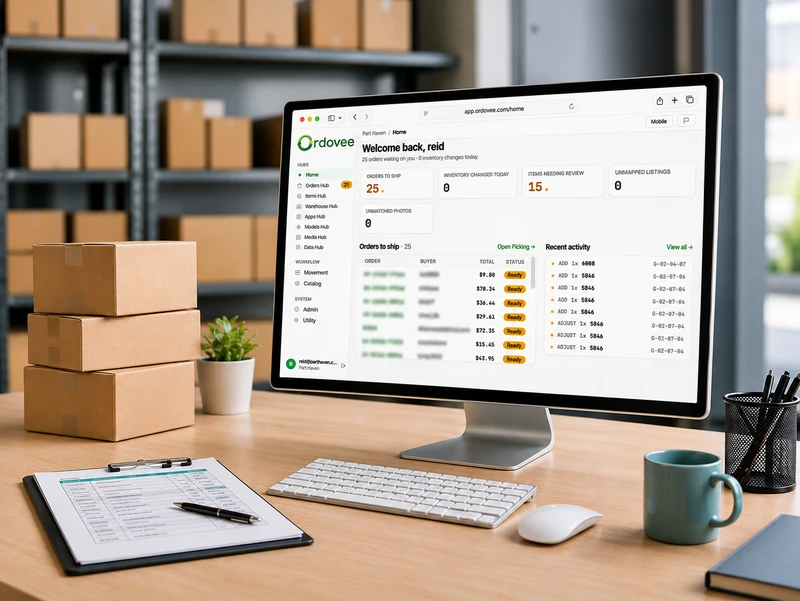
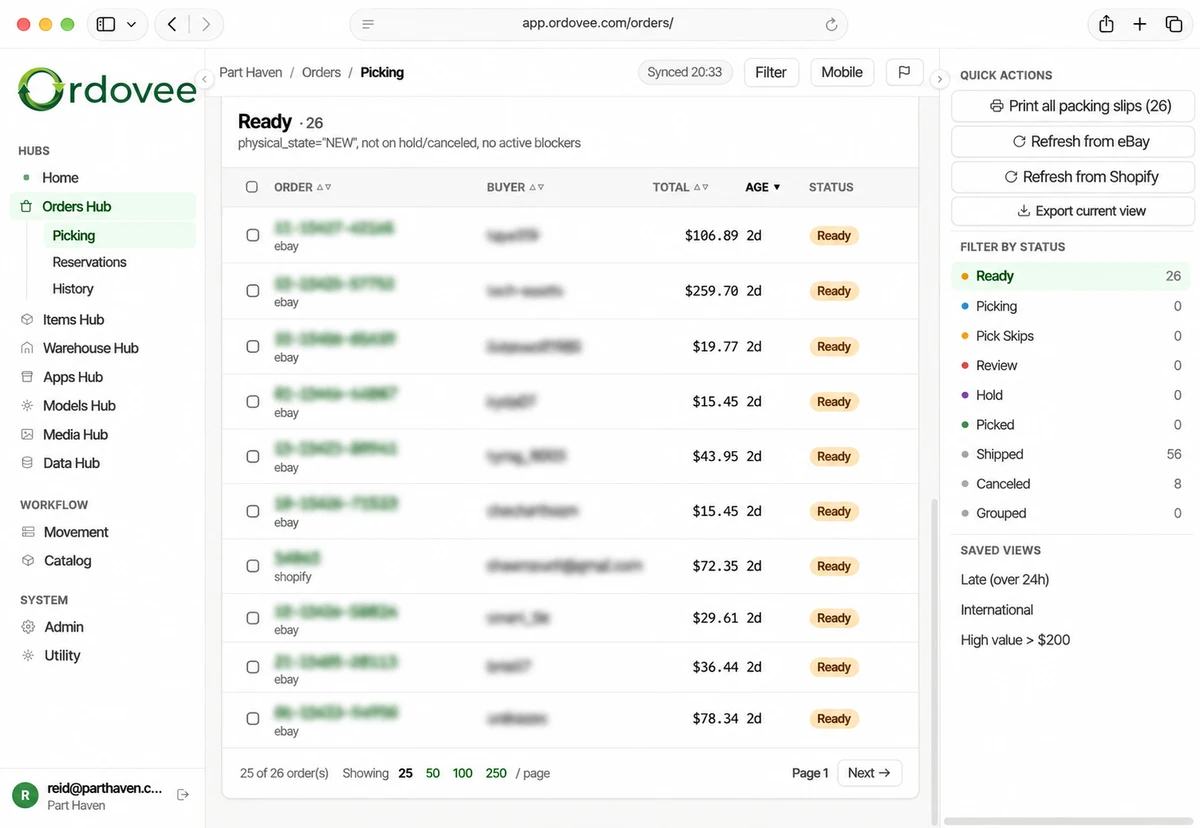
Your orders, together in one place
Orders from eBay and Shopify come into Ordovee automatically. There’s nothing to copy over from a marketplace dashboard and no separate order list to keep.
An eBay order sits beside a Shopify order, each with its own status. Both follow the same process through picking, packing, and shipment.
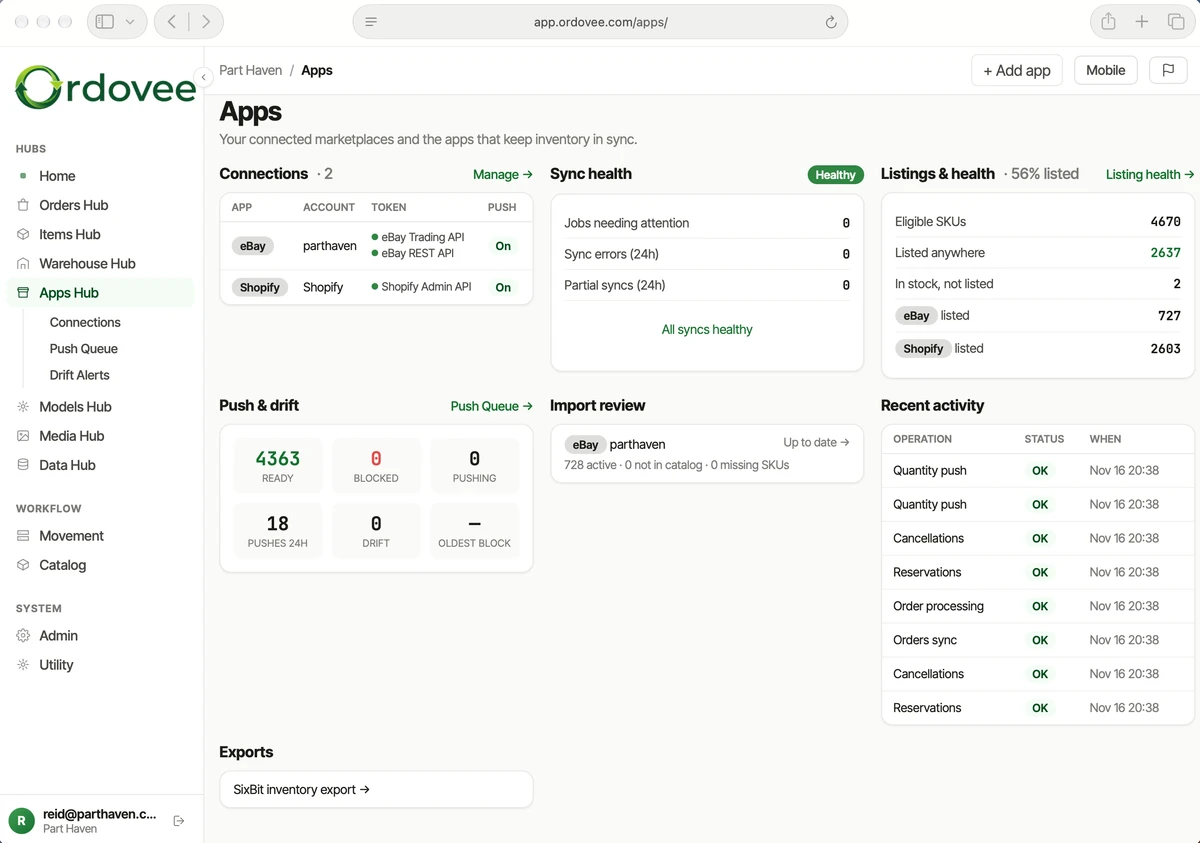
Sold vs. available.
Know the difference.
A sale commits stock before anyone picks it. If that commitment isn’t accounted for, the same stock could be sold twice.
Ordovee reserves the items each order needs, even while they remain on the shelf. That stock is no longer available for another sale. With auto-push enabled, Ordovee sends the updated quantity to matching listings on your connected marketplaces, helping prevent the same stock from being sold twice.
Five units on the shelf. Two already sold. Three left to sell. All accounted for in one place.
One trip. Every order in its place.
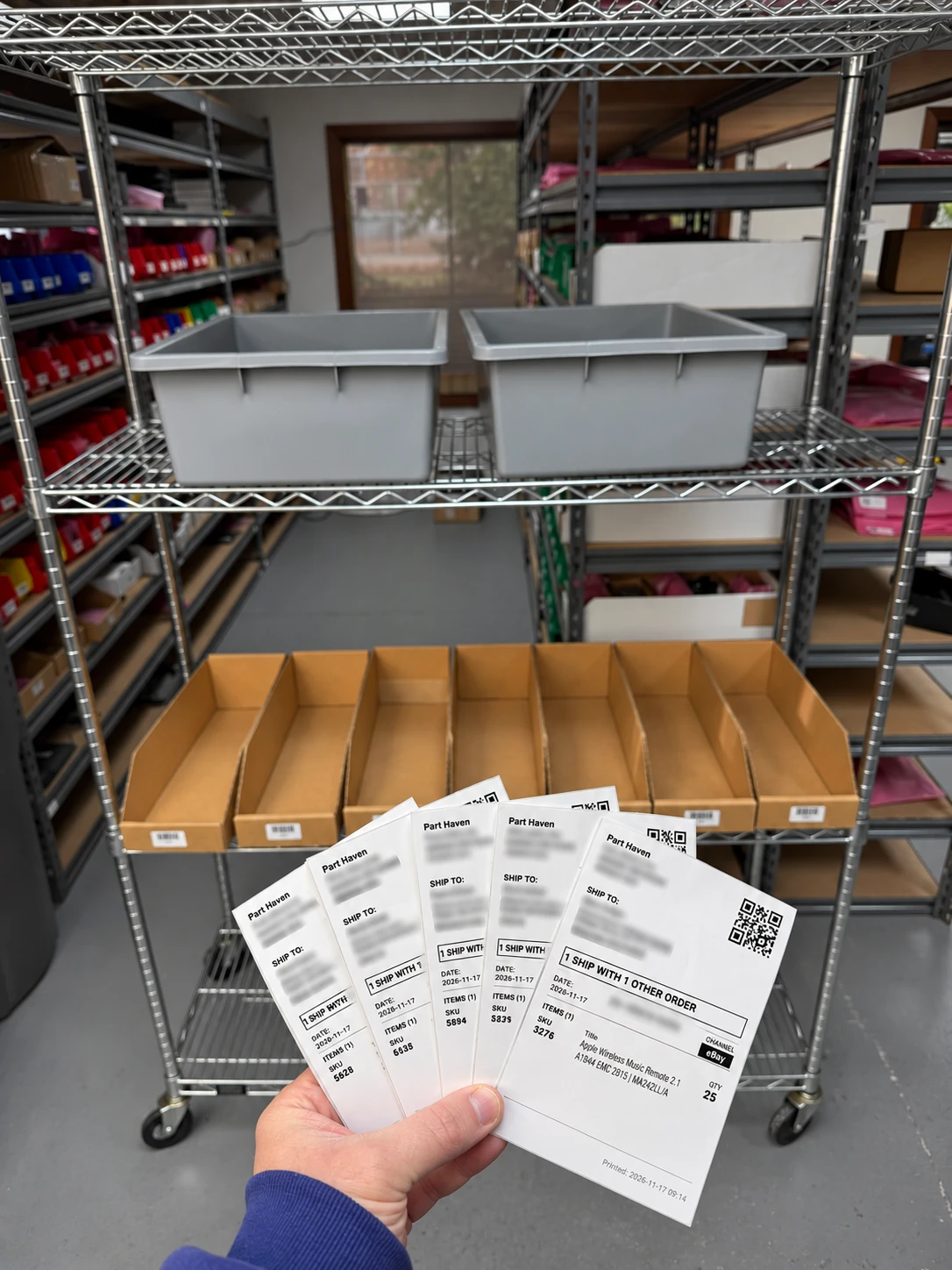
The day’s orders are synced and ready to pick, each with its own items, quantities, and shelf locations. Pick them one at a time and you’re making repeated trips through the same shelves. Pick them all together without a plan and items get mixed between orders.
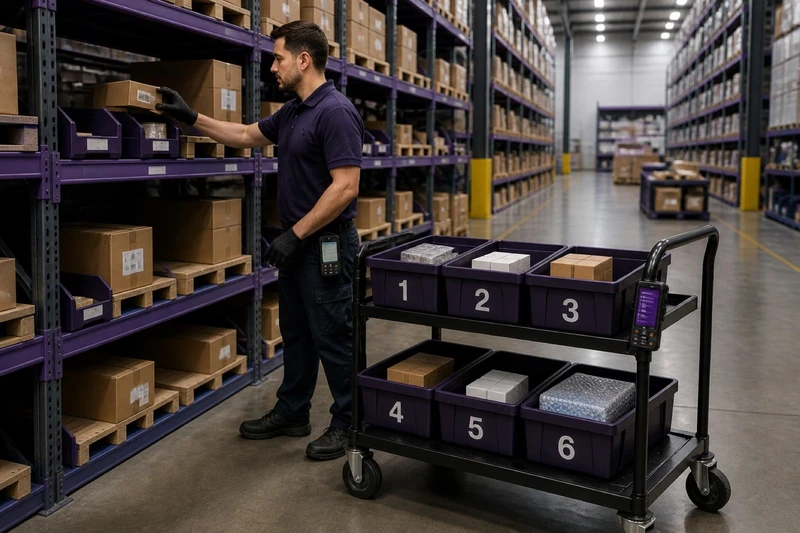
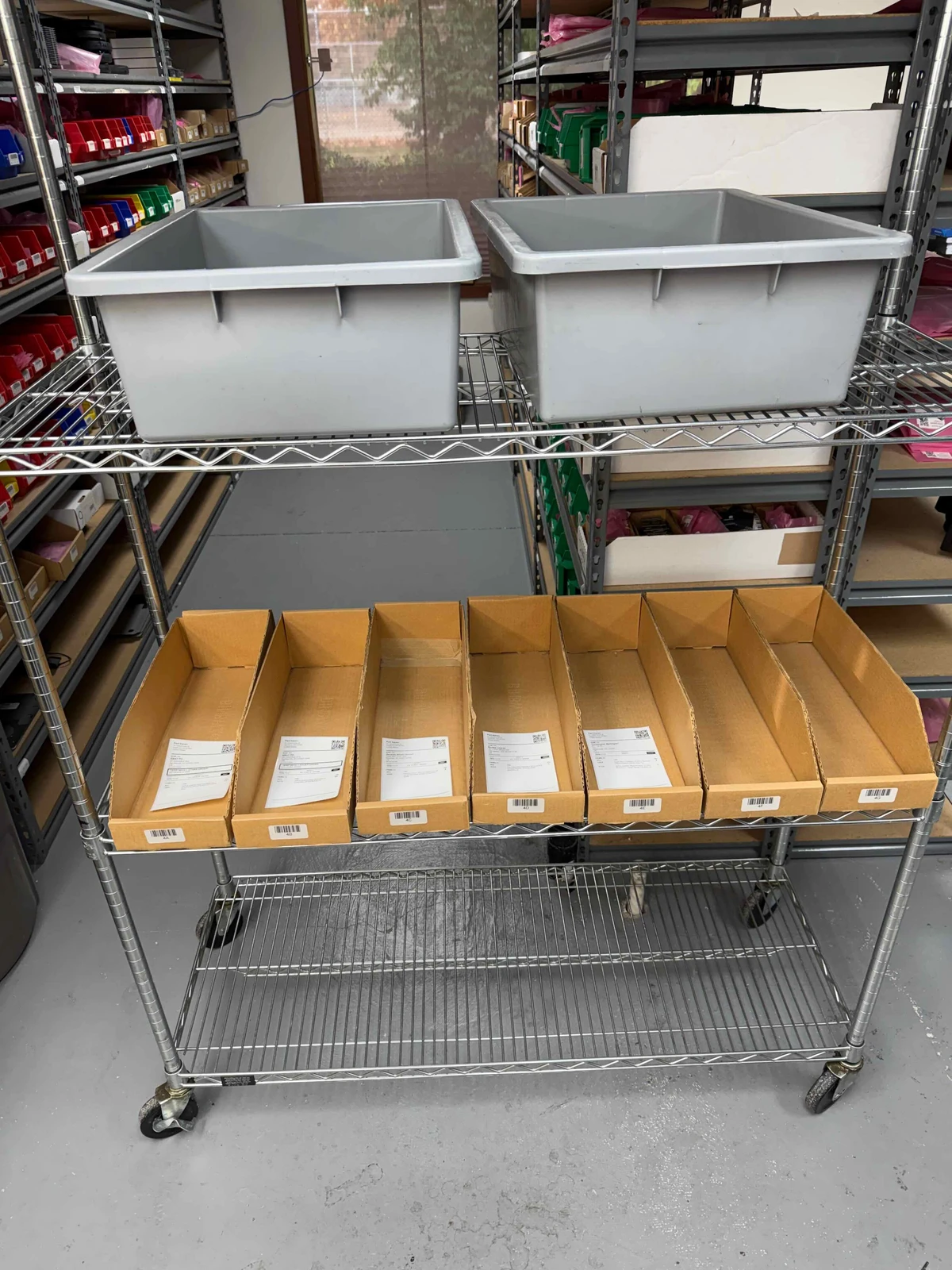
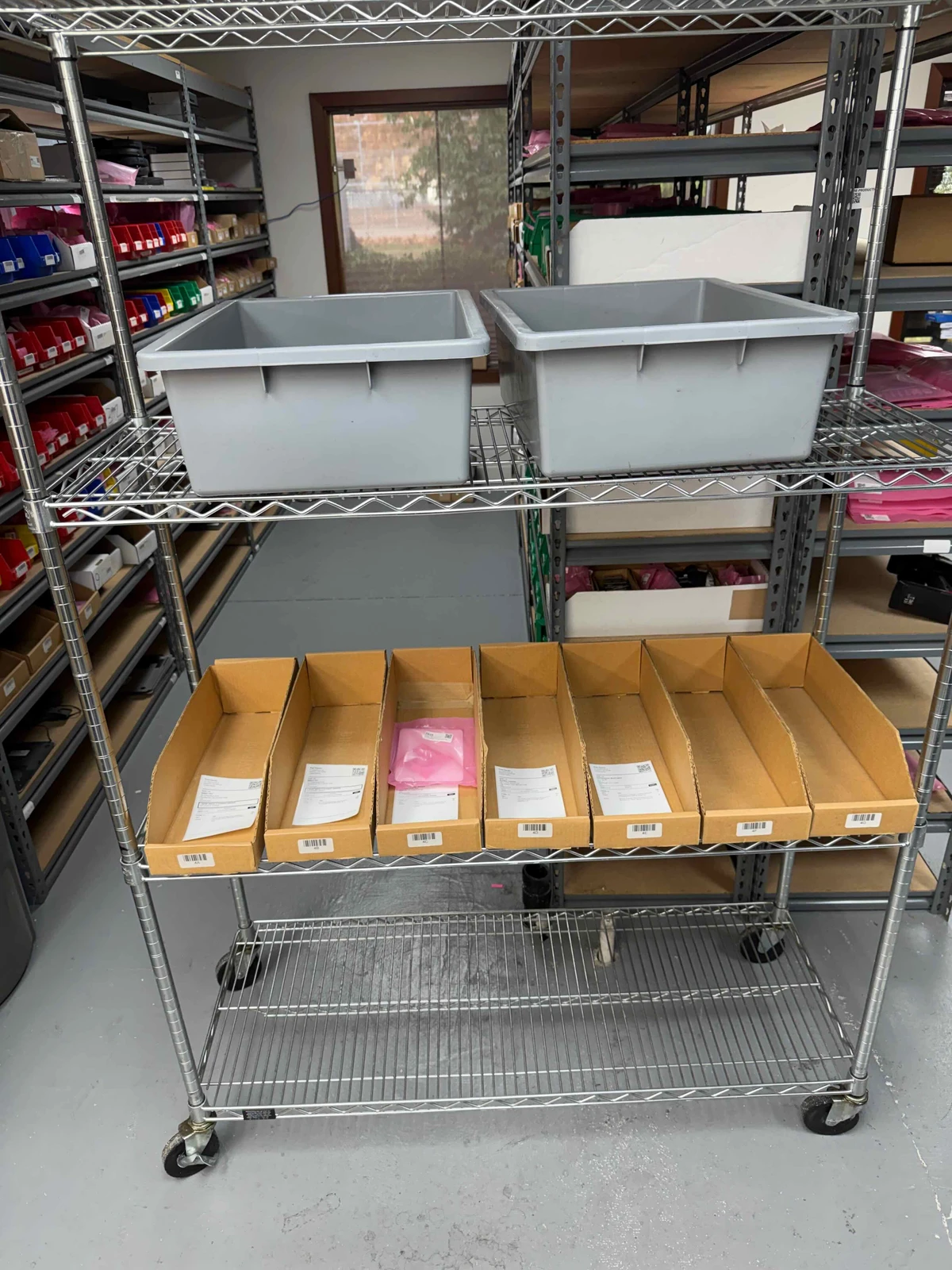
Ordovee brings those orders together into one organized picking session. Packing slips can be printed individually or in batches, giving every order its own slip to follow through picking and packing. Each order gets its own place on the cart, whether that’s a tote, a box, or simply a marked space.
Right items for the right orders
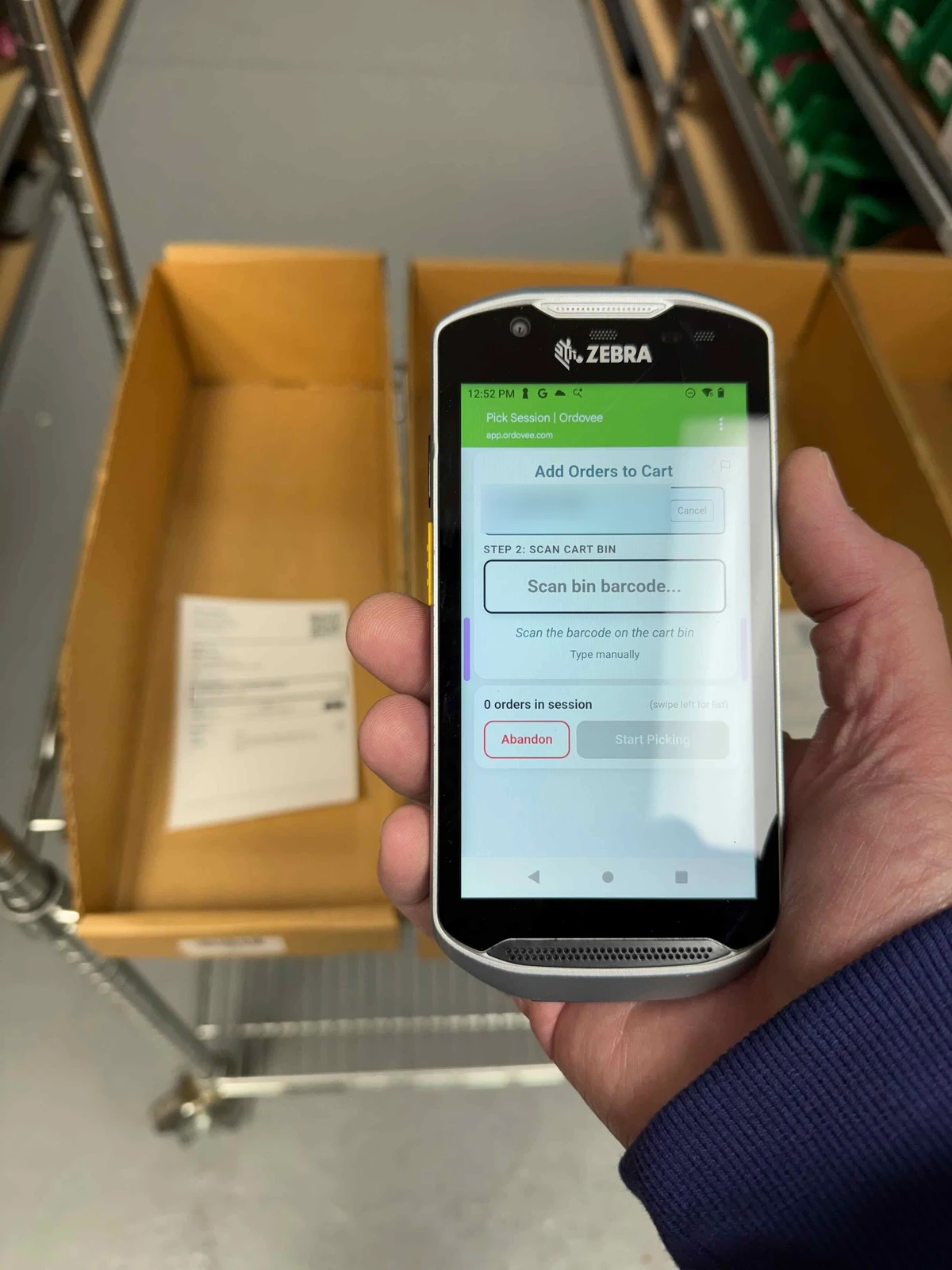
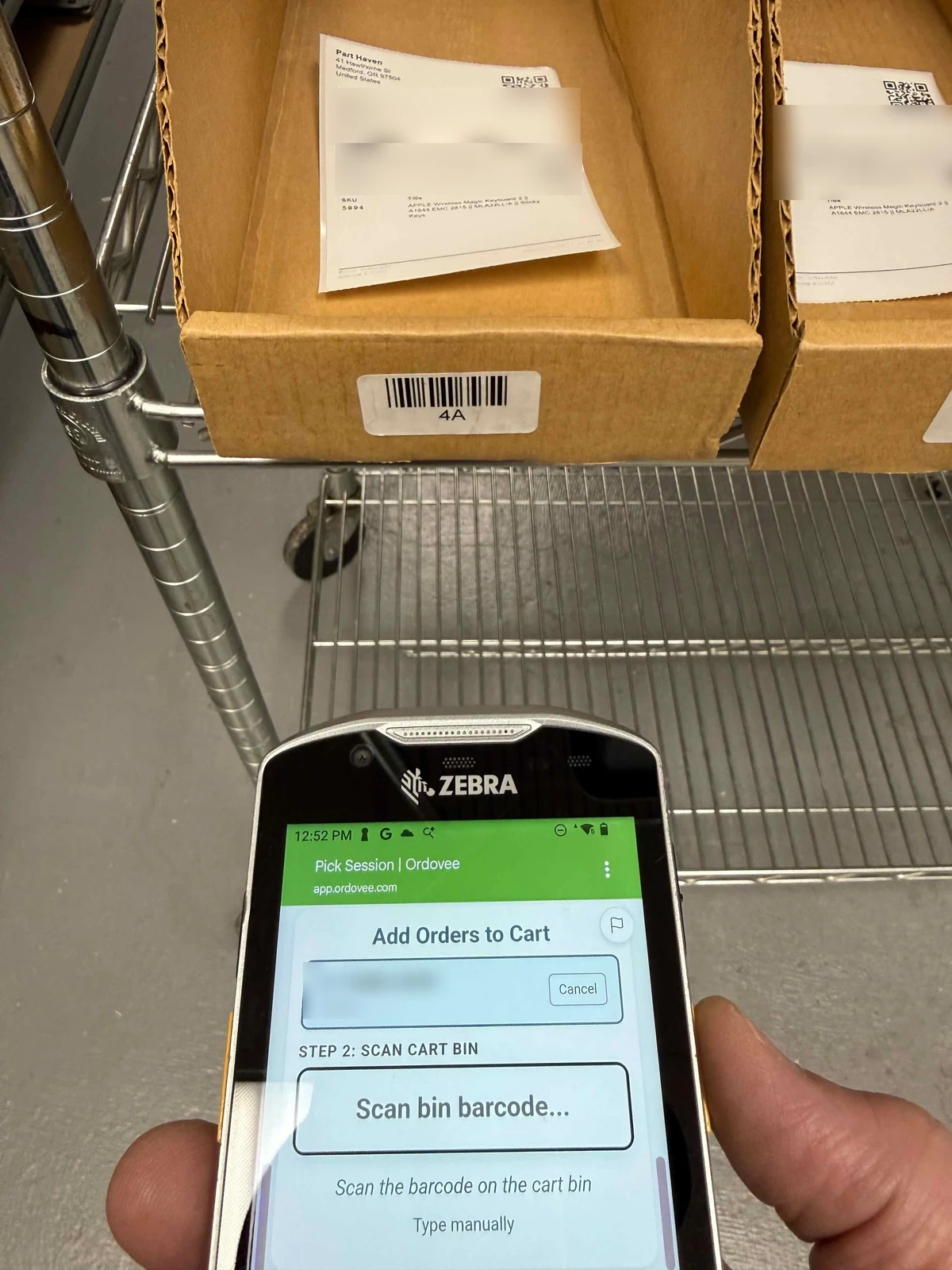
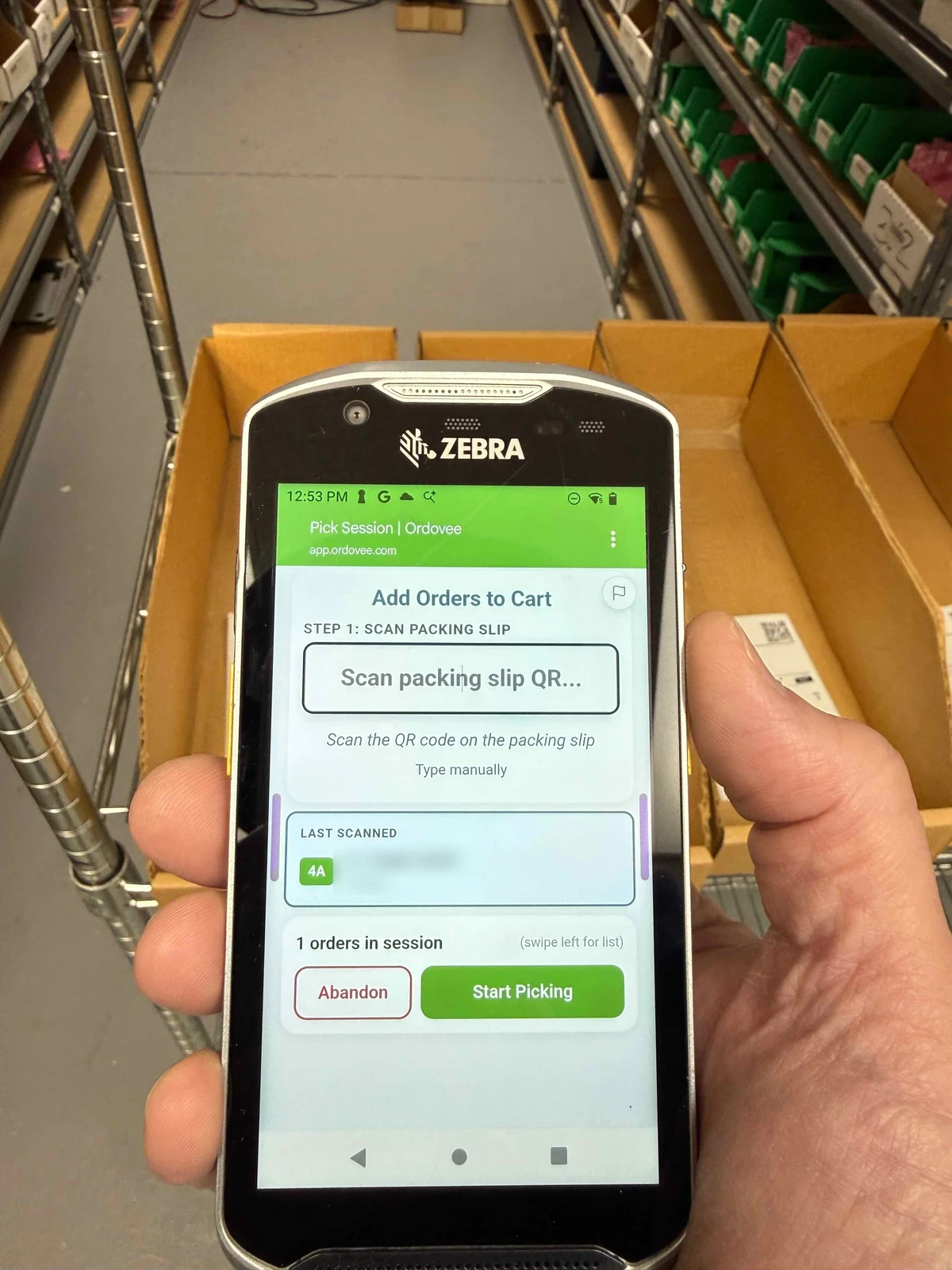
Picking starts at the cart. Using your phone or handheld scanner, scan each order’s packing slip, then scan a location on the cart to assign it to that order. Ordovee now knows where each order’s items belong.
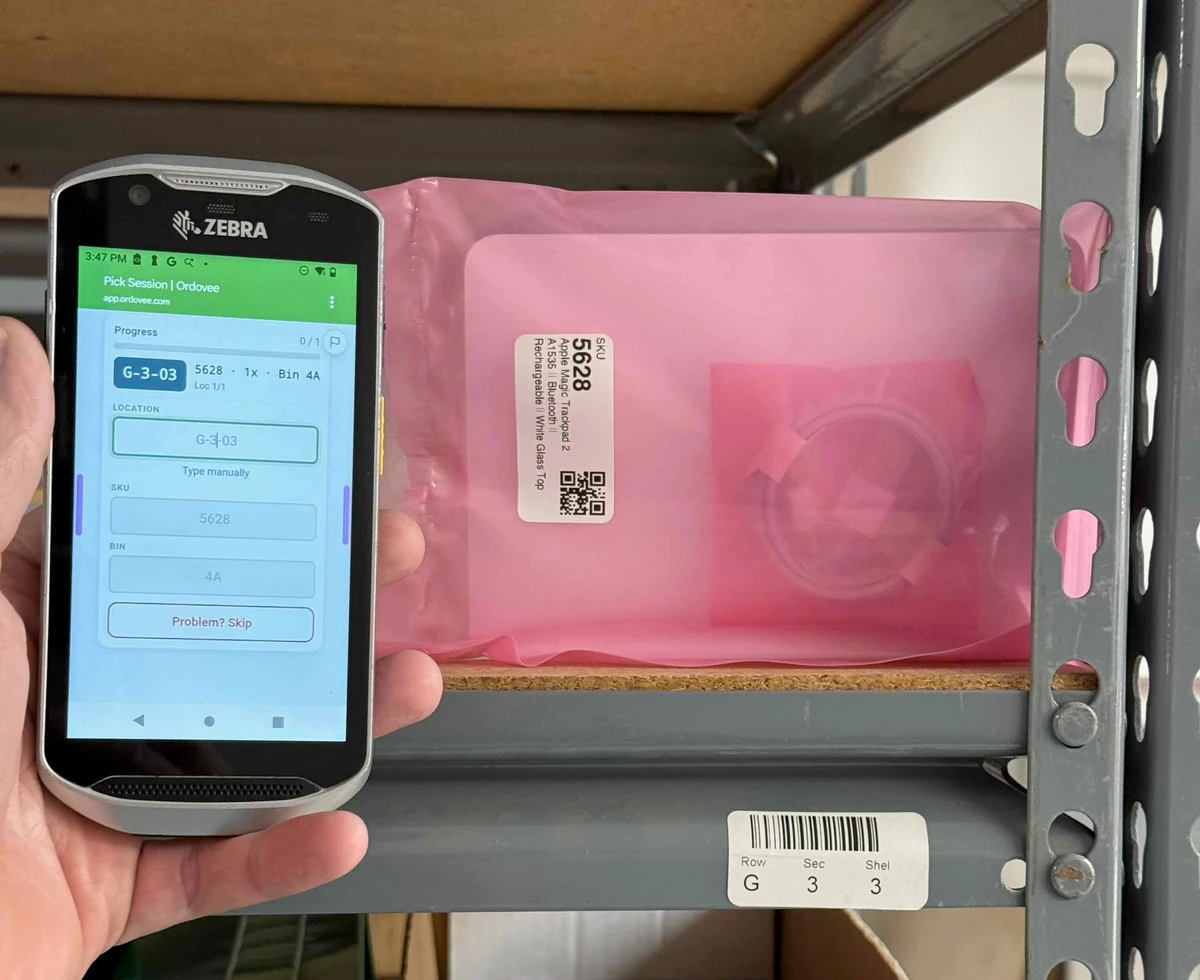
From there, the handheld guides you to each item’s location in the warehouse. It shows you what to collect and how many. At each stop, scan the location and item to confirm you’ve found the right stock.
The handheld then shows where that item belongs on the cart. Scan that location to confirm it’s going to the right order. Several orders, several items, one trip. Each item verified and placed where it belongs, ready for packing.
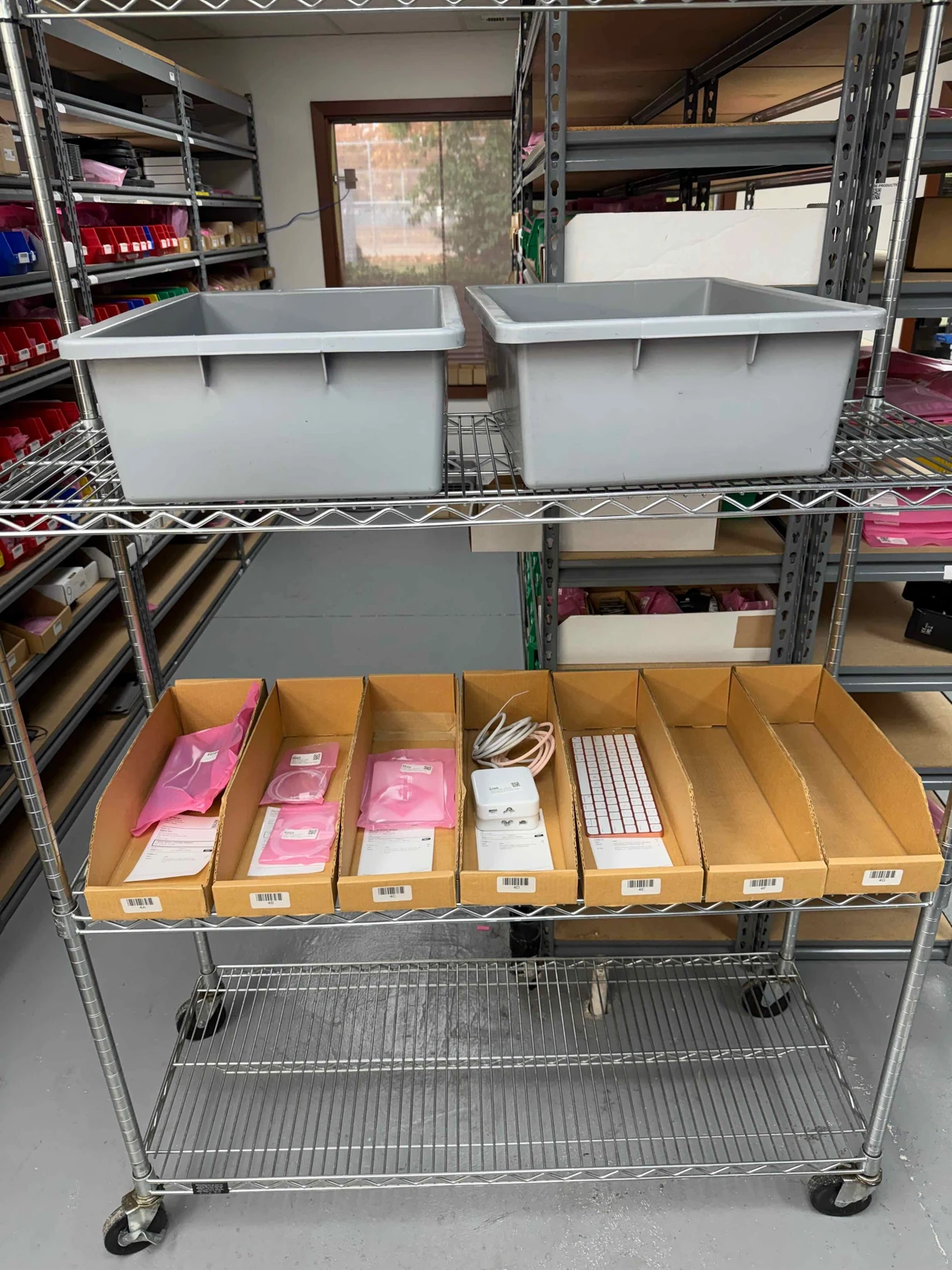
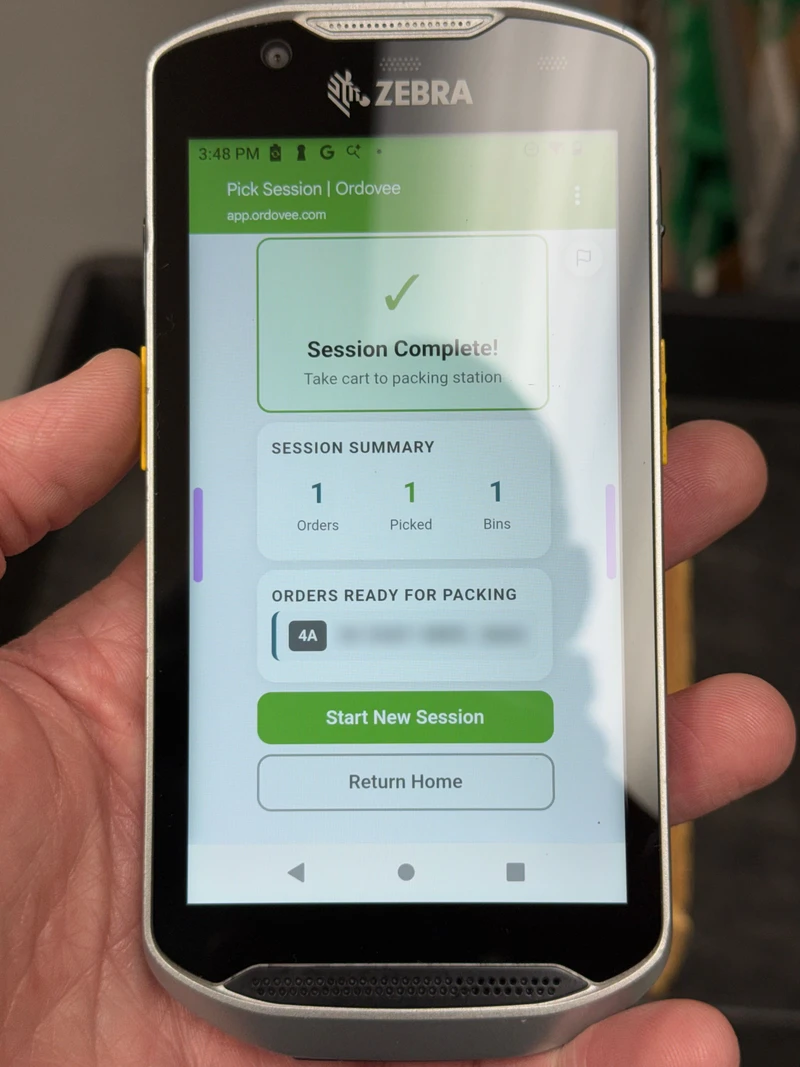
Already sorted. Ready to pack.
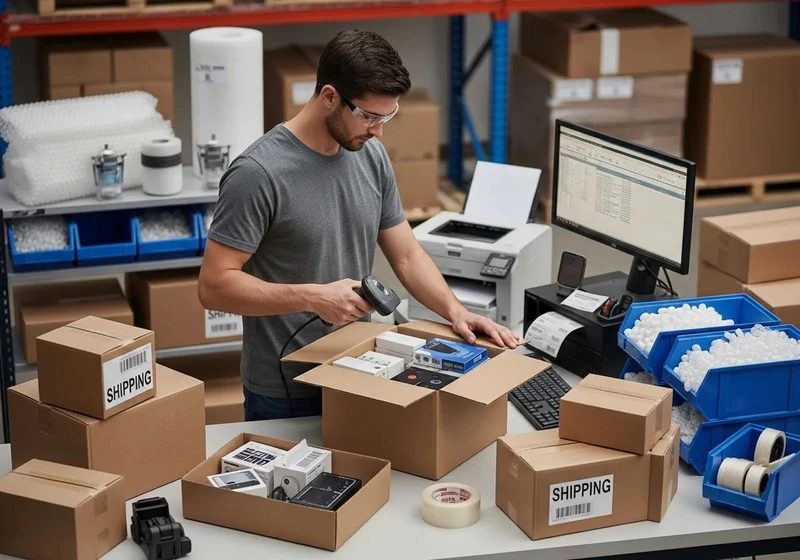
The cart arrives at packing with each completed order already separated and ready to box. No sorting through mixed items at the packing table.
Each order has its packing slip listing everything that belongs in the box. Check the contents, pack the order, and move on to the next. Orders with skipped picks remain on the Pick Skips list for review instead of moving on to packing.
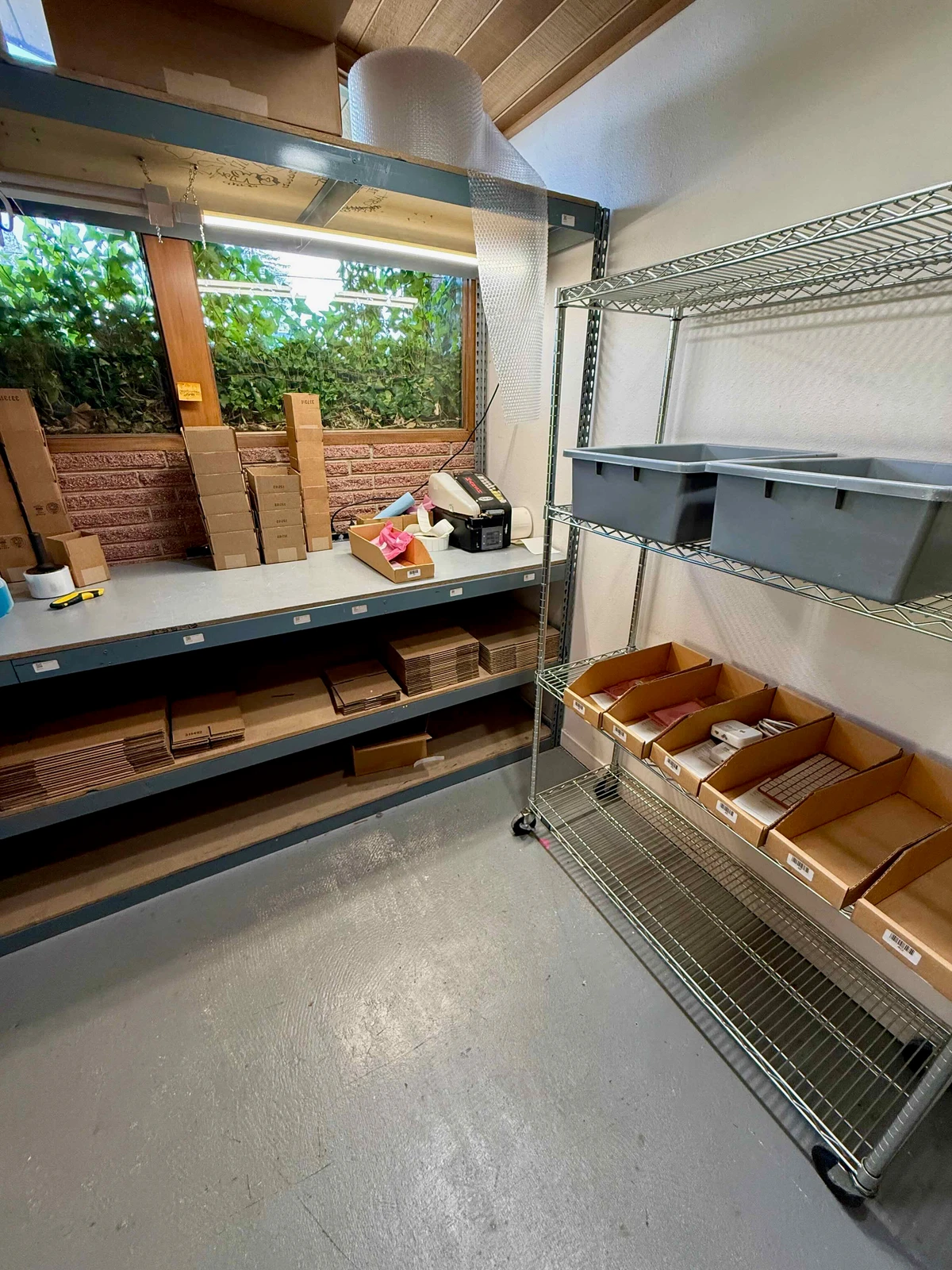
The package leaves.
The record stays.
The order is packed and ready to go. Purchase postage and print shipping labels through your marketplace or the shipping service you already use. Nothing about your shipping process needs to change.
When the sales channel marks the order as shipped, Ordovee updates its status and keeps the order in your history.
From sale to shipment, every order accounted for
Orders come together in one place, stock is accounted for, and picking and packing stay organized.
Keep selling and shipping the way you do today. Manage orders from your desktop and pick with a phone or handheld scanner, starting with the orders you already have coming in.
Walk through your orders with us