
Sold it. Now where is it?
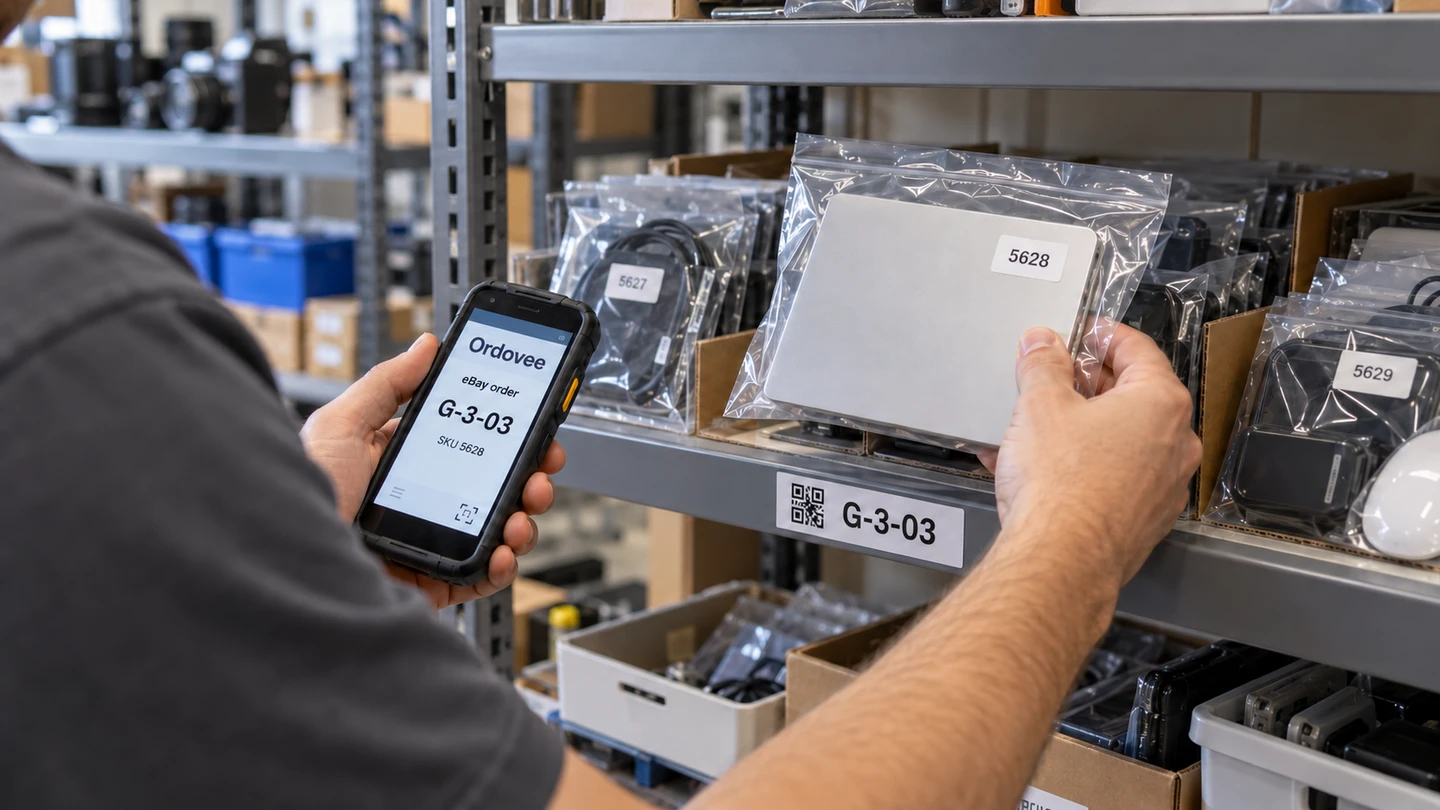
Find what sold without searching from shelf to shelf. Ordovee is eBay inventory management software that connects your existing listings to physical stock locations, available quantities, and order picking.
Will I need to rebuild everything?
Ordovee uses your existing eBay listings to create its own inventory records. Your eBay listings stay in place, while Ordovee’s item records are where you track your stock and fulfill orders. The SKU (Custom label on eBay) connects the two. You can use your current eBay quantities as starting inventory, then adjust them in Ordovee to match what’s actually on the shelf.
The eBay listing and its corresponding Ordovee item need to share the same SKU. If your listings don’t already have SKUs, Ordovee includes tools to generate them and prepare a file for eBay’s bulk upload, so you don’t have to update each listing individually.
Ordovee lets you track inventory as it’s received, moved, reserved, and sold. With inventory syncing enabled, it automatically keeps your eBay listing quantities aligned with what’s actually available to sell. You continue managing titles, photos, descriptions, and prices in eBay or your existing listing software, while Ordovee handles inventory and fulfillment.
Connect eBay to Ordovee, step by stepWhere is the item that just sold?
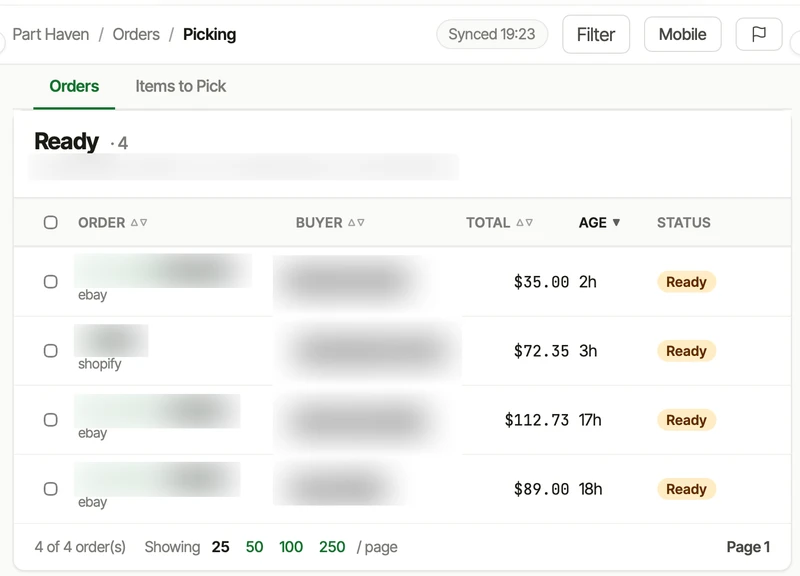
Ordovee automatically brings in your eBay orders, matches each sold item’s SKU to its inventory record, and identifies where it’s stored. Using a phone or handheld scanner, the picker can see exactly which location to go to. If the item is stored in more than one place, Ordovee shows the locations and quantities at each.
You can organize your storage space one shelf at a time. Warehouse organization, one shelf at a time explains how to get started, while Scanner-first picking shows how those locations guide the picking process.
What’s in stock vs. what’s available to sell?
Having an item on the shelf doesn’t always mean it’s available to sell. Some inventory may already be committed to orders that haven’t been picked or shipped.
Ordovee tracks three quantities for each item: what’s on hand, what’s reserved for existing orders, and what’s still available to sell. For example, if you have three units on hand and one is reserved for an eBay order, only two remain available for another sale.
As inventory is received, sold, or adjusted, Ordovee keeps a record of those changes. If a physical count doesn’t match what’s recorded, you can correct it with a reason, so there’s a history of how your inventory quantities changed.
How reservations hold stock between the sale and the pickRight item. Right order.
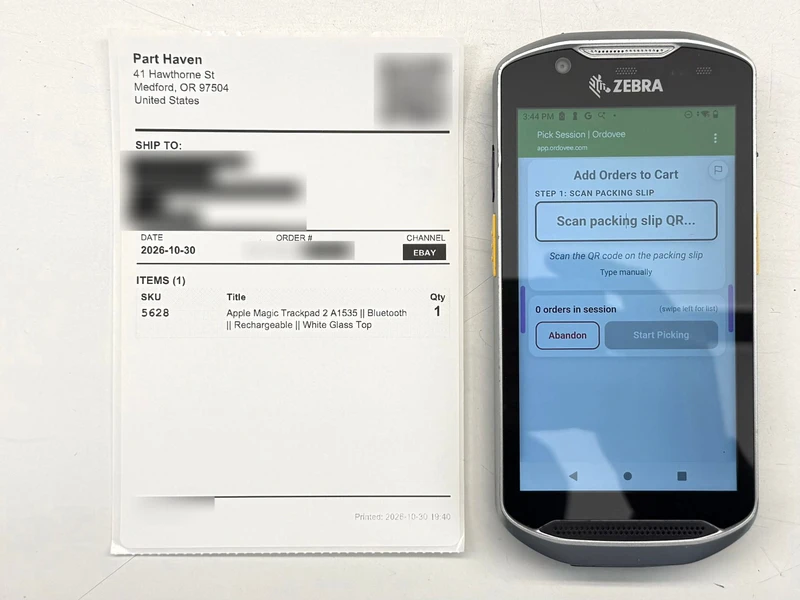
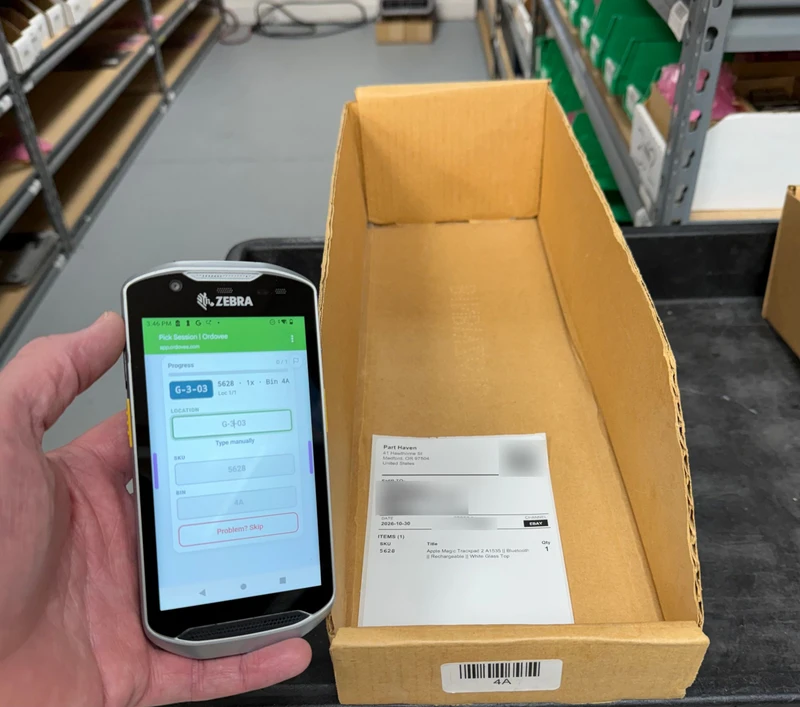
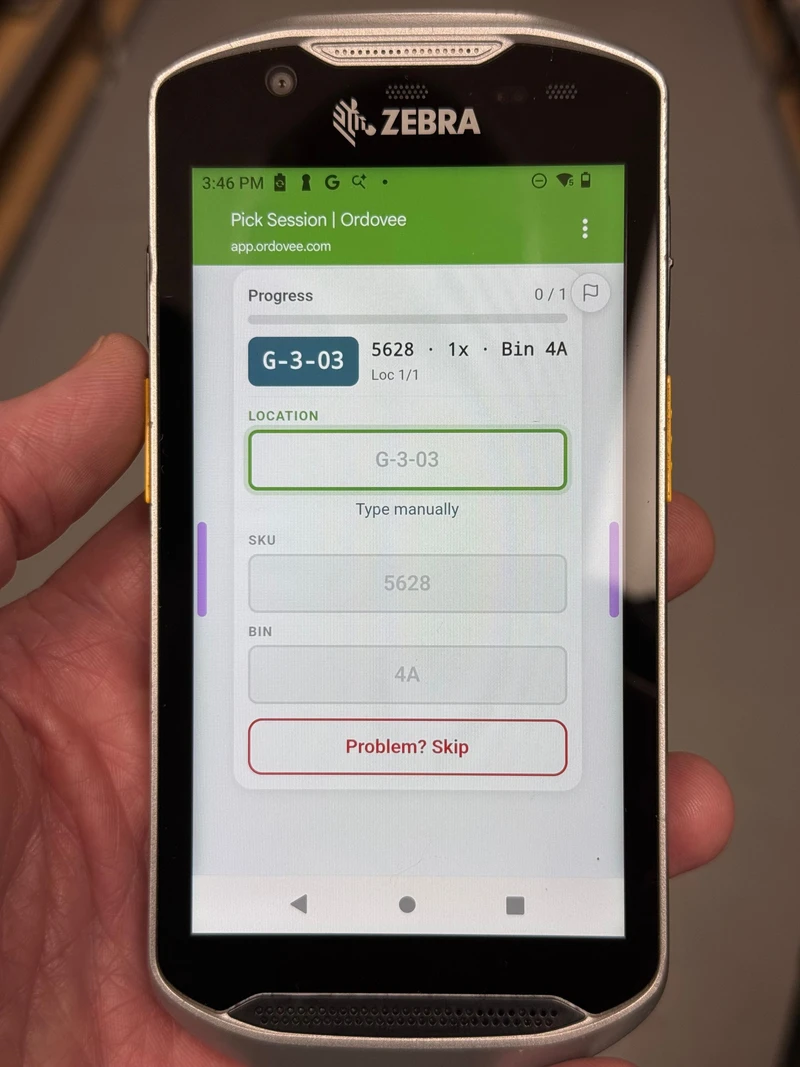
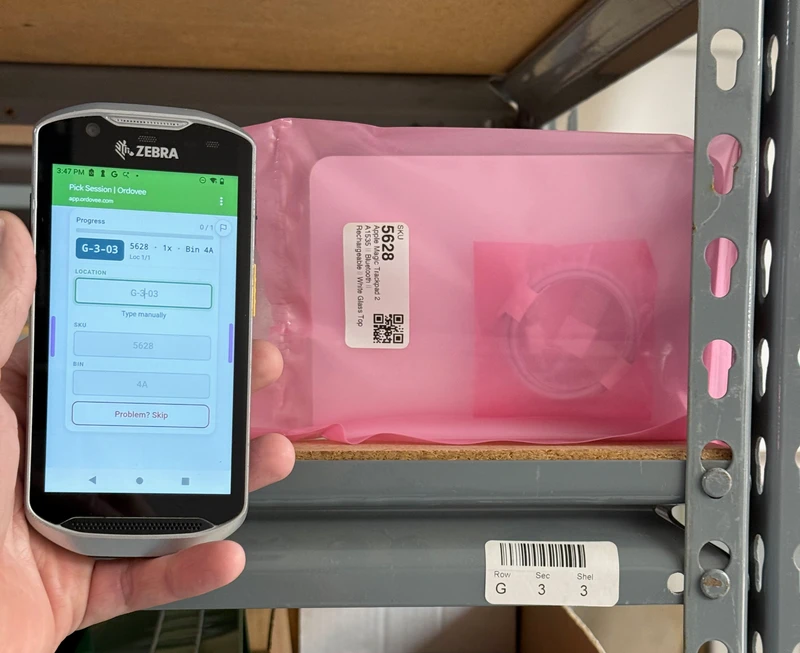
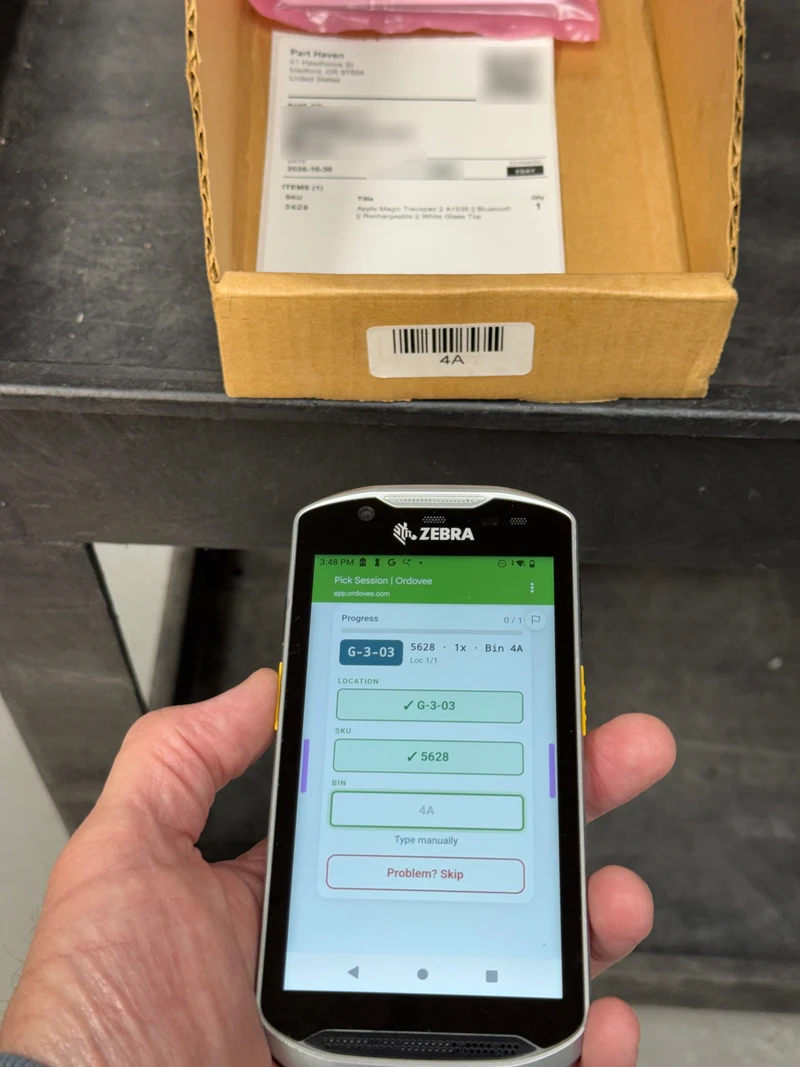
Ordovee follows a three-scan process to confirm you’re at the right location, taking the right item, and adding it to the right order. If something doesn’t match at any point, the system pauses the process, helping catch mistakes before the wrong item gets packed or shipped.
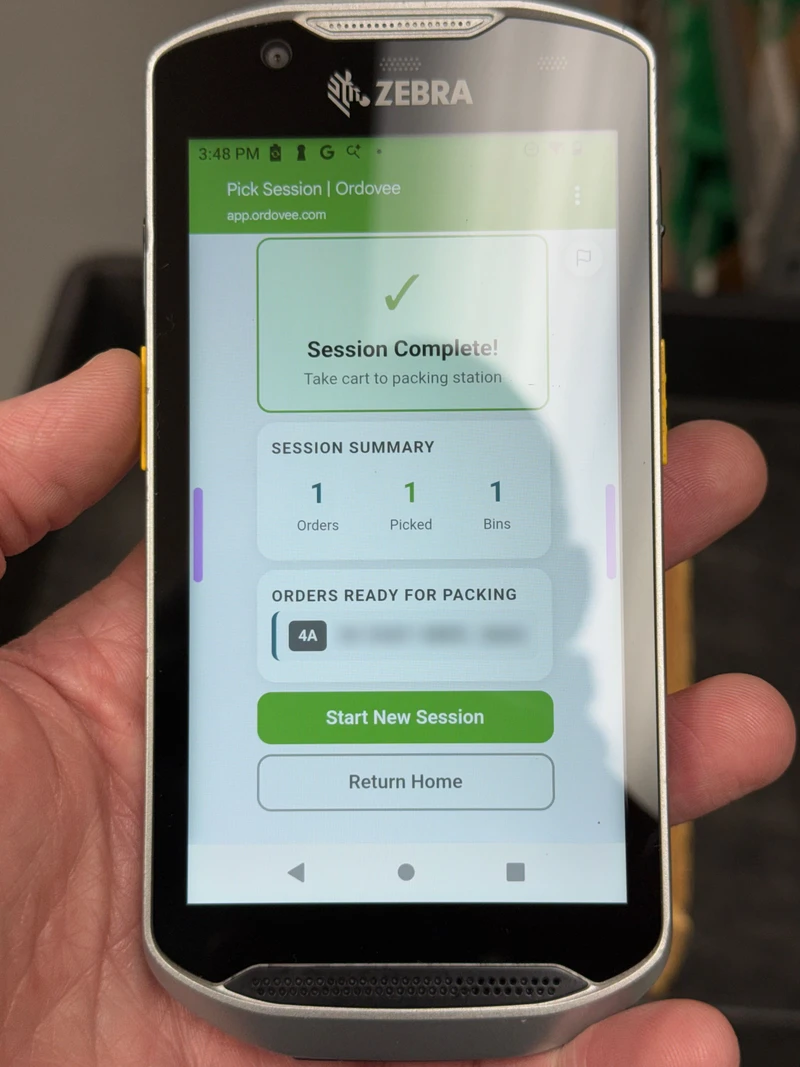
Picking several orders at once? Ordovee lets you assign each order to its own container on a picking cart. Instead of walking back and forth through the warehouse for each order, the system guides you from location to location, collecting items for several orders in one trip. As you pick each item, Ordovee confirms you’re placing it into the container assigned to the correct order. Once picking is complete, each container holds the items for its order, ready to be packed and shipped.
Here is that sequence on a real eBay order.
Scanner-first picking, step by stepSee an eBay order picked
This is a real eBay order at Part Haven, the parts business we built Ordovee to run. Follow it from the moment it arrives in Ordovee to the point where it’s ready to pack.
How does Ordovee keep my eBay inventory updated?
Your inventory changes throughout the day, but your eBay listings don’t always keep up. That can mean selling stock that’s already spoken for, missing sales on inventory you actually have, or spending valuable time correcting quantities by hand.
Ordovee takes care of that work for you. As you receive inventory, fulfill orders, and make stock adjustments, Ordovee tracks what’s available to sell and can automatically reflect those changes on eBay. You manage your inventory in one place instead of constantly going back to your listings to correct quantities.
Ordovee also identifies inventory you have on hand that isn’t currently listed on eBay, helping you spot items that could be offered for sale.
How Ordovee keeps eBay inventory in syncWhat does getting started look like?
You’ve already done much of the work. Ordovee uses your existing eBay listings to build your inventory records, so there’s no need to recreate your catalog. If your inventory is in a spreadsheet, you can bring it in through CSV import too.
Your starting inventory can all be placed in one temporary location called START. From there, you can organize your storage space at your own pace, without having to reorganize everything before you begin.
Start with one shelf, exactly as it is. Give it a name, print a scannable location label, and use your phone or handheld to scan the items already sitting there out of START and onto that shelf. Nothing needs to be physically moved — you’re simply moving their inventory records from START to the shelf where they’ve been all along.
Do one item or a hundred, at your own pace. Everything you haven’t organized yet remains accounted for in START, while each item you’ve scanned now has its actual storage location recorded. You can work through your entire storage space this way, one shelf at a time, without losing track of your progress.
How to organize warehouse inventory one shelf at a time walks through the approach in more detail.
And we’re here to help. Whether you’re connecting your listings, establishing your starting inventory, or getting familiar with the daily workflow, our team can help you get started.
See the complete getting-started guideQuestions eBay sellers ask first
Do I have to recreate my eBay listings?
No. Ordovee works from the listings you already have. Your eBay listings and Ordovee inventory records need matching SKUs, and Ordovee provides tools to help add missing codes. The setup guide explains the process for supported listing types.
Do I have to reorganize my whole space first?
No. Start with one shelf, exactly as it is: label it, record what’s already on it, and add locations as you go.
Can I scan with my phone?
Yes. A phone’s camera reads Ordovee’s QR labels, and a pick runs the same three scans on a phone as on a Zebra handheld.
Does Ordovee work if I only sell on eBay?
Yes. Ordovee connects to eBay on its own, and Shopify can be added later if you start selling there.
Can I keep my shipping tools?
Yes. Buy postage and print shipping labels where you do now. When eBay shows the order shipped, Ordovee records it.
Does Ordovee handle parts and compatibility?
Yes. If you sell parts, Ordovee’s Parts Intelligence adds catalog and compatibility tools on top of the same inventory, when your business needs them.
Your next sale shouldn’t start a search.
You’ve seen how an eBay order moves from the sale to the shelf and through picking. Now see how that workflow would fit the inventory and storage space you already have.
You don’t need to rebuild your listings or reorganize your entire warehouse to get started. We’re here to help you put Ordovee to work with the inventory you already have.
Still deciding whether inventory software makes sense for your business? Read our guide for eBay-only sellers.