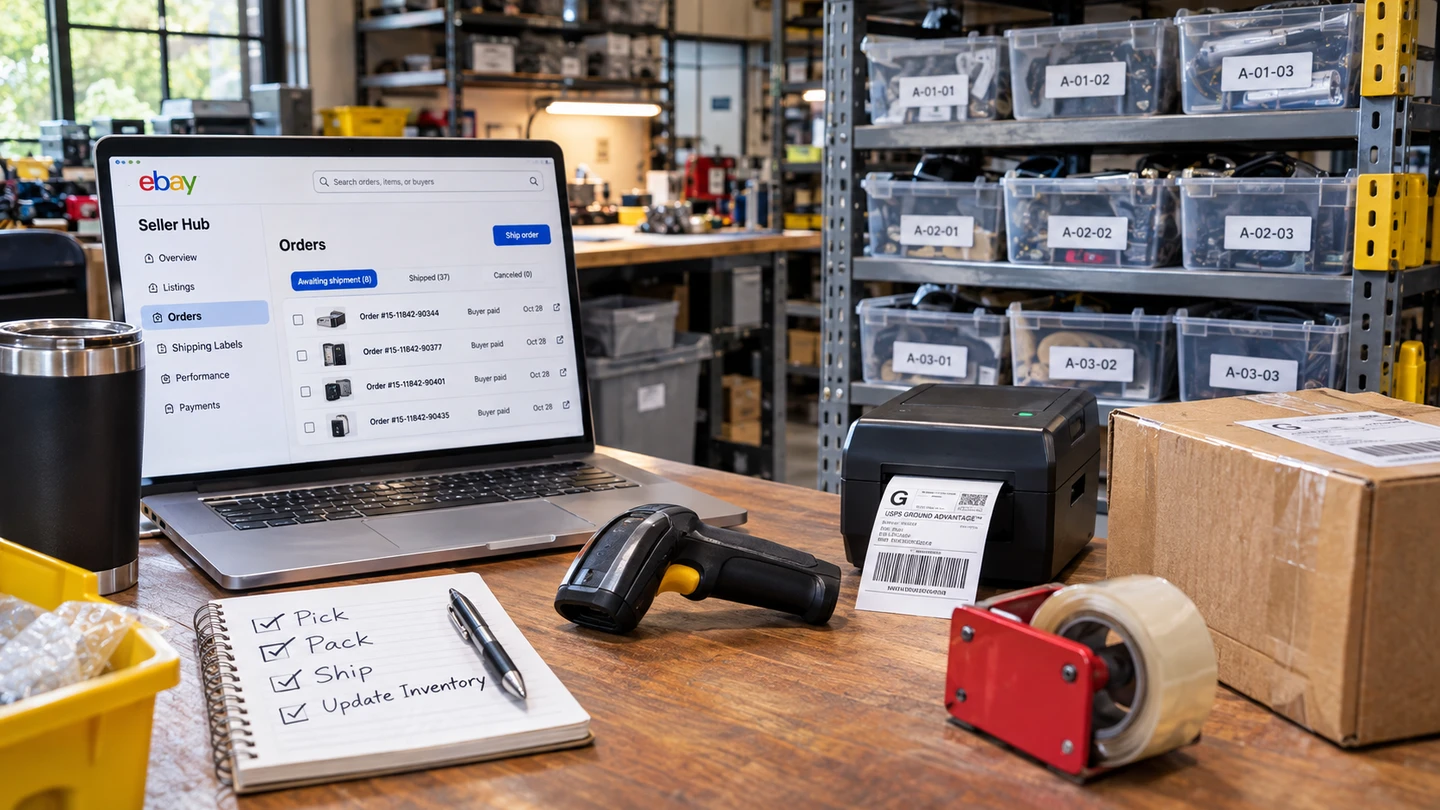
I sold it. Now where did I put it?
A sale should be good news, not the start of a search. But when what’s listed for sale isn’t connected to where it’s stored, finding an item can take longer than packing and shipping it. And when that item can’t be found at all, a completed sale can turn into a canceled order and an unhappy customer.
The solution is inventory control: knowing what you have, where it is, and what’s available to sell — without having to hunt for it. This guide shows how to put that in place with Ordovee, starting with your storage space and the eBay or Shopify listings you already have. Not sure inventory software is worth it yet? When inventory software is worth it for an eBay seller weighs the work of managing stock by hand against the cost of a system.
Start with locations
When stock is spread across shelves, racks and boxes without a consistent way to identify where things are, finding one item can mean searching several places. The more inventory there is, the more time that search can take.
A location system solves that problem. Give each storage spot a name, record what goes there, and finding an item becomes a matter of looking up its location instead of searching for it.
You don’t have to organize the entire warehouse at once. How to organize warehouse inventory one shelf at a time walks through that process, from choosing your first shelf to building a naming system that grows with your space. Once the names need a format, Warehouse location codes covers codes that sort in walking order and labels that last.
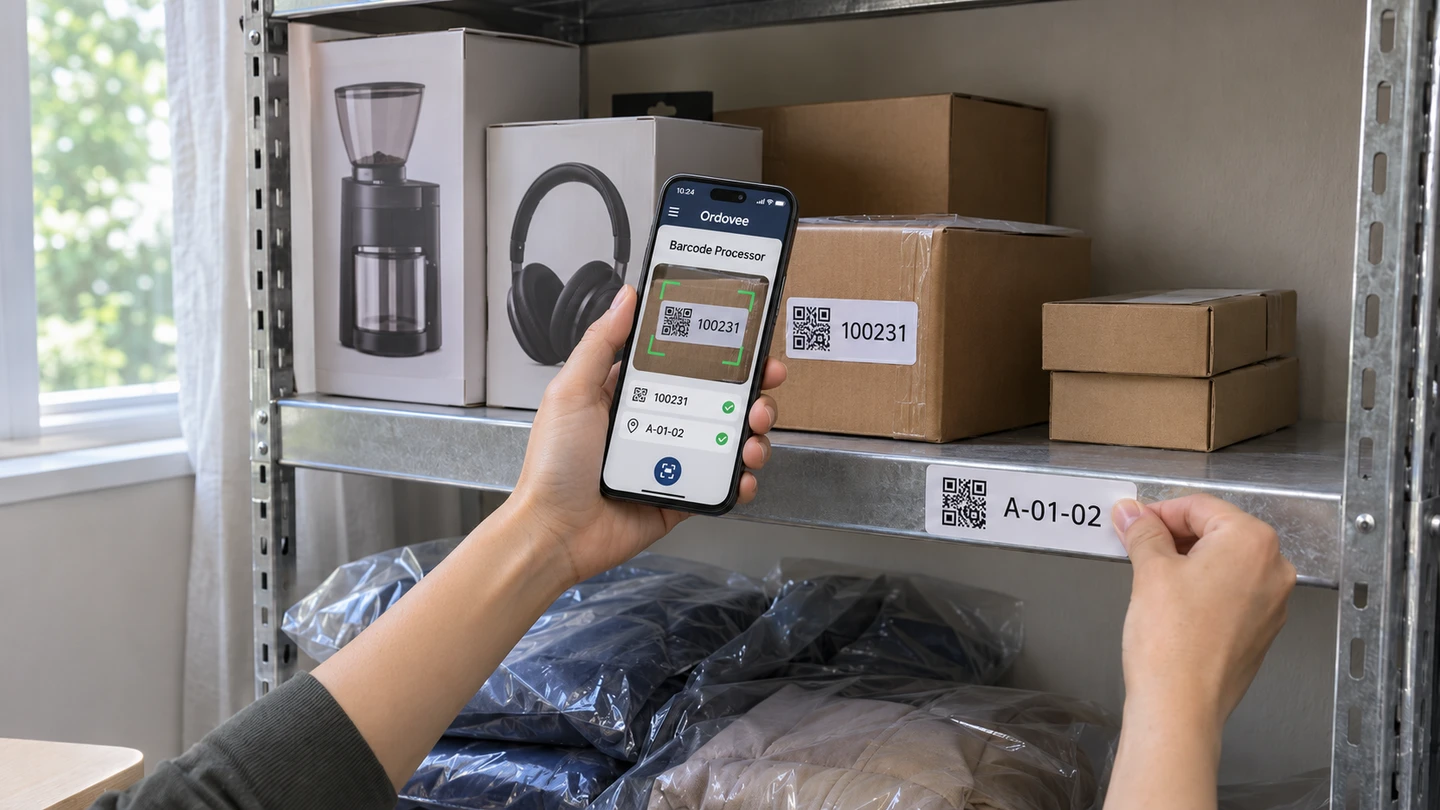
In Ordovee, each location gets its own code. You can print a QR label for it, so the location becomes something your team can scan. Putting an item away is a scan of the location’s label, then the item’s, and looking up a SKU shows every location holding it. Warehouse organization, one shelf at a time is the Ordovee side of that method: what the system gives back from the first named location, before the rest of the space is set up.
Bring marketplace records into Ordovee
Your eBay listings and Shopify products already contain much of the information about what you sell. A lot of the hard work is done, and there’s no reason to start over.
Ordovee uses that existing information to build your item catalog. From there, you can connect each item to where it’s stored and how much you have on hand.
A SKU is the reference code that connects an item in Ordovee to its corresponding marketplace listing or product. Creating the item and setting its opening quantity are separate steps. Starting quantities can be placed at the temporary START location, then moved to their actual storage locations as you organize your space.
The eBay setup guide and Shopify setup guide walk through their respective processes, including SKU and inventory checks. If your records are in a spreadsheet, CSV import lets you preview the rows before anything is written.
On hand, reserved and available
Having three on the shelf doesn’t always mean three are available to sell. Some may already be committed to orders that haven’t been picked.
That’s why Ordovee tracks three numbers for every item: what’s on hand, what’s reserved for orders, and what’s still available to sell. If you have three units on hand and one is reserved, two remain available. Every addition, removal, move and correction is a line in the ledger, so a count can be traced back through the changes that produced it.
How ledger-based inventory works in Ordovee walks the three numbers and the history behind them, and cycle counting helps reconcile the shelf and the record a group of locations at a time, while orders keep moving.
Keep eBay and Shopify quantities in step
When the same stock is offered on eBay and Shopify, a sale on one channel can leave the other advertising an item that’s no longer available. That gap creates the risk of selling something twice.
With auto-push on, Ordovee sends each matched listing the item’s available quantity on the next quantity push. Auto-push is off on every new connection until you turn it on, so you can check your matches and counts first. How Ordovee keeps eBay and Shopify inventory in sync covers what syncs, what stays with your listing tools and how listings match items by SKU.
If the same item is listed more than once, or on both channels, How to stop overselling on eBay and Shopify shows how one shared count narrows the window between a sale and the update to the other listings. New listings come in on the scheduled sync, and you can pull new eBay listings in on demand when you’d rather not wait. Ordovee also shows the items you have in stock that no listing offers; creating the listing stays with you.
Pick orders by scanning, then pack and ship
Once an order comes in, the goal is simple: find the item, confirm it’s the right one, and get it ready to ship.
Ordovee brings eBay and Shopify orders into one workflow and reserves the stock for matched order lines before picking begins. Order fulfillment in Ordovee follows an order from arrival to shipment. You can keep buying postage where you already do. Ordovee reflects the marketplace’s shipped status when that information is synchronized.
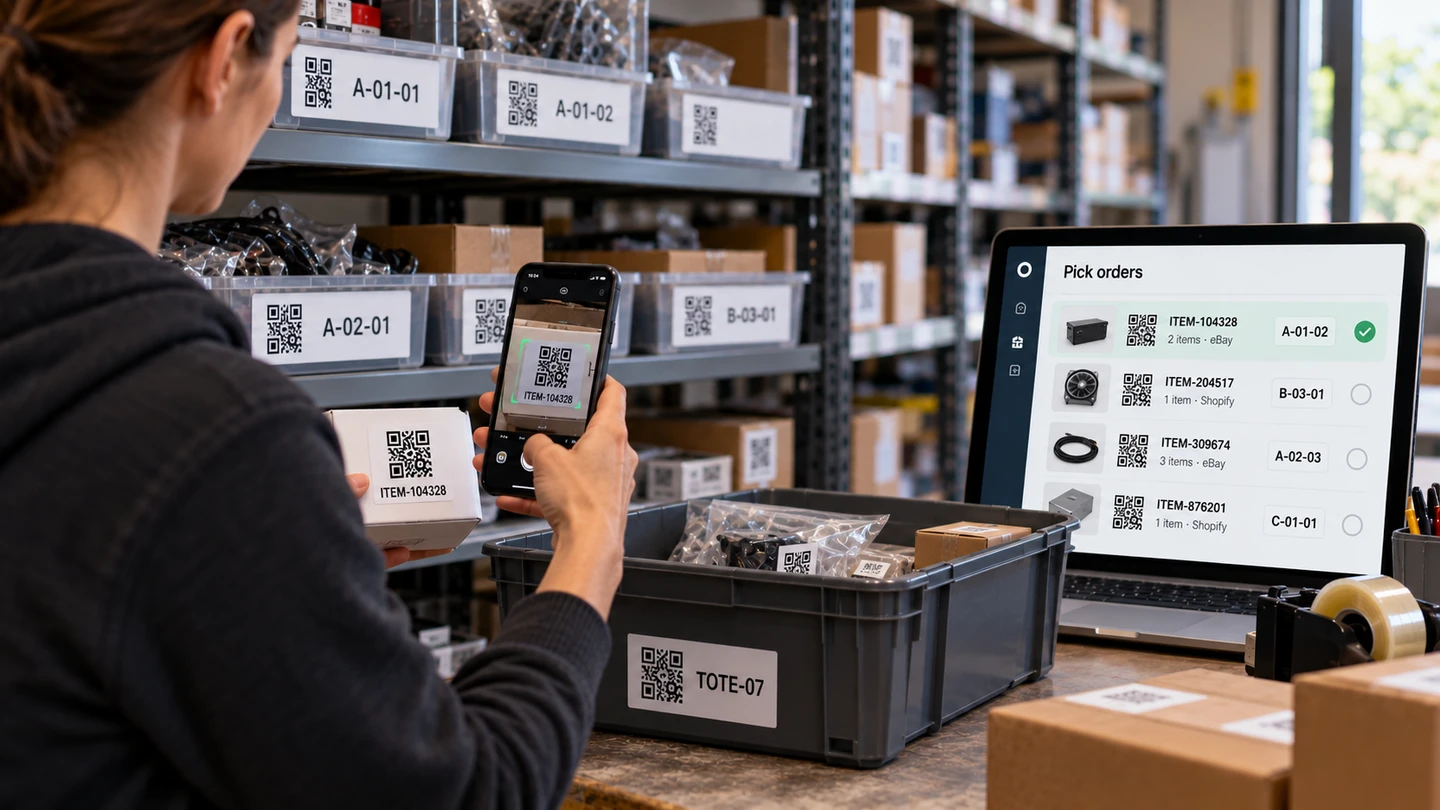
Picking runs on a phone or a handheld scanner, with three scans per pick — the location, the item and the tote the order is collected in — and several orders can go in one picking session, walked location by location. Scanner-first picking on the warehouse floor takes you through a full session. An order that hits a problem at the shelf can be set aside with a reason, for someone to sort out at the desk.
Spend less time searching. More time selling.
The work you’ve already put into your eBay listings and Shopify products can do more for your business. With Ordovee, that information connects to your shelves, your available stock, and the orders coming in — making it easier to find what sold and get it out the door.
Whether you’re selling everyday merchandise or recovering parts from equipment, the same inventory and warehouse tools are there to keep the work moving. Parts businesses also have specialized catalog and compatibility tools when they need them.
See Ordovee in your operation.
See how it works with your own inventory and workflow — no slides, no canned demo.